Listening toMusic
|
147
5. Tap the Albums tab at the bottom of the screen. A list of all albums appears.
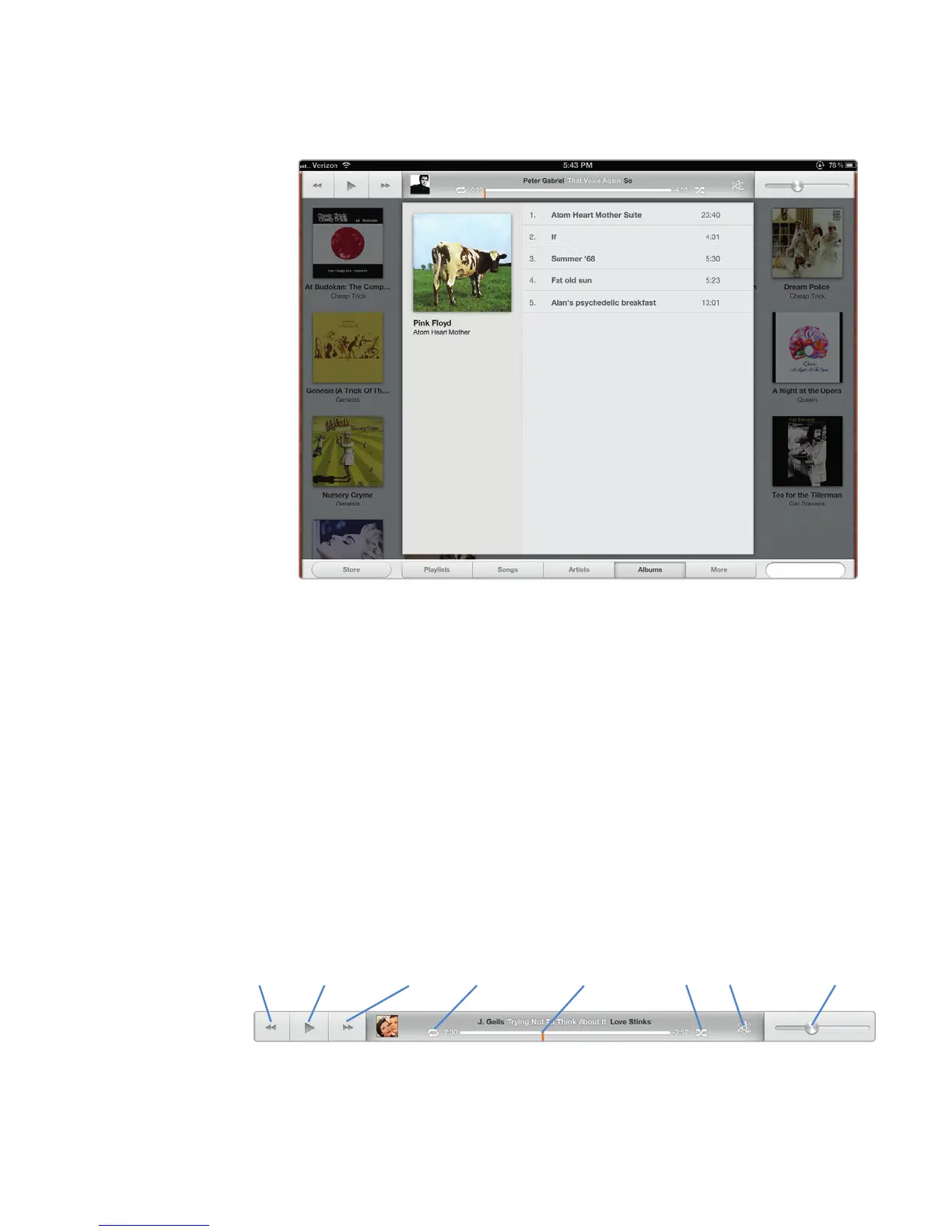
6. Tap an album cover. All songs from that particular album appear, as shown in
Figure 18-2.
7. Tap a song to start playing it. While a song plays, you can tap the Home
button and switch to another app while the song continues to play in the
background.
Q NOTE: When you select a song to play from the Songs tab, you’ll just play that
one song. If you select a song to play from the Playlists, Artists, or Albums
tab, you can play your chosen song and every song below it in that list.
Controlling a Song
Once you have found a song to play, you can control how it plays and even how it
appears on the screen. When you play a song, you have several options for control-
ling playback, as shown in Figure 18-3.
FIGURE 18-2: You can also play songs by album.
FIGURE 18-3: Song controls appear at the top of the screen.
Volume sliderPlayhead sliderRepeat ShuffleBack Play/Pause Forward Genius



 To Next Page