Watching Video Podcasts, iTunes U Classes, and YouTubeVideos
|
161
Additional Ideas for Watching Videos
By loading educational podcasts or iTunes U courses, you can improve your cur-
rent work skills or develop new ones. For the intellectual challenge, download
video iTunes U courses on topics that interest you so you can turn your iPad into
aportable educational tool.
Bring along a pair of headphones or ear buds so you can watch a video on
your iPad without disturbing others (although others will likely disturb you so they
can see how the iPad works).
To avoid cramming too many videos onto your iPad, you can store videos on
your PC or Mac and then stream your video to your iPad. This lets you watch videos
on your iPad without having to store them on your iPad.
To stream videos, you need a Wi-Fi network. On your computer, open iTunes,
click the Advanced menu, and choose the Turn On Home Sharing option. You’ll
need to get a free Apple ID to turn on this feature, but then you’ll be able to watch
videos on your iPad without going through the hassle of transferring those video
files between your iPad and your computer.
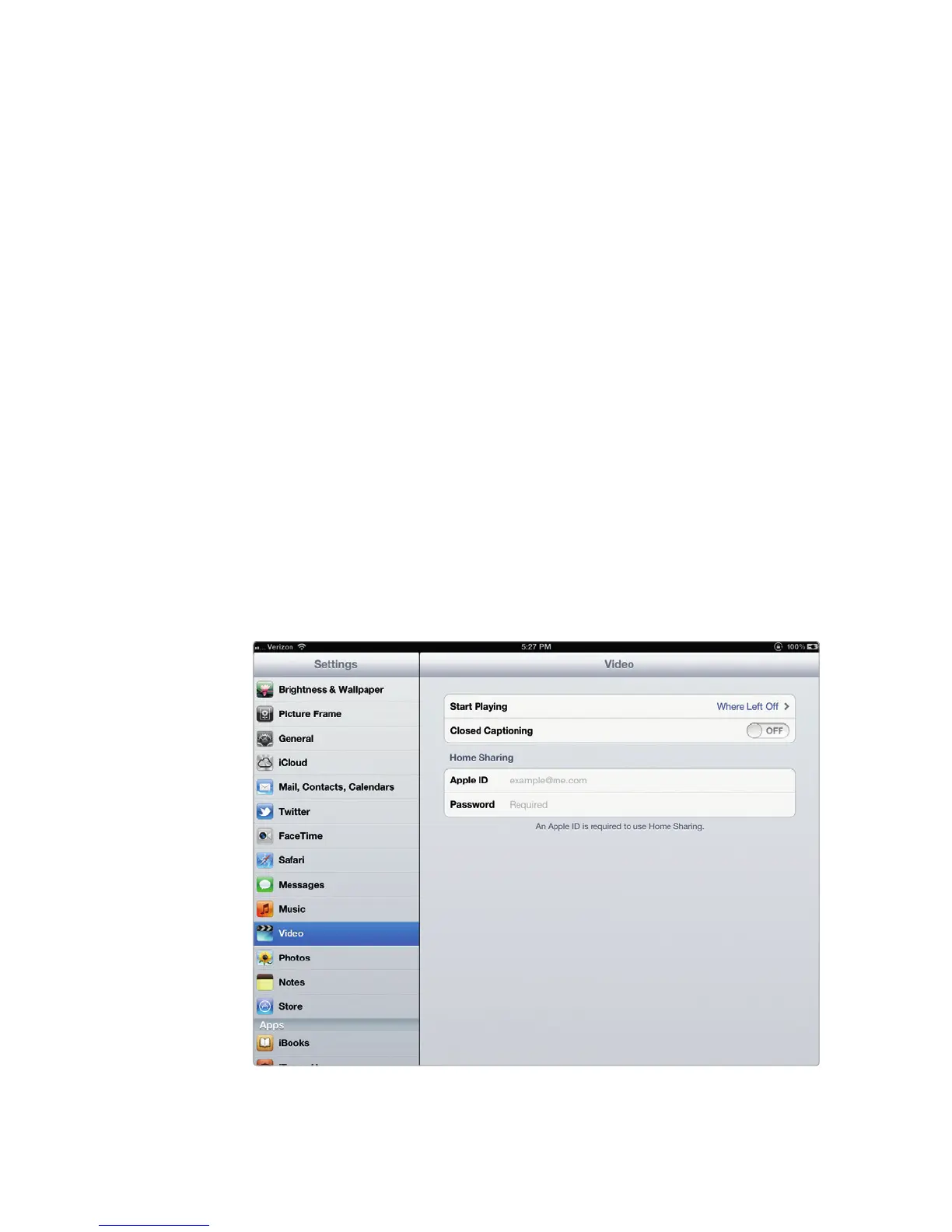
Now on your iPad, tap Settings and when the Settings screen appears, tap
Video. Under the Home Sharing category, type your Apple ID and password, as
shown in Figure 19-8.
To get even more out of watching YouTube videos, visit YouTube’s website
(http://www.youtube.com/ ) and create an account for free. With a free YouTube
account, you can upload your own videos (and view them using the My Videos
icon), create video playlists (and view them through the Favorites icon), or sub-
scribe to certain YouTube video creators.
FIGURE 19-8: Add your Apple ID in the Video settings screen to
enable Home sharing.



 To Next Page