160
|
Chapter 19
3. Tap anywhere on the screen to display the controls again. Notice that when
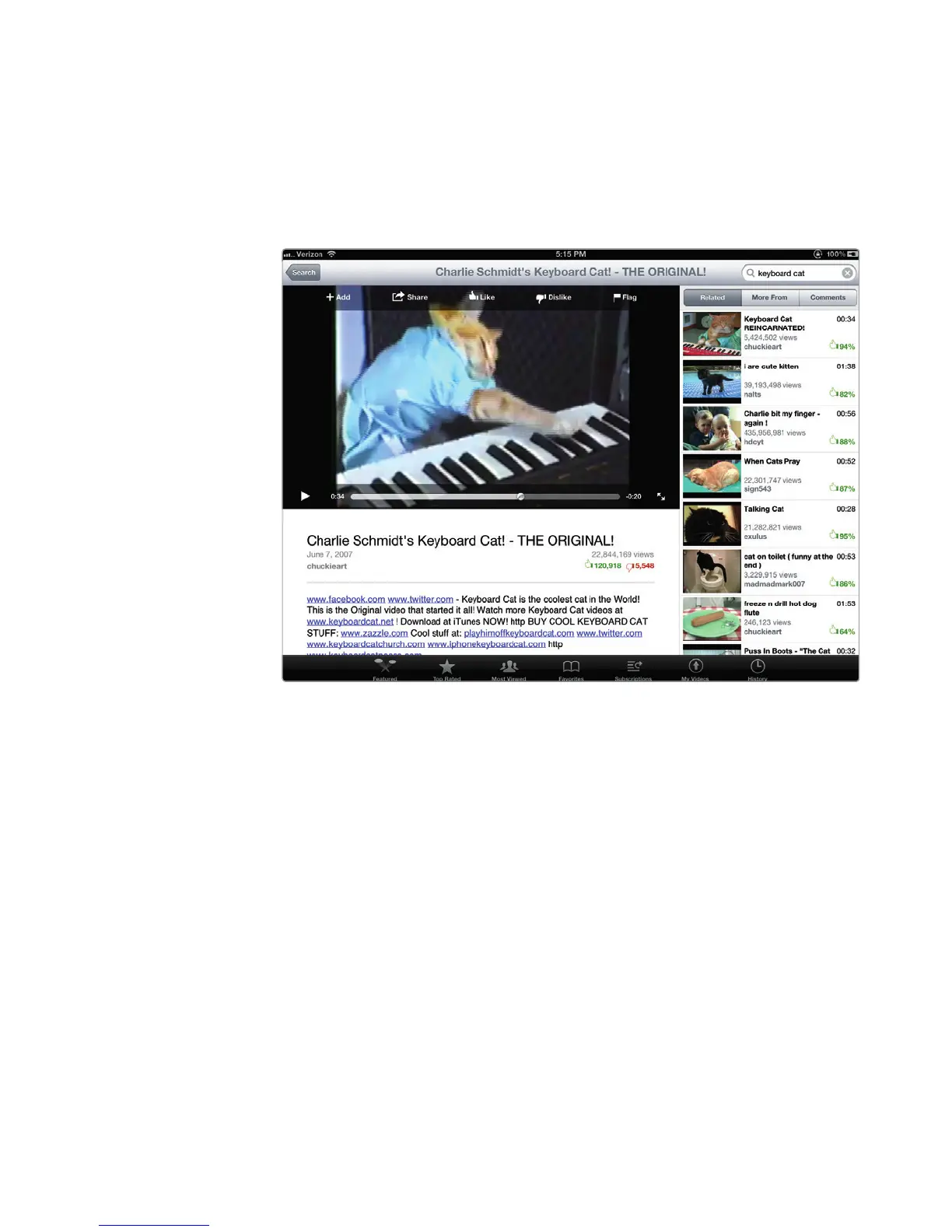
the video appears on part of the screen, the Add, Share, Like, Dislike, and
Flag icons appear at the top of the video.
4. Tap Shrink. The video shrinks to fill part of the screen, as shown in Fig-
ure19-7. Tap the small screen, and you can Add, Share, Like, Dislike, or
Flagavideo.
5. Tap Full Screen. The video expands to fill the entire screen.
Searching for a YouTube Video
Since YouTube contains thousands of videos, you probably don’t want to spend
your time browsing through each one. To find a specific type of video, you can
type a descriptive word or phrase and let YouTube show you only those videos
thatmatch your search criteria.
To search for a YouTube video, follow these steps:
1. From the Home screen, tap YouTube. The YouTube screen appears.
2. Tap the Search field that appears in the upper-right corner of the screen.
The virtual keyboard appears.
3. Type a descriptive word or phrase, and tap the Search key on the virtual
keyboard. (To clear any text in the Search field, tap Close in the far right of
the Search field, or tap the Backspace key on the virtual keyboard.) YouTube
displays a list of videos matching your search criteria.
FIGURE 19-7: Tapping the Shrink button lets you find related videos
and read the video’s description and comments.



 To Next Page