Watching Video Podcasts, iTunes U Classes, and YouTubeVideos
|
159
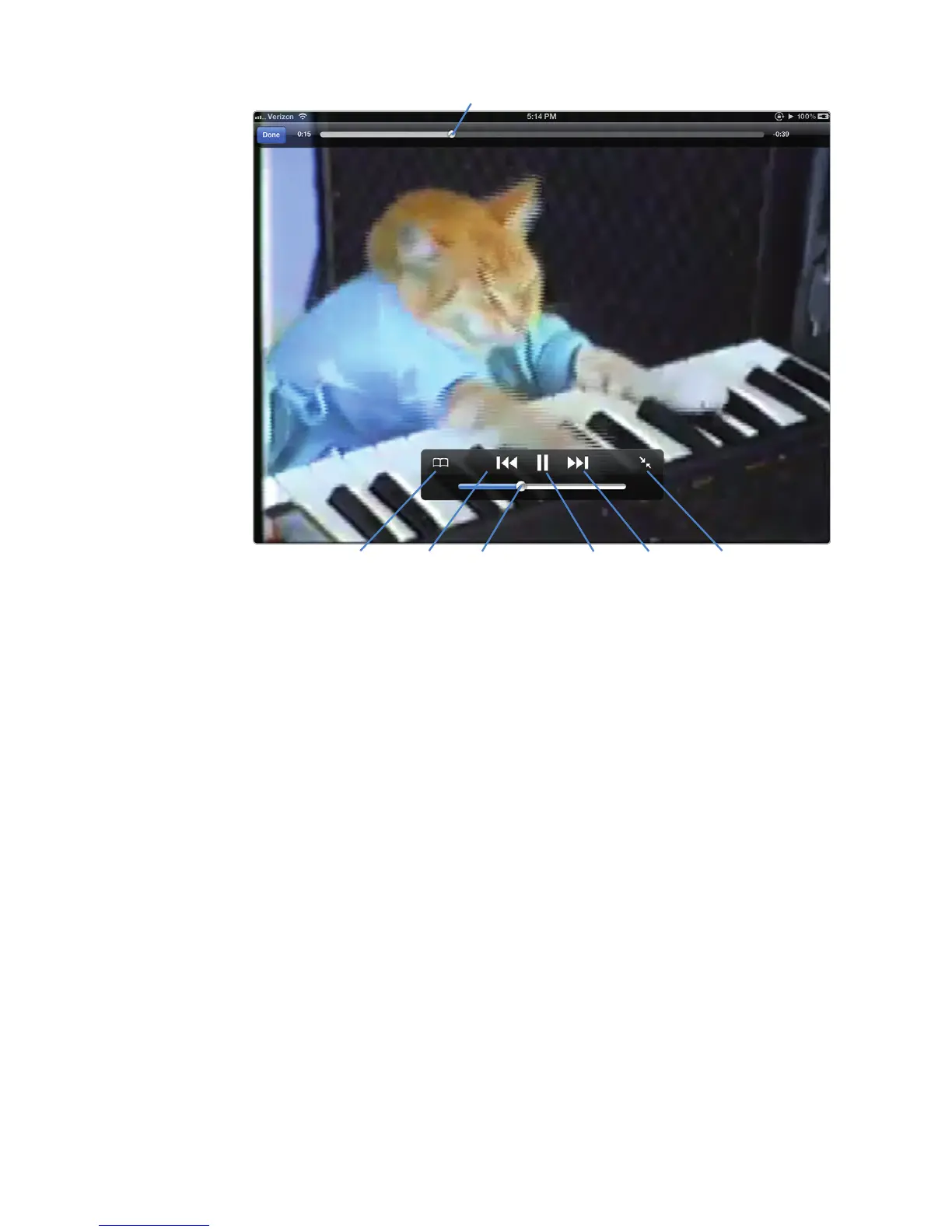
The available controls are as follows:
> Playhead slider Drag this left and right to play parts of the video.
> Bookmark/Add Tap to store this video in your Favorites list.
> Rewind Tap to rewind to the beginning of the video or play the previous
video in a list. If you hold your finger over the rewind button, you can quickly
skip back through a video.
> Play/Pause Tap to pause or resume playing of a video.
> Volume slider Drag this left and right to adjust the volume.
> Forward Tap to play the next video in a list. If you hold your finger over the
forward button, you can quickly jump ahead in a video.
> Full Screen/Shrink Tap to expand the video to fill the screen; tap a second
time to shrink the video slightly.
To see how to control a video, follow these steps:
1. Follow the steps in “Choosing a YouTube Video” on page 157 to find a
video you want to play.
2. Tap the image that represents the video you want to play. Your chosen
videoappears on the full screen and displays controls briefly (see Fig-
ure19-6). After a few seconds, the controls disappear.
FIGURE 19-6: Tapping a playing video displays the controls.
Full Screen/ShrinkForwardPlay/PauseRewindBookmark/Add Volume slider
Playhead slider



 To Next Page