164
|
Chapter 20
What You’ll Be Using
To read ebooks on your iPad, you need to use the following:
The iBooks app
Opening (and Closing) an Ebook
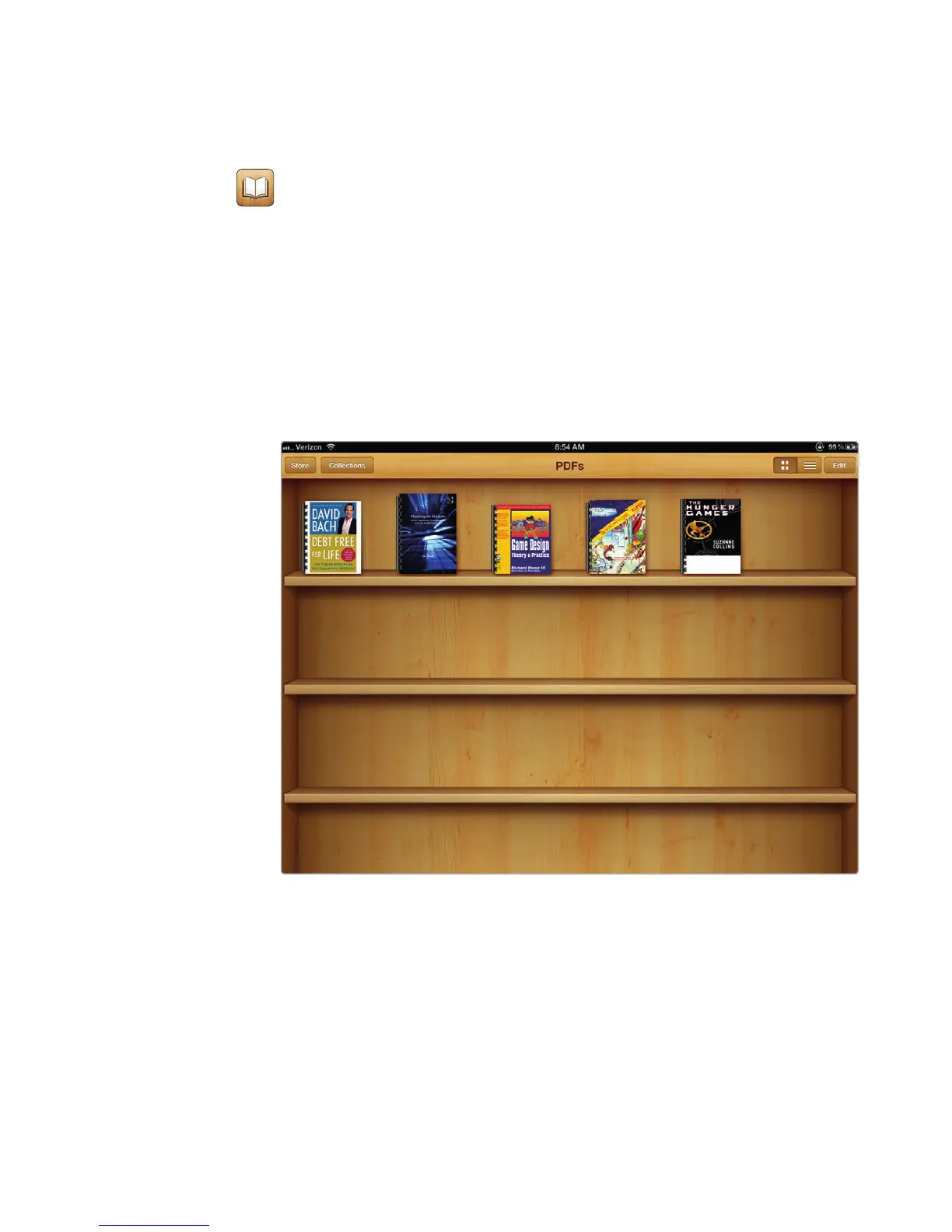
The iBooks app displays all your ebooks as books on a virtual shelf. If you start
stuffing iBooks full of ebooks, you may need to scroll down to see the rest of your
ebooks.
To open an ebook, follow these steps:
1. From the Home screen, tap iBooks. The iBooks screen appears, as shown in
Figure 20-1.
2. Tap Collections and choose Books (EPUB and iBook files) or PDFs.
3. Tap the image of the book that you want to read. If you chose an ebook from
the Books category, it opens with animation that mimics the opening of a
real book.
Q NOTE: Your ebook opens to the last page you viewed before exiting the
iBooksapp.
FIGURE 20-1: The iBooks virtual shelf



 To Next Page