Reading Ebooks
|
165
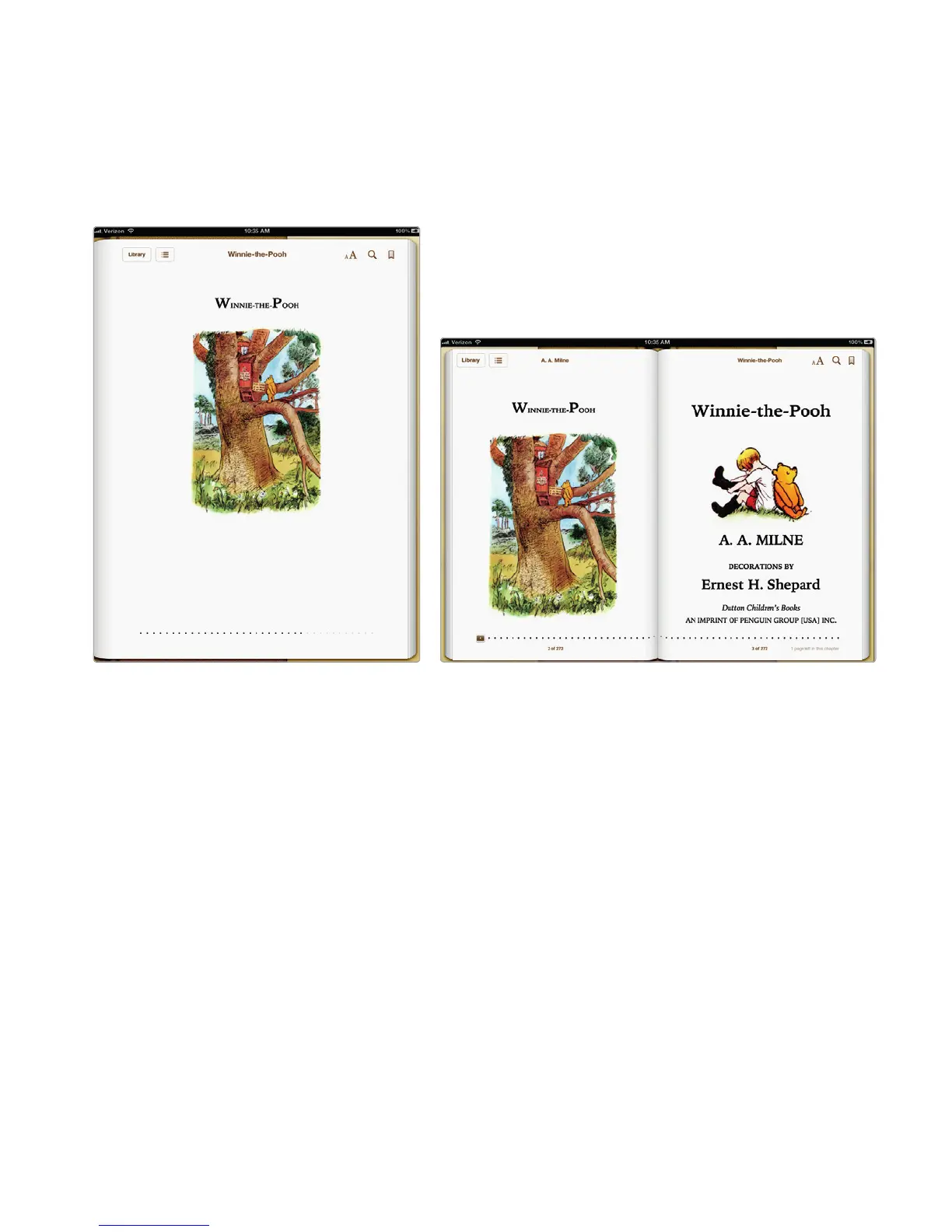
4. Flip your iPad to view both landscape and portrait modes, as shown in Fig-
ure20-2. In landscape mode, the ebook appears as two pages. In portrait
mode, the ebook appears as one page. (PDF files appear only as asingle
page in both portrait and landscape mode.)
5. Tap the screen and tap Library in the upper-left corner of the screen. The
virtual bookshelf screen reappears. You can now choose another book to read.
Turning the Pages of an Ebook
In addition to simply paging through your ebook, you can also jump to a new page
by using bookmarks or the table of contents.
Turning One Page at a Time
While reading an ebook, you’ll spend most of your time turning pages one at a
time. If you want to turn to the next page, place your finger on the right margin and
swipe your finger to the left. If you want to see the previous page, place your finger
on the left margin and swipe your finger to the right. Either swiping motion curls
the page as if you were turning a real book page, as shown in Figure 20-3.
You can also just tap the right margin (to view the next page) or the left mar-
gin (to view the previous page).
To turn pages when viewing a PDF file, just swipe your finger to the left (to
view the next page) or to the right (to view the previous page).
FIGURE 20-2: Viewing an ebook in portrait and landscape modes.



 To Next Page