Reading Ebooks
|
167
Jumping to Any Page in an Ebook
Rather than turn pages one at a time or jump to specific chapters or sections in an
ebook, you might just want to jump to a certain page in your ebook. To jump to
any page in an ebook, follow these steps:
1. While reading an ebook in iBooks, flip through several pages, and tap a page.
2. Notice that the bottom of the screen displays the current page number, the
total number of pages in the ebook, and how many pages are left in that
particular chapter. In addition, a line of dots appears at the bottom of the
screen, which represents the pages of the ebook. A current page icon (it
looks like a brown square over one of the dots) can show you the relative
position of the currently displayed page compared to the total number of
pages in the ebook, as shown in Figure 20-6.
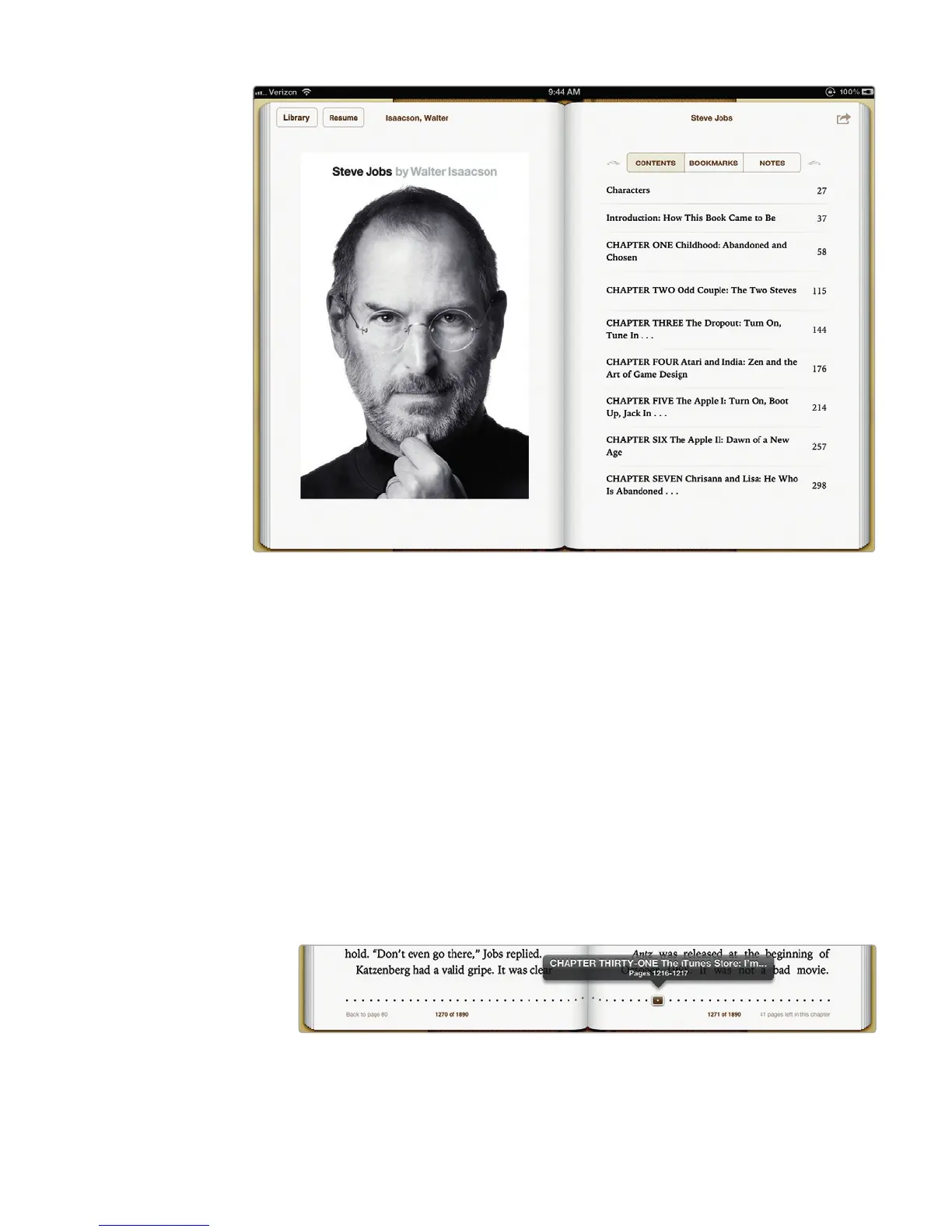
FIGURE 20-5: Tap a chapter title in the table of contents, and you’ll go to the
first page of that chapter.
FIGURE 20-6: The bottom of the screen lets you select a specific page.



 To Next Page