168
|
Chapter 20
3. Place your finger over the current page icon and slide it left or right over the
row of dots. As you slide the current page icon, a pop-up appears, telling
you the current chapter (or section) and page number.
4. Lift your finger off the screen to view a page. Your chosen page now appears.
Q NOTE: Ebooks in the iBooks app don’t have set page numbers like a physical
book. A book’s pagination depends on the font choices and the orientation of
your iPad (portrait or landscape).
Jumping to Any Page in a PDF File
When you’re reading a PDF file, you can jump to another page by following these
steps:
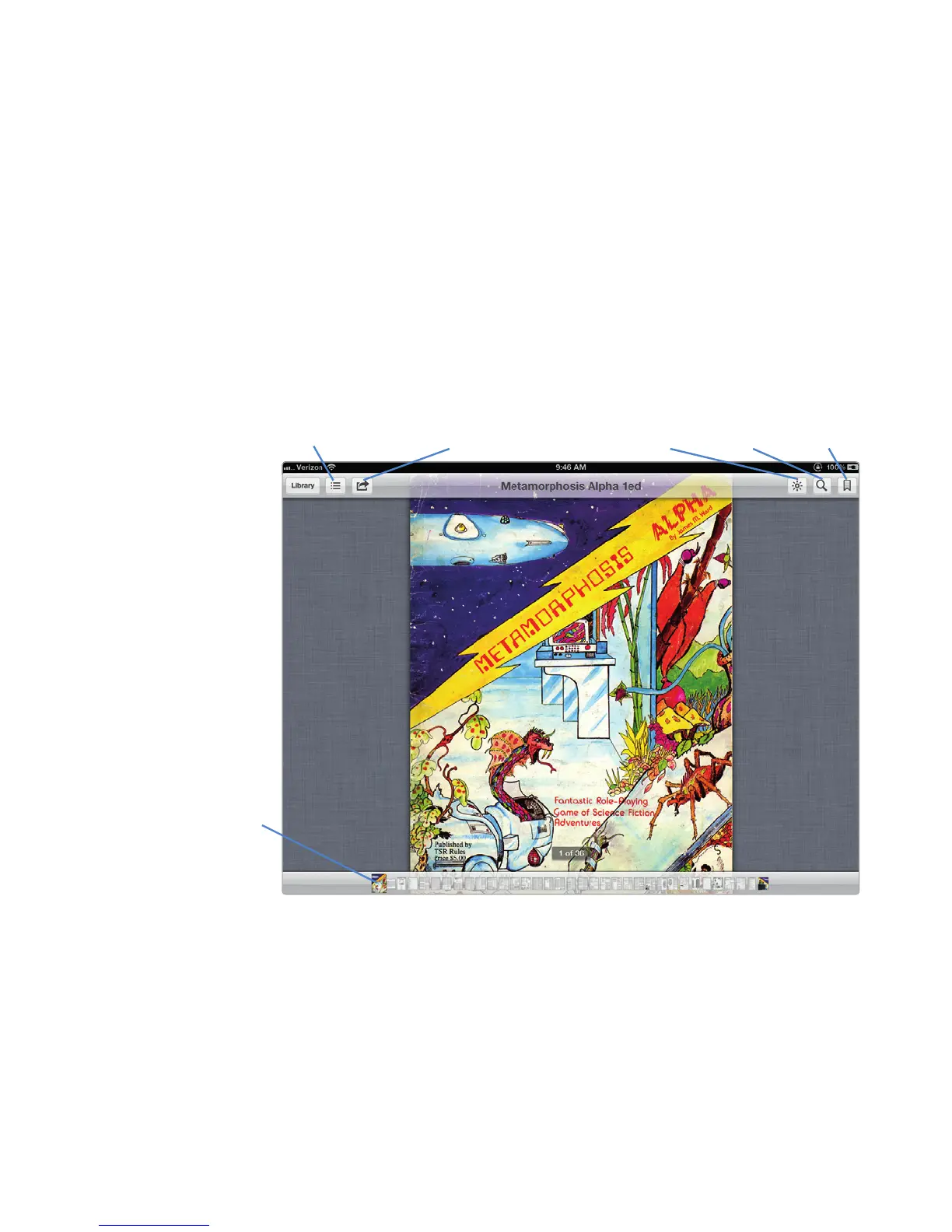
1. While reading a PDF file in iBooks, tap the page. Controls appear at the top
and bottom of the page, as shown in Figure 20-7.
2. (Optional) Tap a thumbnail of a page at the bottom of the screen. Your
chosen page appears.
3. (Optional) Tap the Display Thumbnails icon in the upper-left corner of the
screen. Multiple pages appear in rows and columns on the screen, as shown
in Figure 20-8. Tap the page you want to view, and that page appears on the
screen.
FIGURE 20-7: Tapping the screen displays controls at the top and bot-
tom of the screen.
Display Thumbnails SearchBrightness BookmarksAction
Skip to page



 To Next Page