Reading Ebooks
|
171
Using Bookmarks
With a paper book, it’s easy to stuff multiple bookmarks in various places in a
book so you can find certain pages again. With an ebook, you can’t stuff a piece
ofpaper in between its pages, but you can place multiple bookmarks.
Creating a Bookmark
To create a bookmark, follow these steps:
1. While reading an ebook in iBooks, open to a page that you want to bookmark.
2. Tap the Bookmark icon in the upper-right corner of the screen. The Book-
mark icon changes to red to show that you have placed a bookmark.
Jumping to and Deleting a Bookmark
After you have created one or more bookmarks, you can view and jump to them
at any time or remove the bookmarks altogether. To use and remove your book-
marks, follow these steps:
1. While using iBooks, tap the image of the book that you want to read that
contains a bookmarked page. (If you want to find a bookmark in a PDF file,
skip to step 5.)
2. For an ebook stored under the Books category, tap the Table of Contents
icon that appears in the upper-left corner of the screen. The table of con-
tents of your ebook appears.
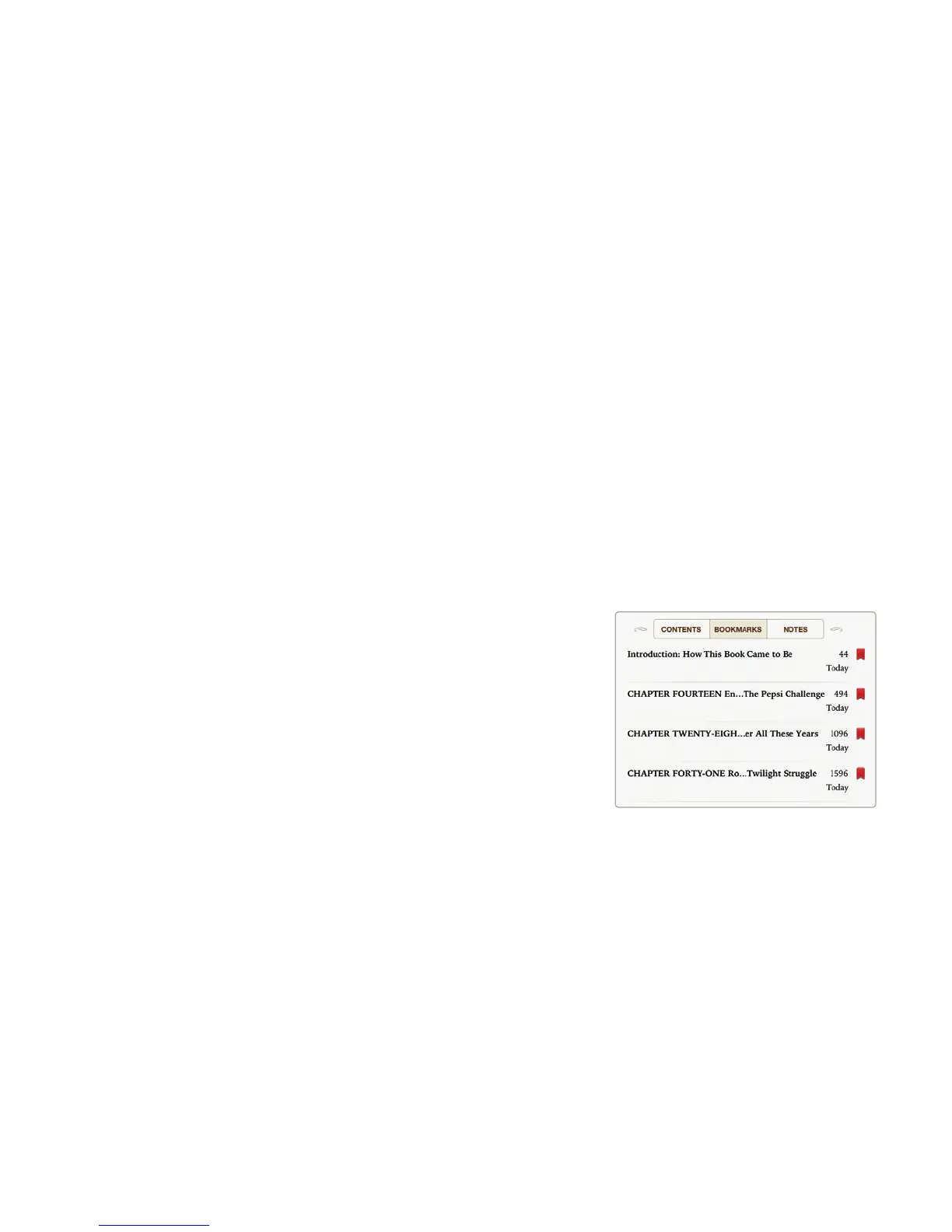
3. Tap the Bookmarks button that
appears at the top of your Table
of Contents page. A list of book-
marked pages appears, as shown
inFigure20-11.
4. Tap the bookmarked page that
youwant to view. (If you tap the red
Resume button in the top-right cor-
ner of the Table of Contents page,
you can jump to the last page you
viewed.) Your chosen bookmarked
page appears.
5. (Optional) To view bookmarks in a
PDF file, tap the Display Thumb-
nails icon in the upper-left corner of
the screen. All the pages of your PDF file appear in rows and columns. Scroll
up or down, and then tap the page that contains a red bookmark in the
upper-right corner of the page, as shown in Figure 20-12.
6. (Optional) To delete a bookmark, jump to that bookmarked page, and then
tap the red Bookmark icon in the upper-right corner of the page. When the
Bookmark icon no longer displays red, your bookmark no longer exists.
FIGURE 20-11: The table of con-
tents can also list all your book-
marked pages.



 To Next Page