172
|
Chapter 20
Making Ebooks Easier to Read
If you find that the text in a paper book is hard to read, you have to buy a magni-
fying glass, get a special large-print version of the book, or just do nothing and
suffer. Fortunately with ebooks, you can modify the text to make it more readable
by adjusting the font, font size, and screen brightness.
Q NOTE: You cannot change the font or font size of a PDF file, but you can
change the brightness of the screen.
To see how to improve the readability of an ebook, follow these steps:
1. From the Home screen, tap iBooks. The iBooks screen appears.
2. Tap the image of the book you want to read.
3. Flip to any page in the ebook. In the upper-right corner of the screen, the
Font icon appears, as shown earlier in Figure 20-4. (If you do not see these
icons, tap the screen until they appear. If you’re reading a PDF file, you’ll see
only a Brightness icon but no Font icon.)
4. Tap the Font icon. A menu appears, as shown in Figure 20-13.
5. Slide the Brightness slider left and right to change the brightness of the
screen.
6. Tap the Shrink icon (the smallA) or Enlarge icon (the big A). Each time you
tap the Shrink or Enlarge icon, the text in your ebook changes size.
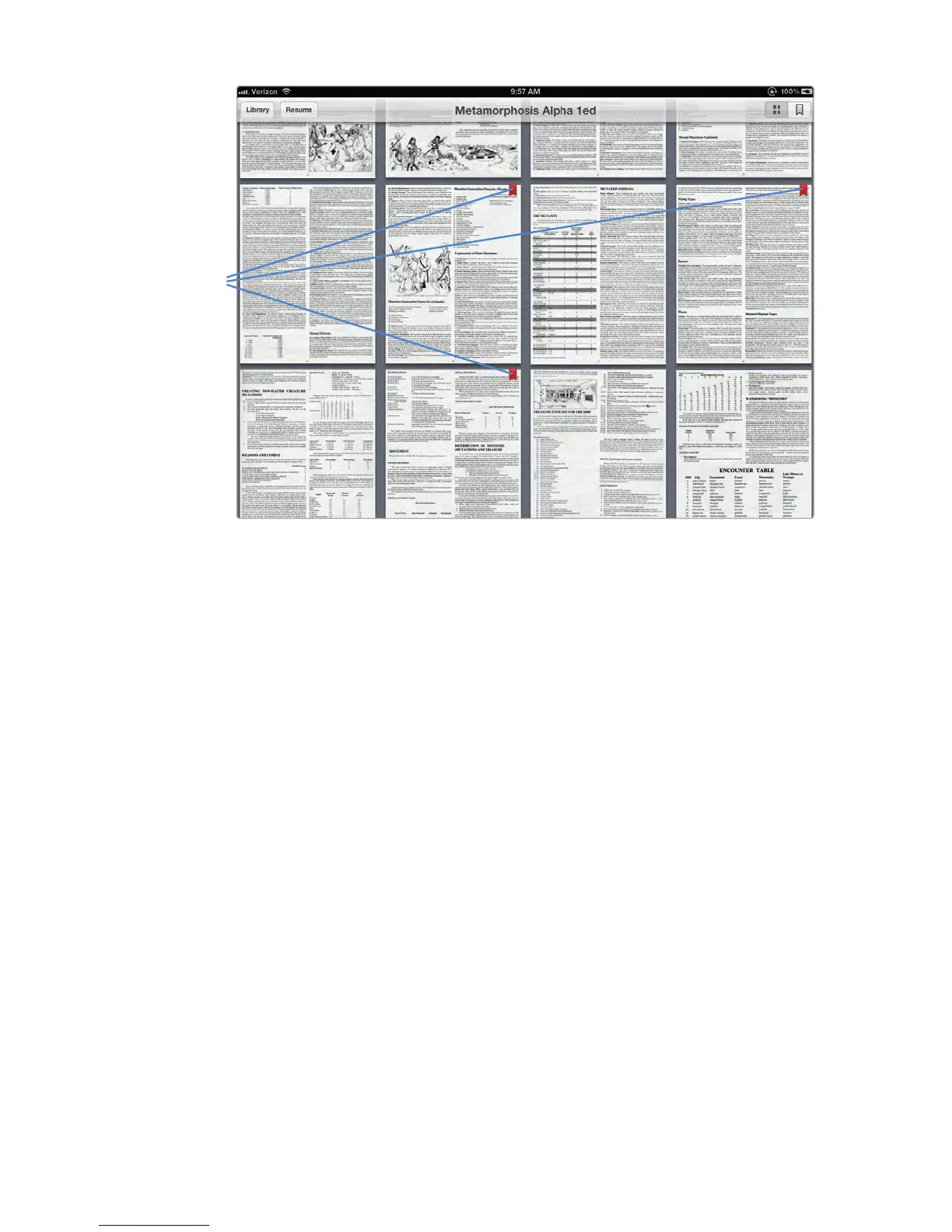
FIGURE 20-12: You can identify bookmarked pages in a PDF by the red
bookmark image that appears in the upper-right corner of the page.
Red bookmark
image



 To Next Page