180
|
Chapter 21
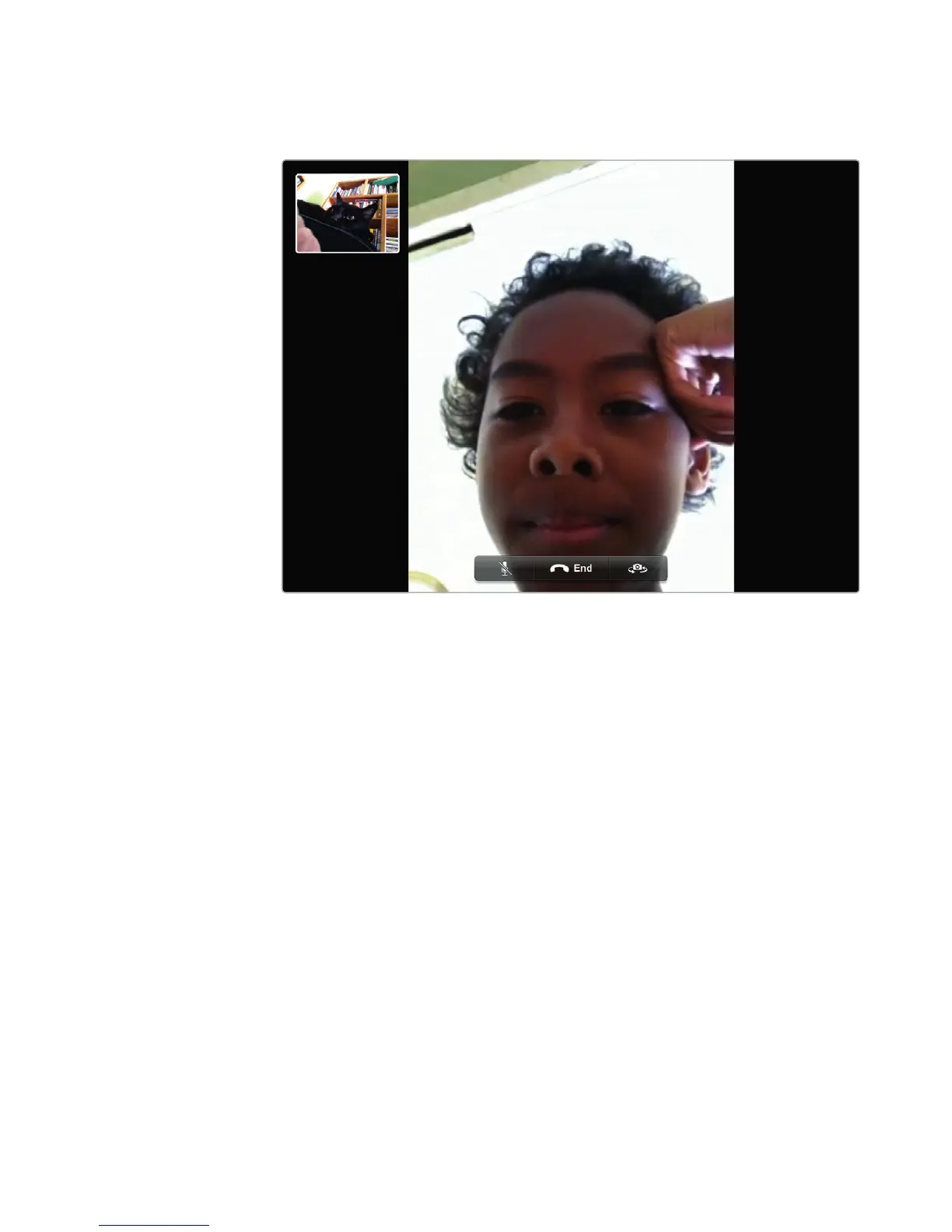
5. Tap the iPhone number or email address to start a FaceTime videoconference.
Your face appears as a thumbnail image in the corner of the screen while the
other person’s face fills the screen, as shown in Figure 21-7.
6. (Optional) Tap the Mute or Switch Camera icons to shut off the volume or
switch from the front-facing to the back-facing camera.
7. Tap the End button when you want to stop your FaceTime videoconference.
Additional Ideas for Using the Cameras
If you’re in a meeting or class, you can turn on the iPad’s camera to record notes
jotted down on a chalkboard or whiteboard, or take pictures or video of a slide-
show presentation.
If you like using videoconferencing but need to reach people who don’t
have FaceTime, then you can use Skype instead. Skype works nearly the same as
FaceTime, allowing you to have audio- or videoconferences with almost anyone.
Best of all, Skype can run on a Windows or Linux PC, which you can’t call through
FaceTime.
Finally, don’t forget that while the iPad’s cameras may not offer the sharpest
resolution, they’re still available anywhere you take your iPad. If you get in a car
accident, use your iPad to take pictures of the accident scene. If everyone takes
their iPad with them everywhere they go, maybe one day we’ll finally get a decent
picture of a UFO or Bigfoot that isn’t blurry or out of focus.
FIGURE 21-7: The FaceTime screen lets you chat through video.



 To Next Page