Photos, Videos, and FaceTime
|
179
5. (Optional) Tap the FaceTime on/off switch to turn FaceTime on or off. At this
point, anyone else can contact you through FaceTime by using the email
address you assigned to your FaceTime account.
Q NOTE: If you don’t already have FaceTime installed on your Mac, you can
download and install it through the Mac App Store.
Making a FaceTime Call
When you want to make a FaceTime to call to someone else who uses a Mac, iPad,
iPhone, or iPod touch, make sure you are in a Wi-Fi hotspot and then follow these
steps:
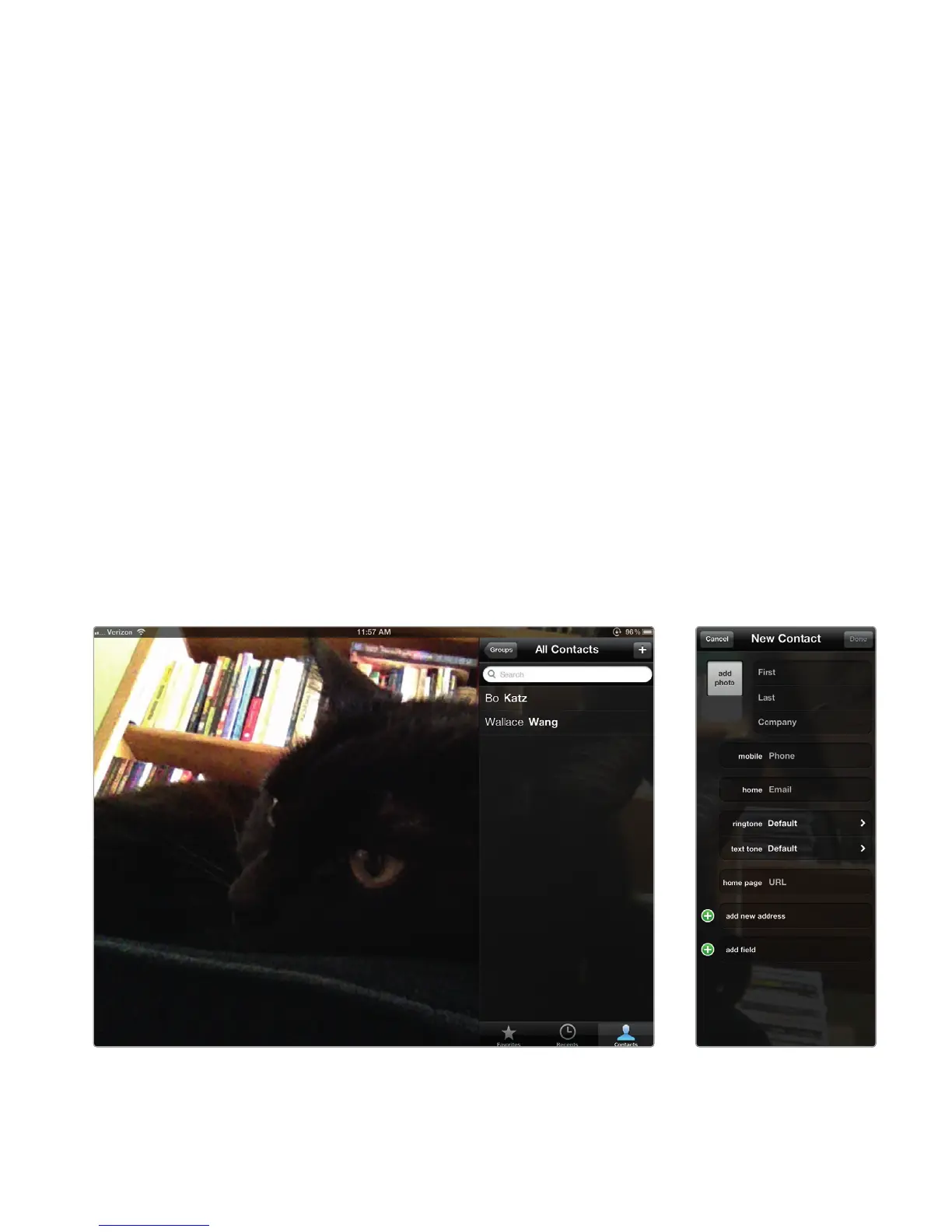
1. From the Home screen, tap the FaceTime. The FaceTime screen appears,
using the front-facing camera so you can see how you will look toothers, as
shown in Figure 21-5.
2. (Optional) If you have already used FaceTime on your iPad, you can tap the
Favorites or Recents icons in the bottom-right corner of the screen to con-
nect with someone you chatted with before.
3. Tap the plus sign in the upper-right corner of the screen to define a new
FaceTime contact. A New Contact window appears, as shown in Figure 21-6.
4. Type a name and an iPhone phone number or email address associated with
someone else’s FaceTime account and tap the Done button. Your saved
name and FaceTime contact information appears.
FIGURE 21-5: The FaceTime screen
FIGURE 21-6: The New
Contact window



 To Next Page