Viewing, Using, and Sharing Photographs
|
193
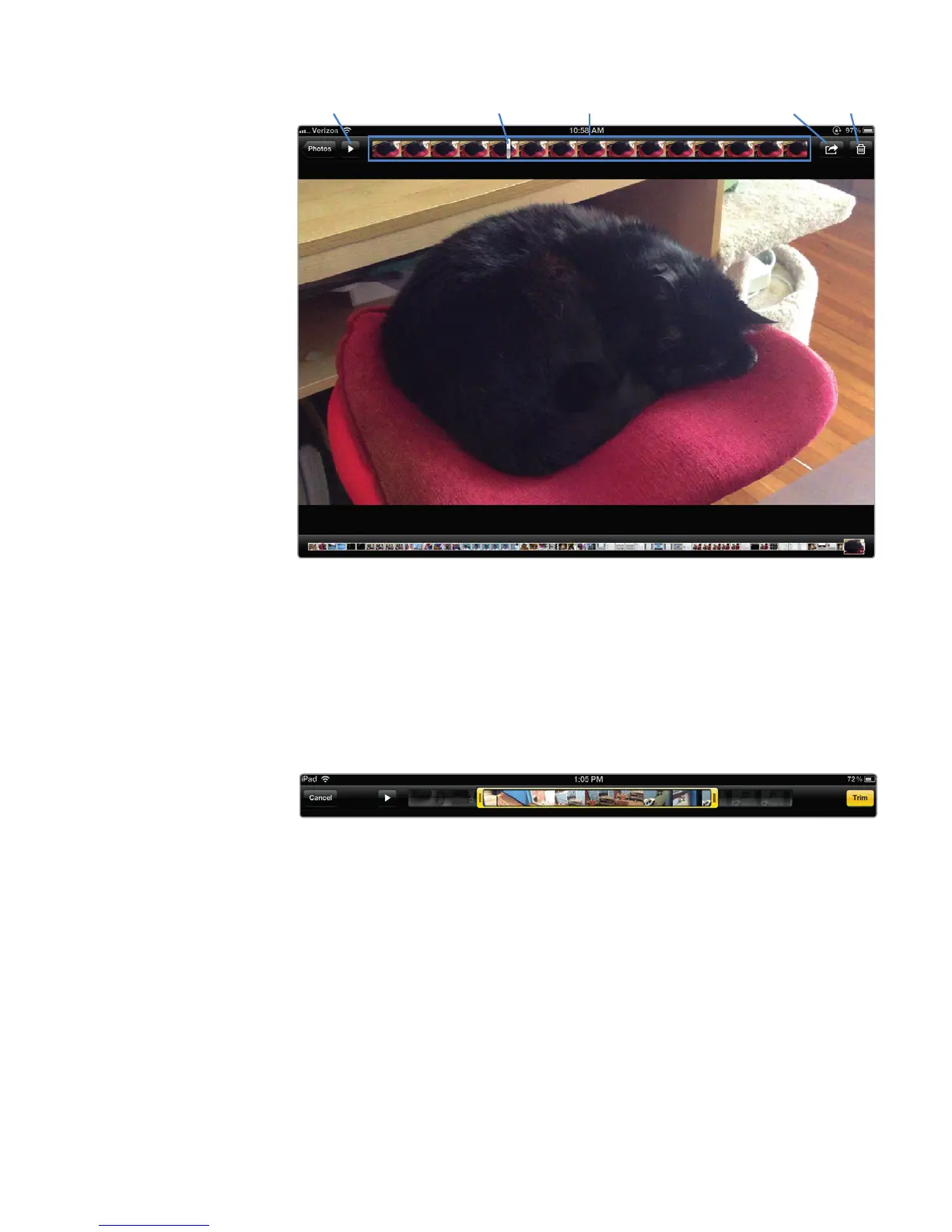
6. (Optional) To trim down a longer video, tap and hold either end of the Pre-
view Pane. It turns yellow to indicate that you can now trim your video.
7. Drag the ends of the box to your desired start and end points, as shown in
Figure 22-15.
8. Tap Play to preview your new, slightly shorter clip. When you’re satisfied,
tapTrim.
Additional Ideas for Using Your Pictures
With so many different types of pictures that you can store on your iPad—from
digital photographs to artwork created or modified with programs such as Photo-
shop or Corel Painter—you can use your iPad as a portable picture frame or a stor-
age device before sending your pictures to others by email.
Taking, viewing, organizing, and sharing pictures may not be the only reason
you got an iPad, but it’s one of many ways you can make your iPad more useful.
FIGURE 22-14: The Video controls in the Photos app
Play Playhead slider Action icon DeletePreview Pane
FIGURE 22-15: Trimming a video



 To Next Page