192
|
Chapter 22
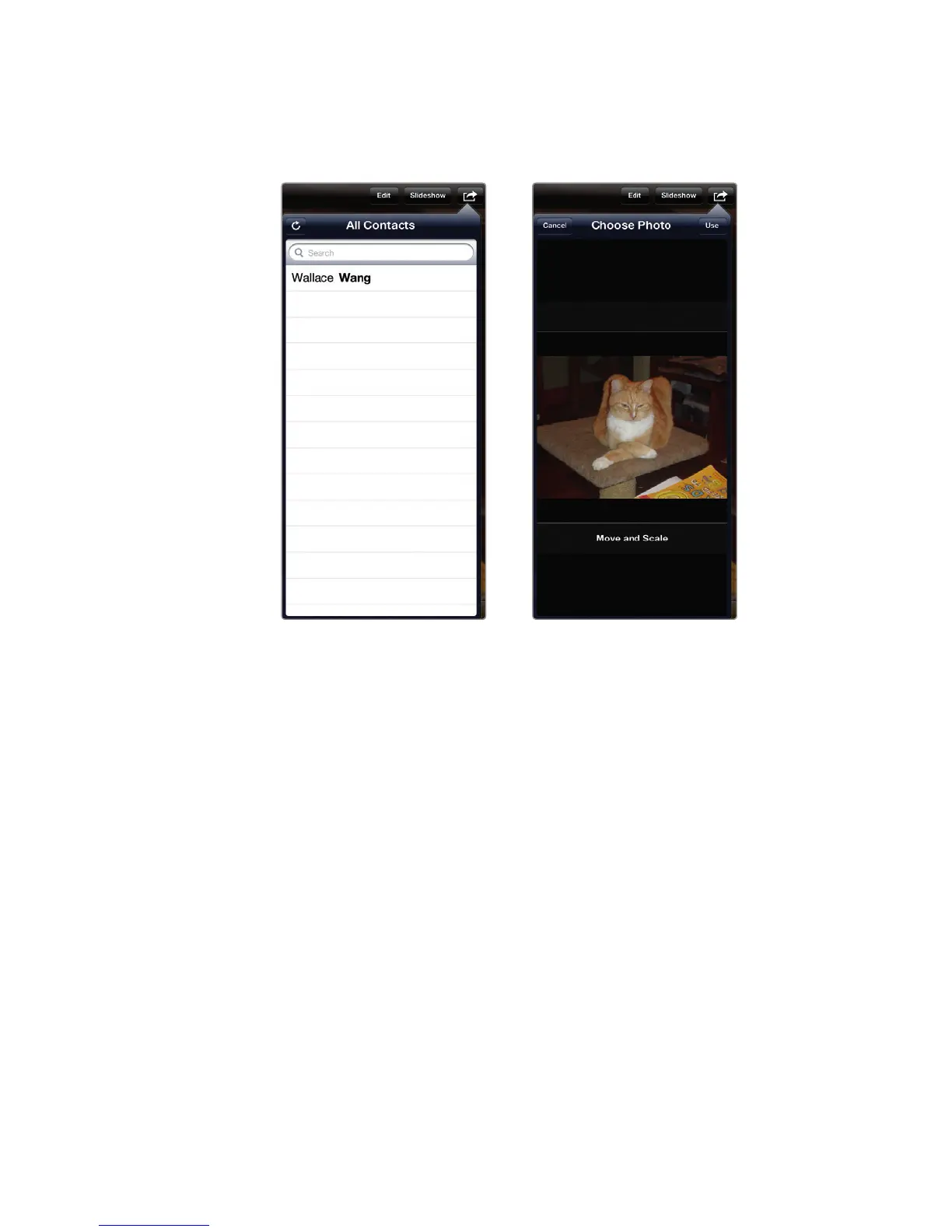
7. Tap a name. The Choose Photo window appears, as shown in Figure 22-13.
8. Move or resize your picture. When you’re happy with the size and position
of the picture, tap Use. Now if you open the Contacts app and choose this
person’s name, you’ll see your chosen picture.
Viewing and Trimming Videos
You can also view the videos you take with the iPad’s camera in the Photos app.
Just select the video you want to see, press the big play button, and you can relive
the magic. To view a video, follow these steps:
1. From the Home screen, tap Photos. The Photos screen appears.
2. Tap the Photos tab at the top of the screen. Thumbnail images of all your
pictures and videos appear.
3. Tap the video you want to view. Your chosen video fills the screen.
4. Tap the screen once so that the controls are visible, as shown in Figure 22-14.
5. Tap the Play button to view your video, or tap anywhere in the Preview pane
to jump to a specific frame in your video.
FIGURE 22-12: An All
Contacts window lets
you assign your current
picture to a name.
FIGURE 22-13: The Choose
Photo window lets you
adjust the position and
size of your currently dis-
played picture.



 To Next Page