198
|
Chapter 23
What You’ll Be Using
To type and manage notes on your iPad, you need to use the following:
The Notes app
Typing a Note
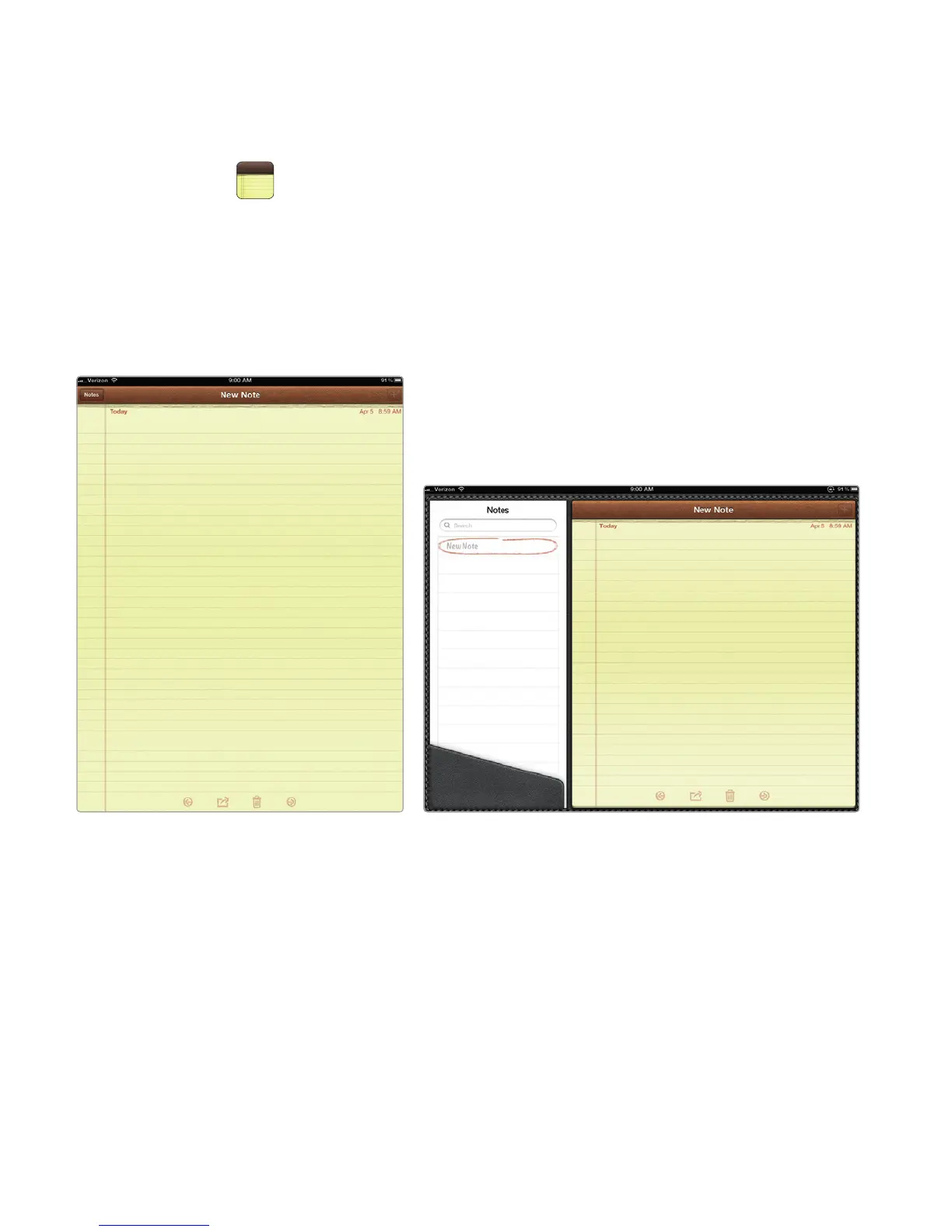
Depending on how you hold your iPad (portrait or landscape mode), the Notes
app displays either a single yellow notepad (portrait mode) or a yellow notepad
on the right with a list of all your notes displayed on the left (landscape mode),
asshown in Figure 23-1.
To type a note, follow these steps:
1. From the Home screen, tap Notes. If you haven’t created any notes yet,
you’ll just see a blank yellow notepad screen.
2. Tap the position on the notepad where you want to place the cursor. A mag-
nifying glass appears, letting you precisely place the cursor by sliding your
finger on the screen. (If you haven’t created any notes yet, just tap the note-
pad to place the cursor.) The virtual keyboard appears at the bottom of the
screen.
FIGURE 23-1: The Notes app in portrait mode and landscape mode



 To Next Page