Jotting Down Notes
|
199
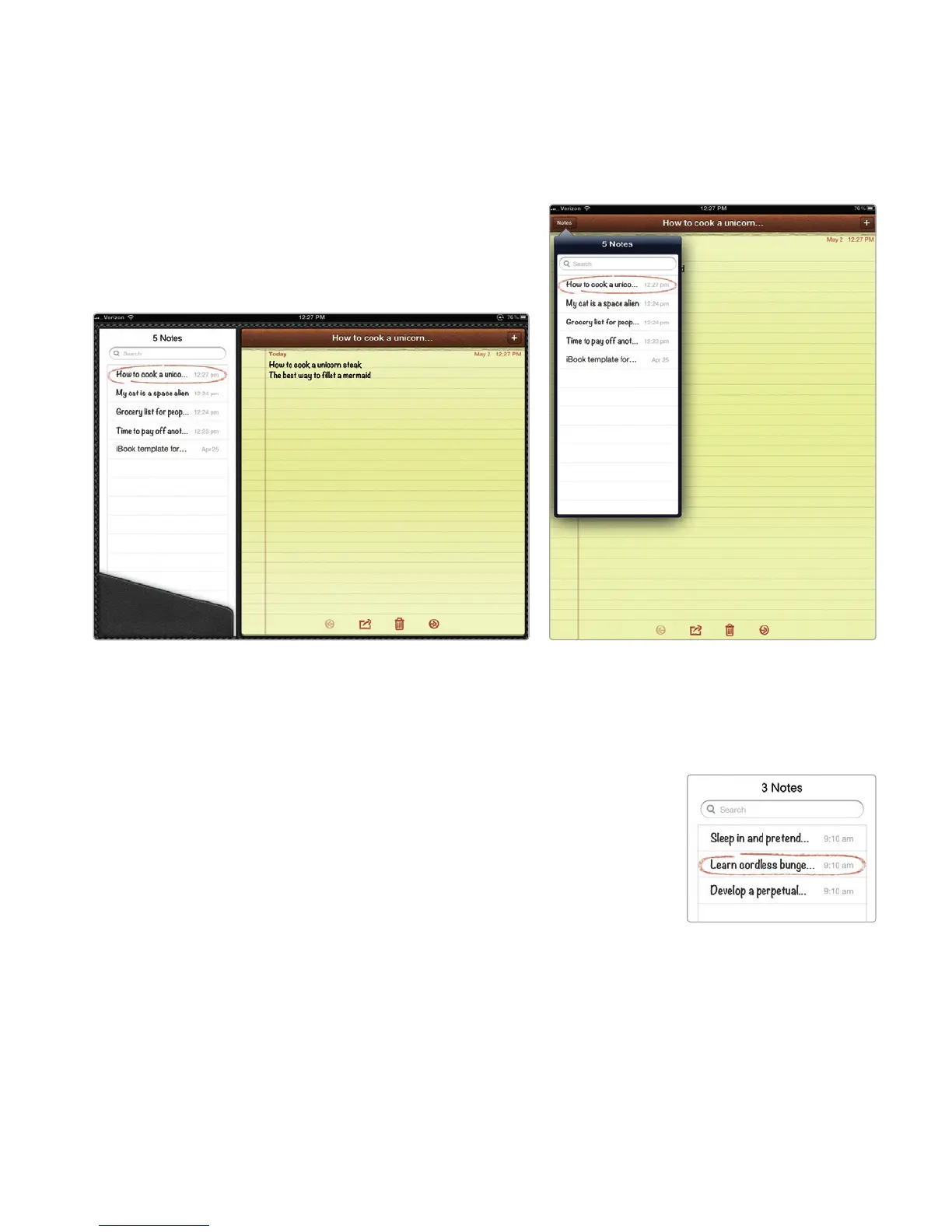
3. Type some text. Notice that the first few words you type also appear in the
Notes window, as shown in Figure 23-2. (If you are holding the iPad in por-
trait mode, you’ll need to tap the Notes button in the upper-left corner to
see the Notes window, as shown in Figure 23-3.) When you’re done typing,
you can tap the key in the bottom-right corner to hide the virtual keyboard.
Q NOTE: To make your notes easier to find, consider
typing a short, descriptive heading as the first
line of text in each note. This descriptive head-
ing will appear in the Notes window to help you
identify the contents of each note, as shown in
Figure 23-4.
FIGURE 23-2: The Notes window appears on the left
side in landscape mode.
FIGURE 23-3: The Notes window appears
in portrait mode only when you tap the
Notes button.
FIGURE 23-4: Descrip-
tive text makes the
contents of each note
easier to identify.



 To Next Page