200
|
Chapter 23
Creating New Notes
The Notes app lets you store text on a single page, where each page represents
another note.
To create new notes, follow these steps:
1. From the Home screen, tap Notes. The Notes screen appears.
2. Tap the plus sign that appears in the upper-right corner of the screen. A new
blank page appears with the virtual keyboard at the bottom of the screen so
you can start typing your new note.
Navigating Through Your Notes
Over time, you may wind up with dozens of notes. Since you may have created
each note at a different time, there won’t be any logical order to the way your
notes are organized. To find a note, you can scroll through notes one at a time,
jump to a specific note using the Notes window, or search for text that appears in
specific notes.
To see all three methods of searching notes, make sure you have created a
handful of notes, and then follow these steps:
1. From the Home screen, tap Notes. The
Notes screen appears.
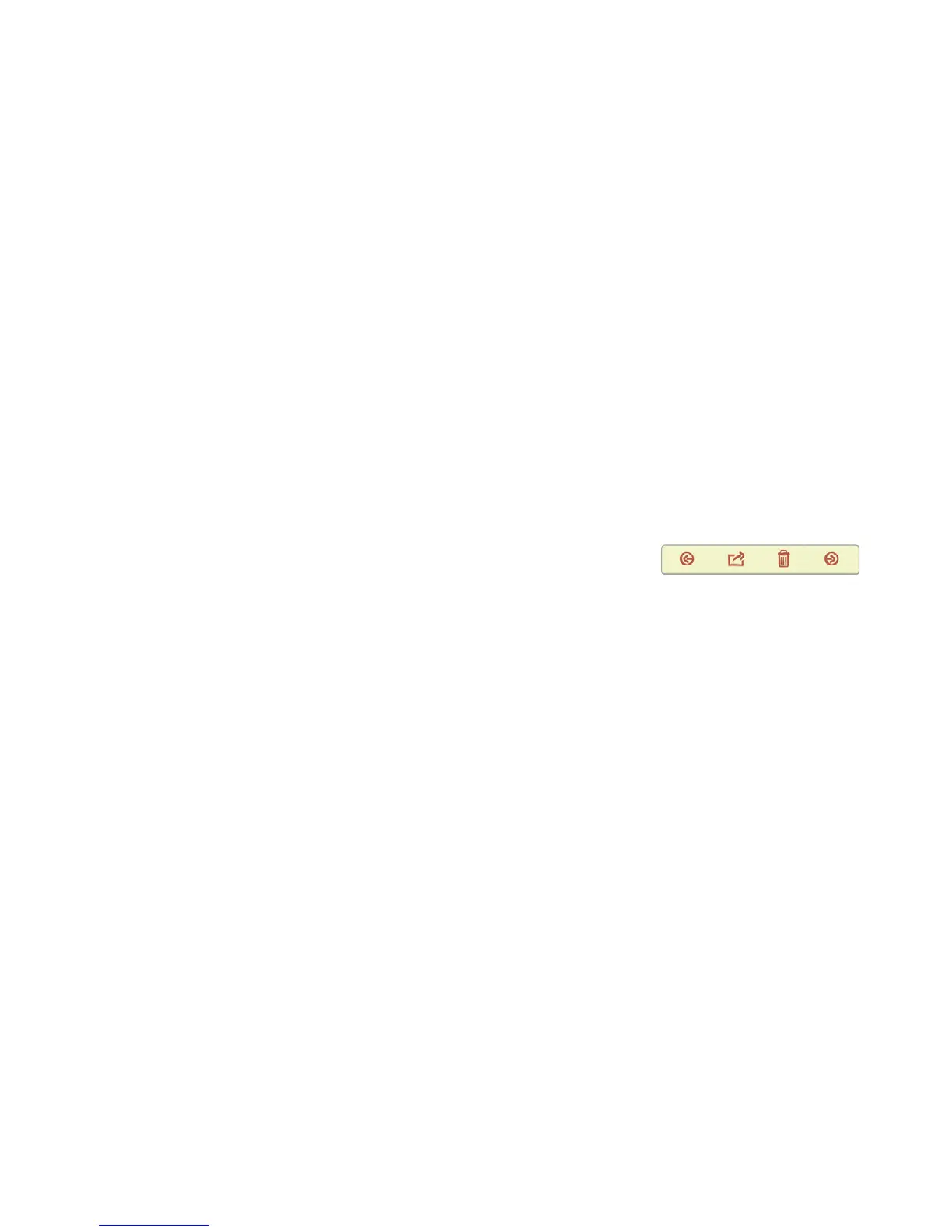
2. Tab the Previous or Next arrow icon at the
bottom of the note, as shown in Figure 23-5.
(If an arrow is dimmed, that means you’re
viewing either the first or last note.) Another
note appears with the animation of a real
page flipping.
3. Tap a note that appears in the Notes window. (If you’re holding your iPad in
portrait mode, you’ll need to tap the Notes button in the upper-left corner of
the screen to see the Notes window, as shown earlier in Figure 23-3.)
4. Tap the Search field at the top of the Notes window. The virtual keyboard
appears at the bottom of the screen.
5. Type a word or phrase that you know appears in one of your notes. The
Notes window lists only those notes that contain that word or phrase.
6. Tap Clear (it looks like an X inside a gray circle at the far right of the Search
field) to display all your notes in the Notes window again.
Sending a Note by Email
After you’ve written a note, you may want to send it to yourself or to someone else.
To transfer a note from your iPad, you can email it by following these steps:
1. From the Home screen, tap Notes. The Notes screen appears.
2. Find a note that you want to send using any of the methods explained in the
previous section.
FIGURE 23-5: The bot-
tom of each note dis-
plays Previous, Action,
Trash, and Next icons.


 To Next Page
 Loading...