Jotting Down Notes
|
201
3. Tap the Action icon (it looks like a square with a curved arrow pointing to the
right) at the bottom of the note. A menu appears listing your choices, such as
Email and Print. (If you have a wireless printer, you can tap Print to print your
note directly from your iPad.)
4. Tap Email. An email message and the virtual keyboard appear on the screen.
5. Tap the To text field, and type an email address. (If you tap the plus sign
at the far right of the To text field, you can pick a name stored in your
Contactsapp.)
6. Tap the Subject text field, and type a subject for your message.
7. Tap the message text field where the text from your note appears, and type
new text or modify the existing text.
8. Tap Send.
Deleting a Note
After you’ve created a few notes, you may find that you no longer need some of
them. To delete a note, follow these steps:
1. From the Home screen, tap Notes. The
Notes screen appears.
2. Find a note that you want to delete using
any of the methods explained in “Navigat-
ing Through Your Notes” on page 200.
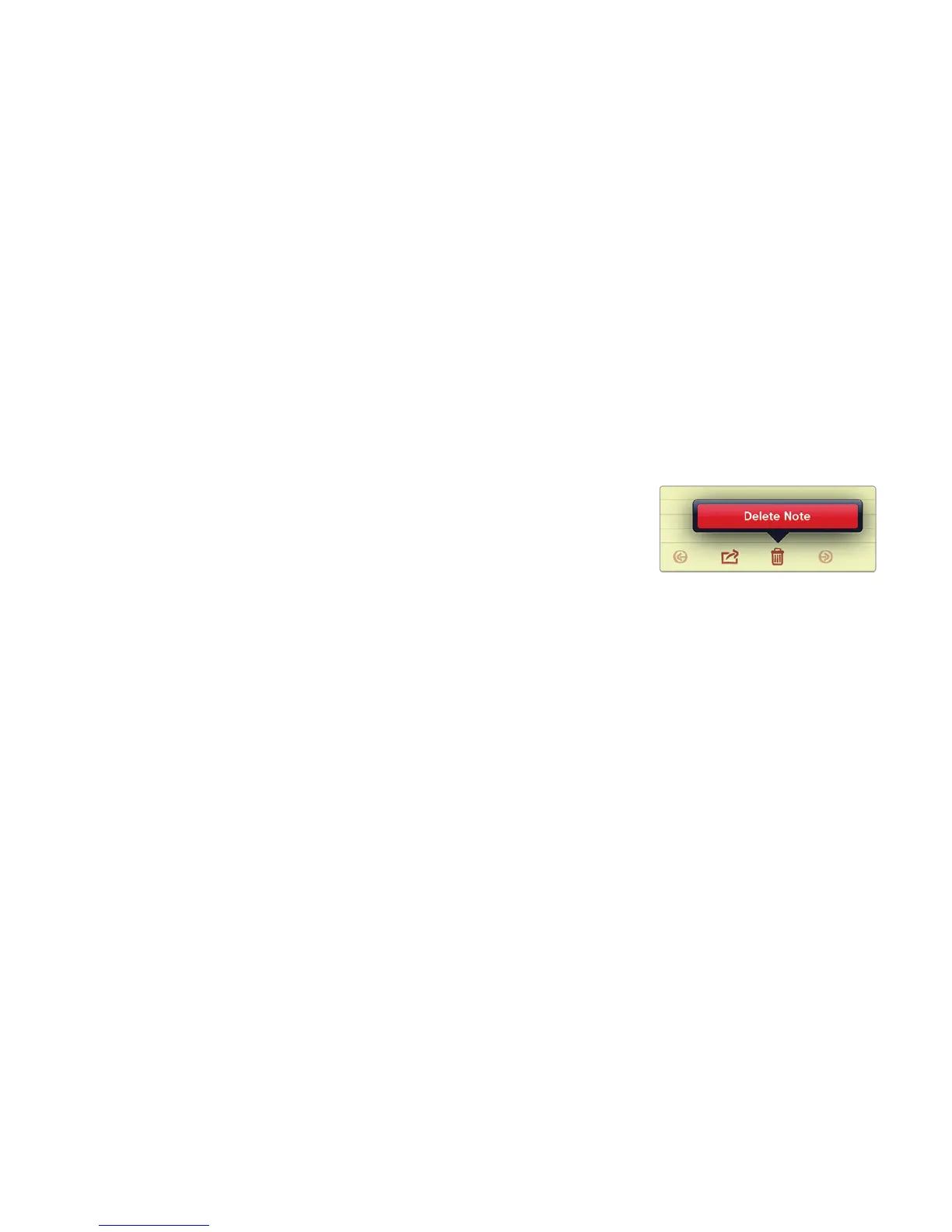
3. Tap the Trash icon at the bottom of the
note. A red Delete Note button appears,
asshown in Figure 23-6.
Q WARNING: Make sure you really want to delete a note, because you can’t
retrieve it later.
4. Tap Delete Note (or tap anywhere on the screen to make the Delete Note
button disappear). If you tap the Delete Note button, your currently dis-
played note disappears.
Additional Ideas for Typing Notes
One of the simplest and most productive tools is to write down your goals for each
day. Most people write their to-do list of goals on a piece of paper, but you can
write them in the Notes app so you can constantly review them while you’re using
your iPad.
Another handy use for the Notes app is to write drafts of email messages.
By using the Notes app, you can store your draft and modify it over time. When
you’re done writing, just email this note, and all your text automatically appears in
the message text field of your email. As long as you have your iPad with you, you’ll
always have a way to jot down notes at any time, anywhere.
FIGURE 23-6: Tapping
the Trash icon displays
aDelete Note button.


 To Next Page
 Loading...