Staying on Track with Reminders
|
205
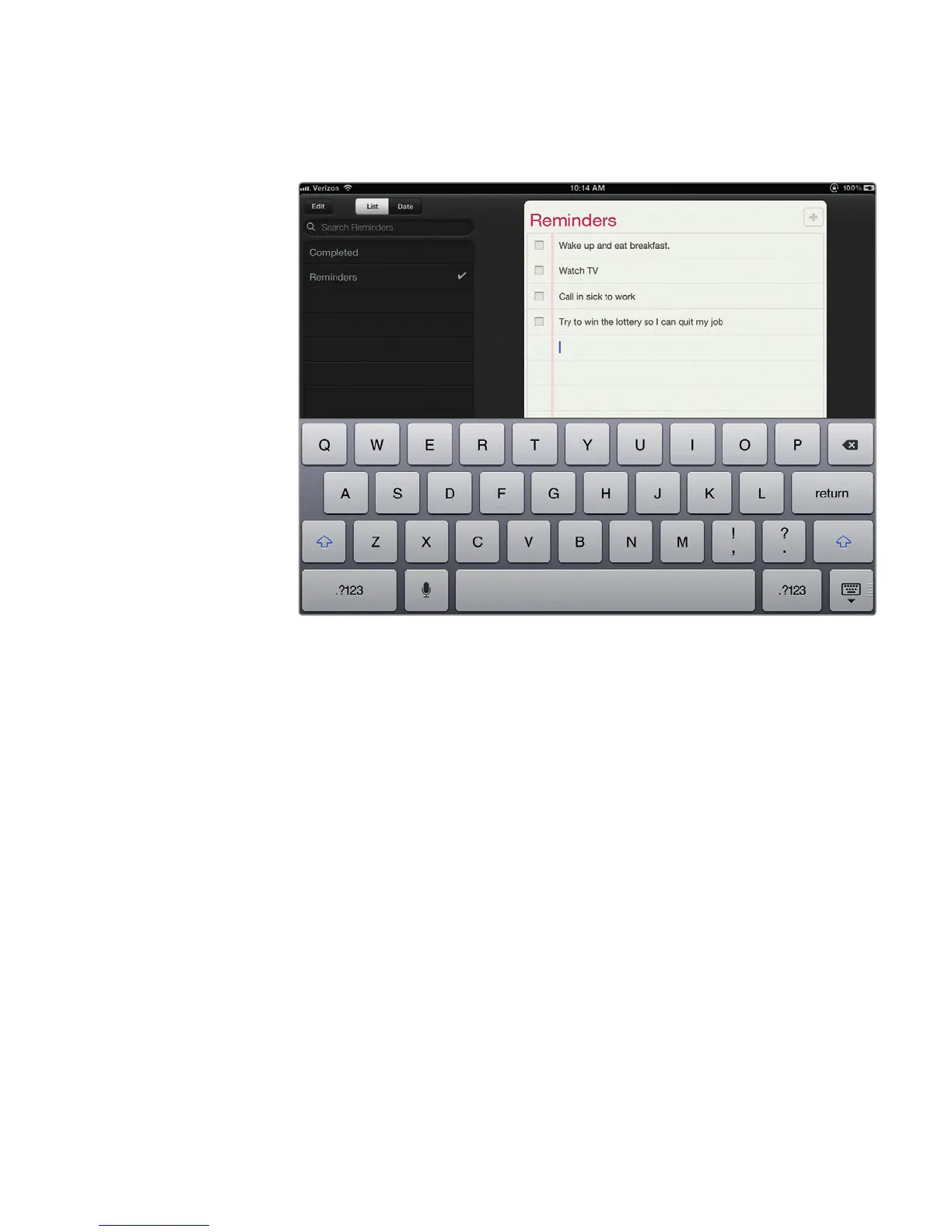
4. Type some text and then tap the Return key. Each time you tap the Return
key, the Reminders app displays an empty checkbox to the left of the
reminder, as shown in Figure 24-2. When you’re done typing, tap the Hide
Keyboard key.
Creating a Reminder for a Specific Date
When you create a reminder, the Reminders app displays all your reminders in a
list. However, sometimes reminders might be linked to a specific date, such as a
reminder to pick up your dry cleaning next Tuesday.
To create a reminder for a specific date, follow these steps:
1. From the Home screen, tap Reminders. The Reminders screen appears.
2. Tap the Date tab. A calendar appears on the left side of the screen, as
shown in Figure 24-3.
3. Tap a date. The right side of the screen displays your chosen date.
4. Tap the Reminder screen to display the virtual keyboard and type your
reminder.
Q NOTE: To view a reminder linked to a specific date, you can tap the List tab to
view all your reminders and then look for reminders that also include a date,
as shown in Figure 24-4. Or you can tap the Date tab and then tap the spe-
cific date for a particular reminder.
FIGURE 24-2: Tap the plus sign to add a new reminder, and press the
Return key to enter more than one reminder at once.



 To Next Page