Staying on Track with Reminders
|
207
Editing Your Reminders
When you create a reminder, you normally just type some text. However, you can
also have your iPad alert you at a specific date and time about your reminder or
even type some additional notes about your reminder.
For example, if you jotted down a reminder for a business meeting, you might
want to type additional notes about the materials you need to bring with you to that
meeting. Then you could set an alarm so your iPad will remind you of that meeting
ahead of time, such as 15 minutes before the meeting is supposed to start.
To edit an existing reminder, follow these steps:
1. From the Home screen, tap Reminders. The Reminders screen appears.
2. Tab the List or Date tab. (If you tap the Date tab, you’ll have to tap a date to
display a list of reminders for that specific date.)
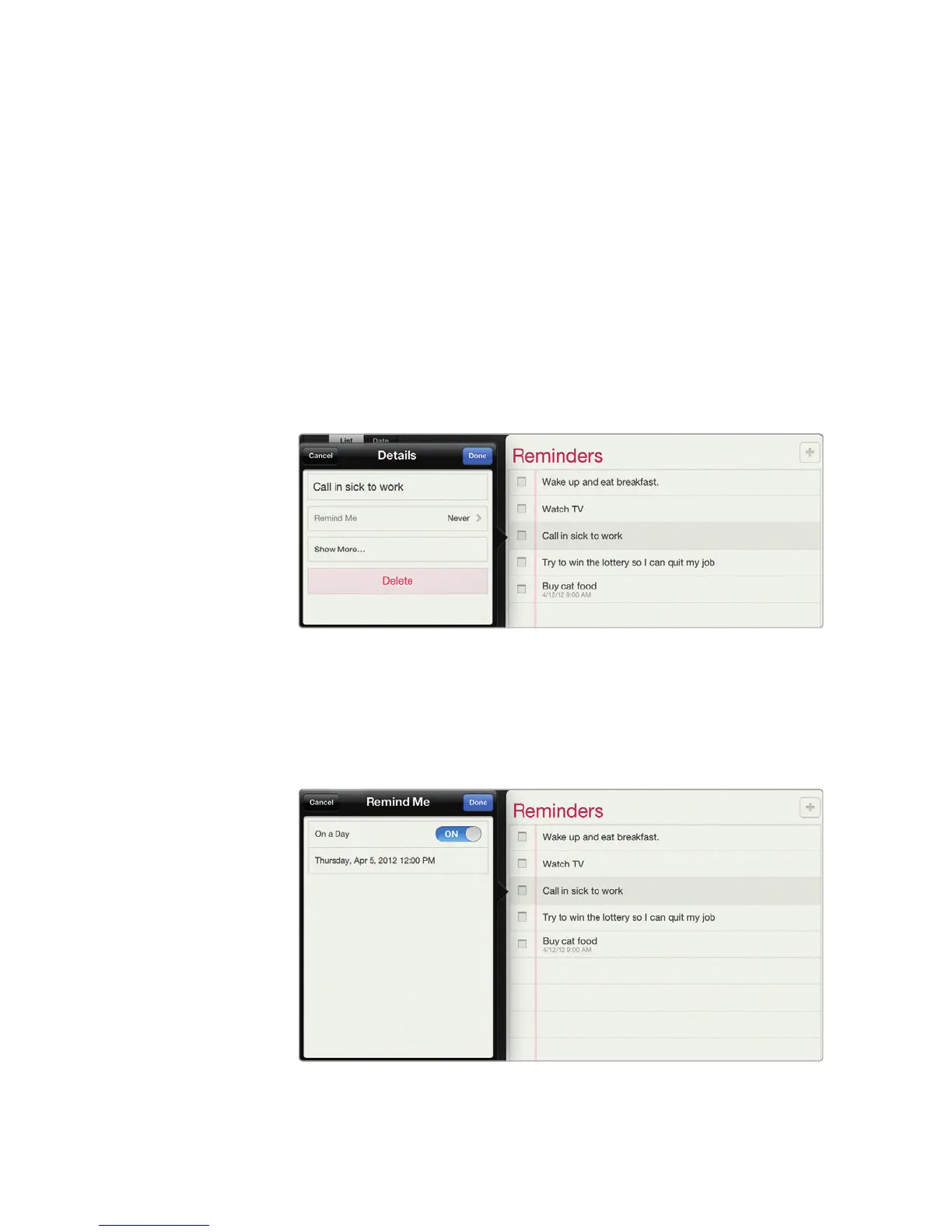
3. Tap a reminder that you want to edit. A Details window pops up, as shown in
Figure 24-5.
4. Tap Remind Me. The Remind Me window appears.
5. Tap the On a Day on/off switch to ON. A date and a time appears, as shown
in Figure 24-6.
FIGURE 24-5: Tap a reminder to delete or edit it.
FIGURE 24-6: You’ll be prompted to provide a day for your iPad
to remind you.



 To Next Page