208
|
Chapter 24
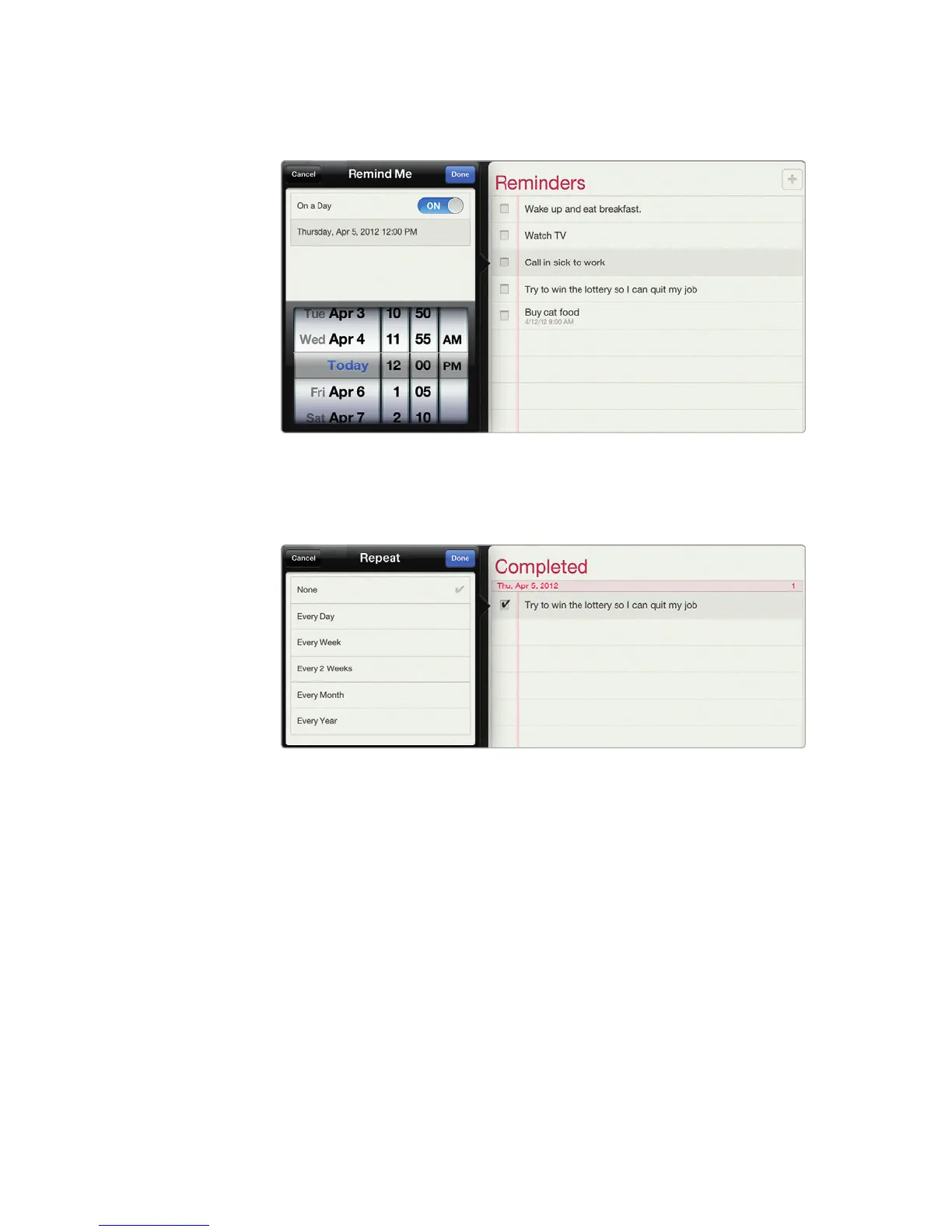
6. Tap the date and time. A date and time picker appears, as shown in Fig-
ure24-7. Choose a date and time, and then tap Done in the upper-right
corner of the Remind Me window.
7. Tap Repeat. The Repeat window appears, as shown in Figure 24-8.
8. Tap a frequency for how often you want your reminder to appear, such as
Every Day or Every Month.
9. Tap Done in the upper-right corner of the Repeat window. The Details win-
dow appears again.
10. Tap Show More. The Priority and Notes fields appear in the Details window,
as shown in Figure 24-9.
11. Tap Priority to display the Priority window, as shown in Figure 24-10.
12. Tap a priority for your reminder, such as Low, Medium, or High, and then tap
Done in the upper-right corner of the Priority window.
13. Tap Notes. The virtual keyboard appears to let you type any additional notes
about your reminder. Tap Done in the upper-right corner of the Details win-
dow when you’re done.
FIGURE 24-7: Spin the wheels to choose the date and time.
FIGURE 24-8: Choose how often you want the reminder to repeat.



 To Next Page