Staying on Track with Reminders
|
211
3. Tap the top line of the Reminders screen, or tap the plus sign icon in the
upper-right corner of the Reminders screen. The virtual keyboard appears
atthe bottom of the screen.
4. Type a reminder and then tap the Return key when you’re done.
Deleting a Reminder List
Eventually, you may no longer need a reminder list, so you can delete it by follow-
ing these steps:
1. From the Home screen, tap Reminders. The Reminders screen appears.
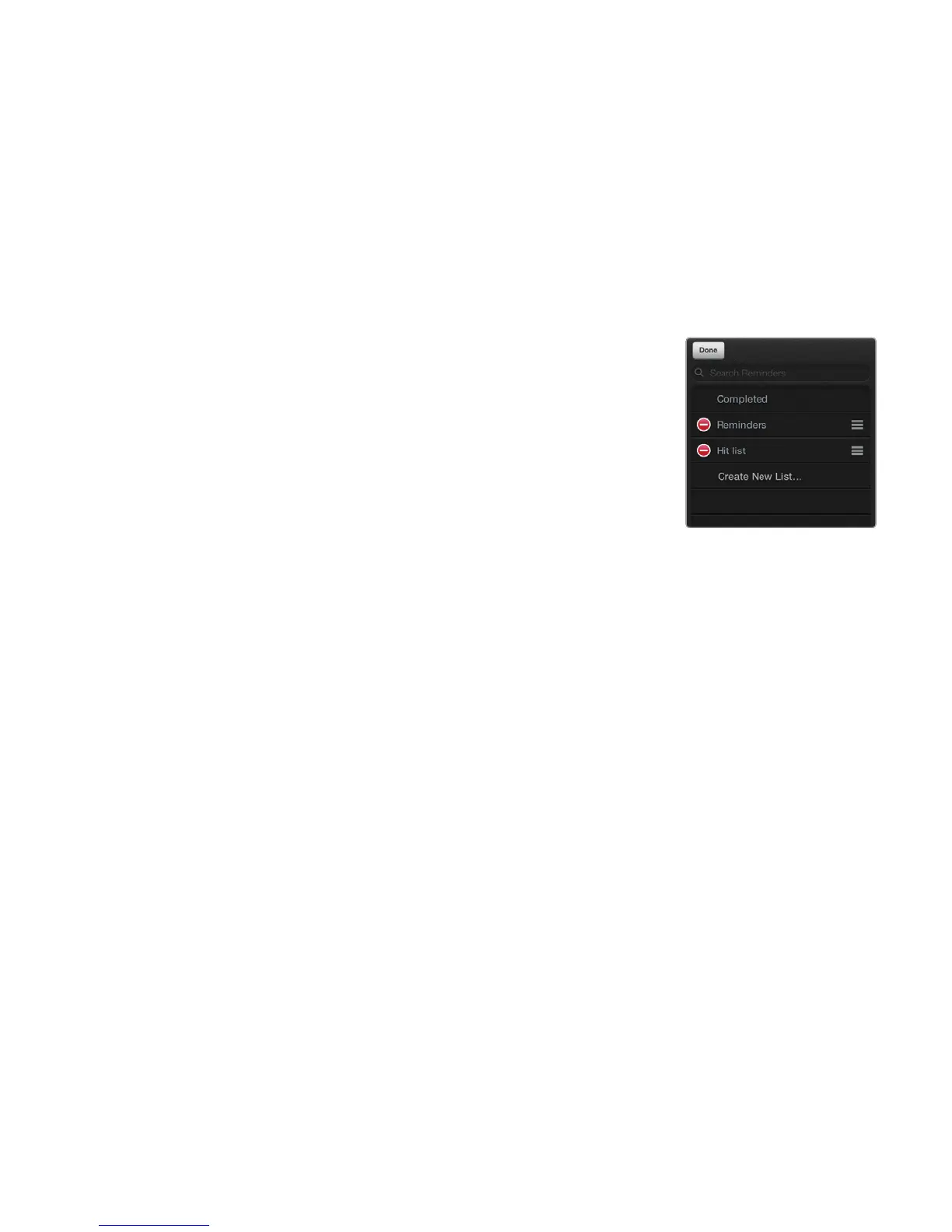
2. Tap Edit in the upper-left corner of the
Reminders screen. Red circles with white lines
appear at the left of each reminder list, as
shown in Figure 24-13.
3. Tap the red circle with a white dash that
appears to the left of the list you want to
delete. A red Delete button appears to the
right.
4. Tap the red Delete button. An alert appears
to let you know that you will delete any
reminders stored in that list.
5. Tap Delete. Your chosen reminder list
disappears.
Additional Ideas for Reminders.
Before going to bed each night, jot down your most important tasks for the next
day and then be sure to follow up on your most critical tasks. If you’re trying to pur-
sue a specific goal, such as losing weight, jot down reminders to alert you through-
out the day, give you encouragement, or display motivational quotes to help you
stay focused on achieving your goal. With the Reminders app, you no longer have
an excuse for forgetting anything unless you forget where you put your iPad.
FIGURE 24-13: Tap the
minus sign to delete a
reminder list.



 To Next Page