210
|
Chapter 24
Deleting or Completing a Reminder
After you’ve written a reminder, you can either delete it when you don’t need it
any more or simply check it off to give yourself a sense of completion. To delete
orcheck off a reminder, follow these steps:
1. From the Home screen, tap Reminders. The Reminders screen appears.
2. Tap the List or Date tab to
view a reminder you want to
delete or check off.
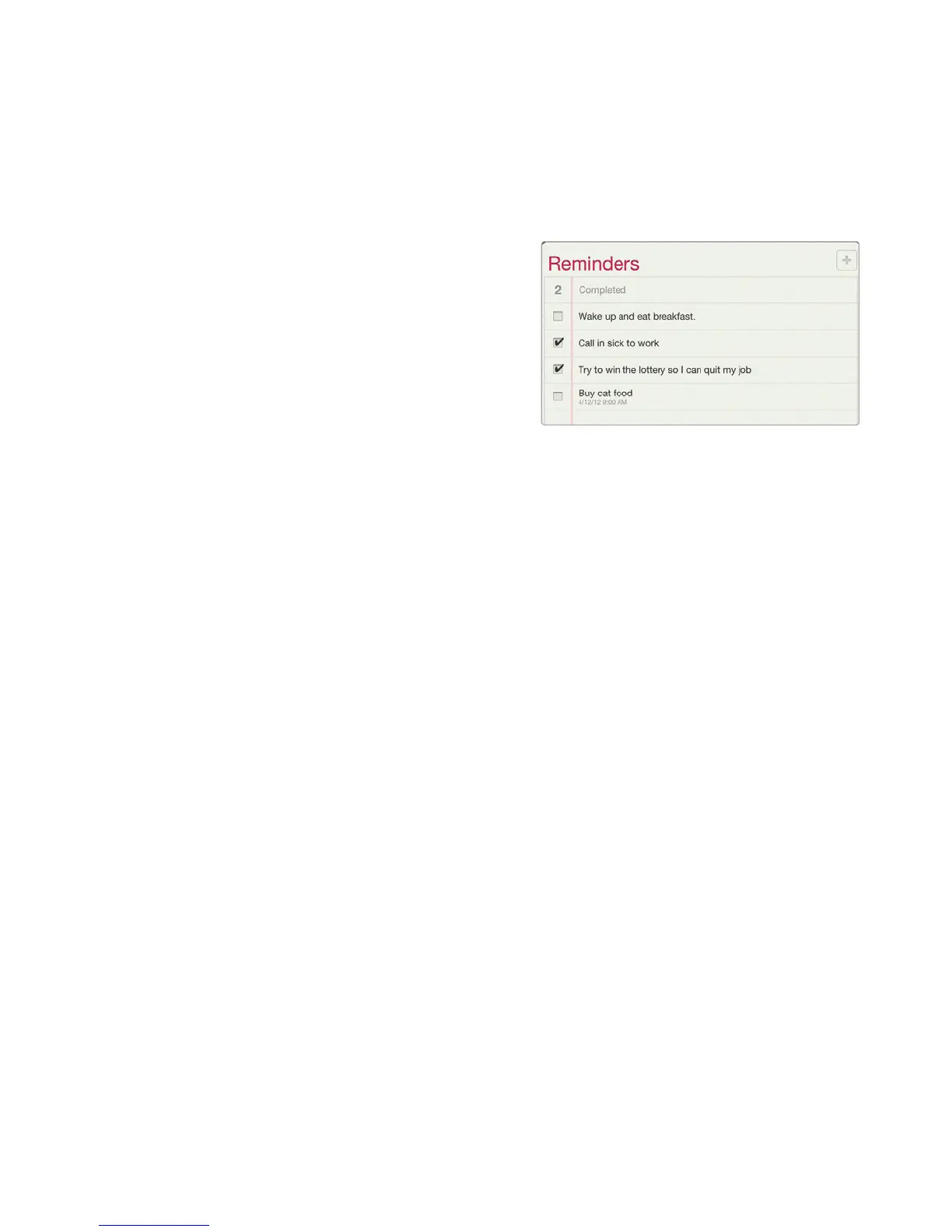
3. Tap the checkbox to the left
of a reminder to mark it as
complete, as shown in Fig-
ure 24-12.
4. Tap a reminder that you
want to delete. The Details
window appears.
5. Tap Delete. A Delete button
and a Cancel button appear.
6. Tap Delete.
Q NOTE: To view your completed reminders, tap Completed on the left side of
the Reminders screen.
Creating a Reminder List
Normally when you create a reminder, it appears in the Completed or Reminders
list. For more flexibility, you can create multiple reminder lists for different catego-
ries, such as work, home, or for a particular project. To create a Reminder list, fol-
low these steps:
1. From the Home screen, tap Reminders. The Reminders screen appears.
2. Tap Edit in the upper-left corner of the Reminders screen.
3. Tap Create New List. The virtual keyboard appears.
4. Type a name for your reminder list, and tap Done in the upper-left corner of
the screen when you're through.
Storing Items in a Reminder List
After you have created one or more reminder lists, you can choose to store new
reminders in that list by following these steps:
1. From the Home screen, tap Reminders. The Reminders screen appears.
2. Tap the Reminders list on the left side of the screen that you want to use.
FIGURE 24-12: Tapping the checkbox on
the left marks a task as completed.



 To Next Page