218
|
Chapter 25
Sending Contact Information by Email
Oftentimes you may have contact information for someone that you’d like toshare
with others. The simple way to do this is through email. Just pick the contact infor-
mation you want to send, and your iPad attaches this contact information to an
email message as a vCard (.vcf ) file that practically every contact management
program can import.
To email contact information, follow these steps:
1. From the Home screen, tap Contacts. The Con-
tacts screen appears.
2. Find a contact whose information you want
tosend.
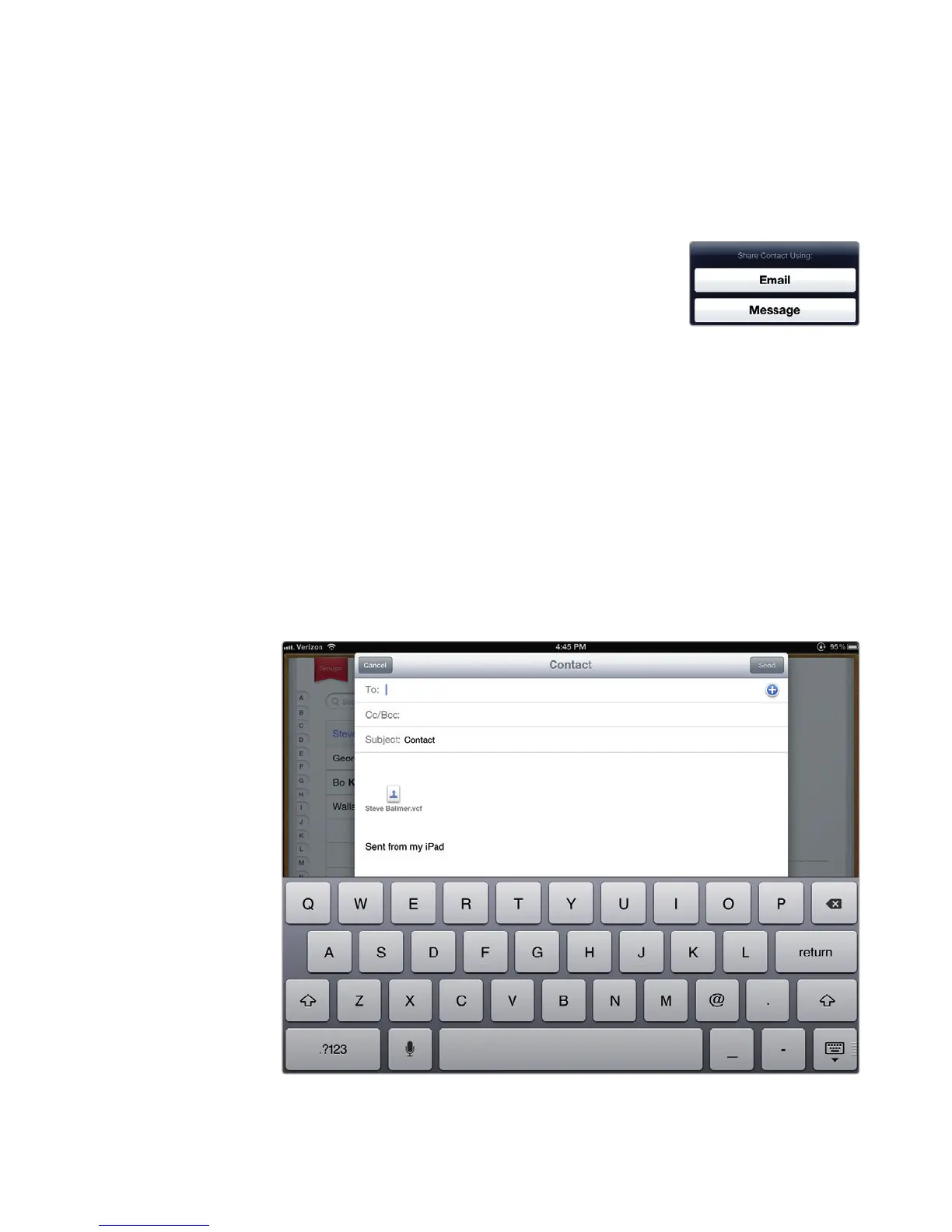
3. Tap Share Contact. An Email button and Mes-
sage button appear, as shown in Figure 25-6.
4. Tap the Email button. (If you want to send a text message, tap the Message
button instead.) A message and the virtual keyboard appear on the screen
with your contact information stored as a vCard file, asshown in Figure 25-7.
5. Tap the To text field, and type an email address. (If you tap the plus sign
at the far right of the To text field, you can pick a name stored in your
Contactsapp.)
6. (Optional) Tap the Subject text field, and type a subject for your message.
7. Tap the message text field where the contact information appears, and type
new text or modify the existing text.
8. Tap Send.
FIGURE 25-6: Sharing
contact information
FIGURE 25-7: Emailing contact information to others



 To Next Page