Keeping Contact Information
|
217
Editing (or Deleting) a Contact
People often change phone numbers, switch email addresses, or move to different
companies. To keep your contact list current, you can add, delete, or modify any
information you want.
To edit contact information, follow these steps:
1. From the Home screen, tap
Contacts. The Contacts screen
appears.
2. Scroll through your list of names
on the left side of the screen, and
tap a name that you want to edit.
The information for your chosen
name appears on the right side of
the screen (see Figure 25-1).
3. Tap Edit at the bottom middle of
the screen.
4. (Optional) Tap any text field. The
virtual keyboard appears to let
you edit text in that text field.
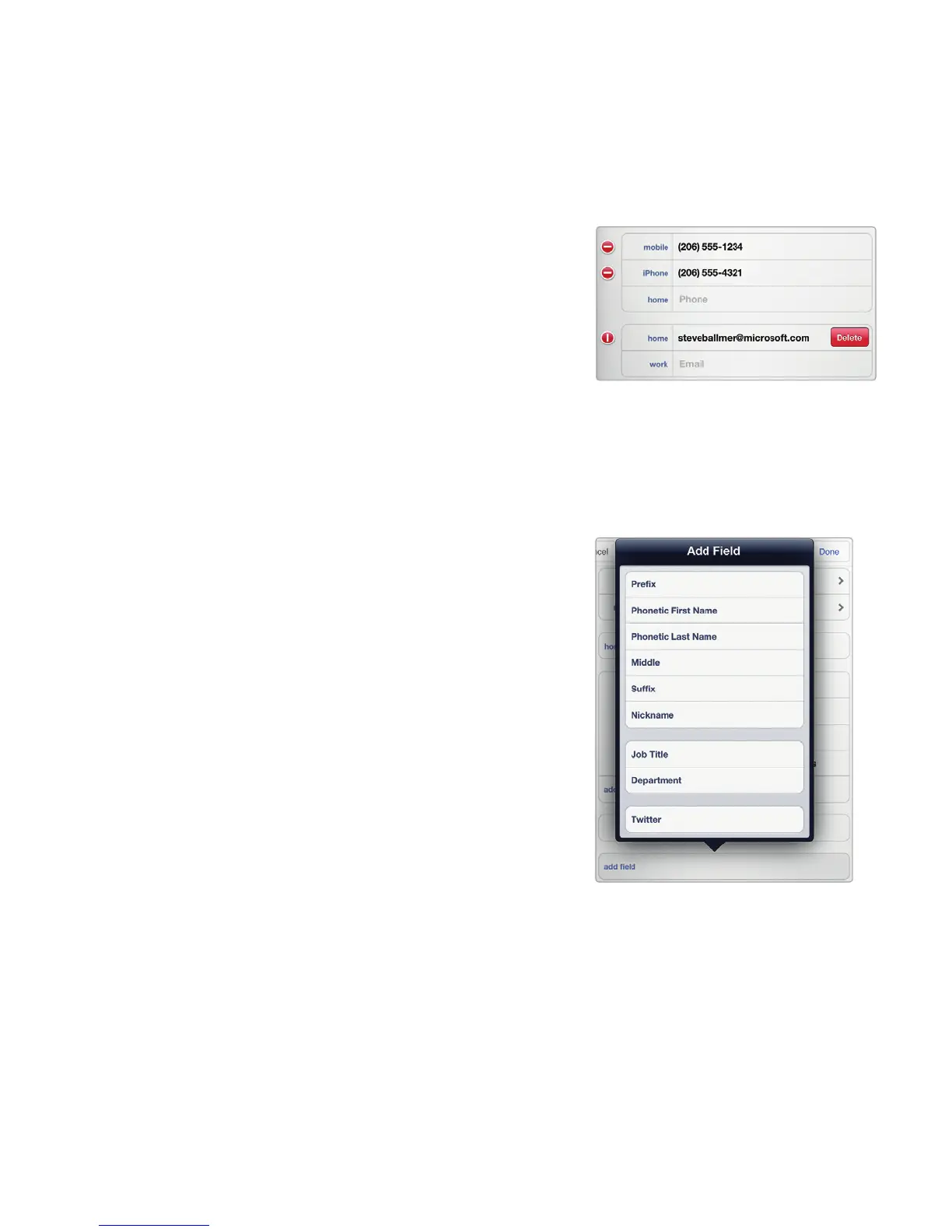
5. (Optional) Tap the white dash
inside a red circle that appears
to the left of some fields. A red
Delete button appears, as shown
in Figure 25-4.
6. (Optional) Tap the white plus
sign inside a green circle that
appears to the left of a field,
such as add new address or add
field. Tapping the icon to theleft
of the add field box displays
an Add Field list, as shown in
Figure25-5. Tap a field to add,
such as Nickname, Job Title, or
Birthday.
7. (Optional) To delete a contact,
tap the big red Delete Contact
button. A dialog appears, asking
if you really want to delete your
contact. Tap Delete or Cancel.
8. Tap Done in the upper-right
corner of the screen when you’re
done editing a contact.
Q NOTE: When you edit contact information on your computer or iPad, you can
synchronize those changes through iTunes as described in Chapter 16.
FIGURE 25-4: Some fields display
a white dash inside a red circle
icon, which lets you delete that
entire field.
FIGURE 25-5: You can add
a new field to your contact
information.



 To Next Page