Using the Calendar
|
227
Viewing and Managing Multiple Calendars
If you have many appointments, you could organize them into different calendars,
such as a personal calendar for personal appointments and an office calendar for
your work-related appointments. To create multiple calendars, follow these steps:
1. From the Home screen, tap Calendar. The Calendar screen appears.
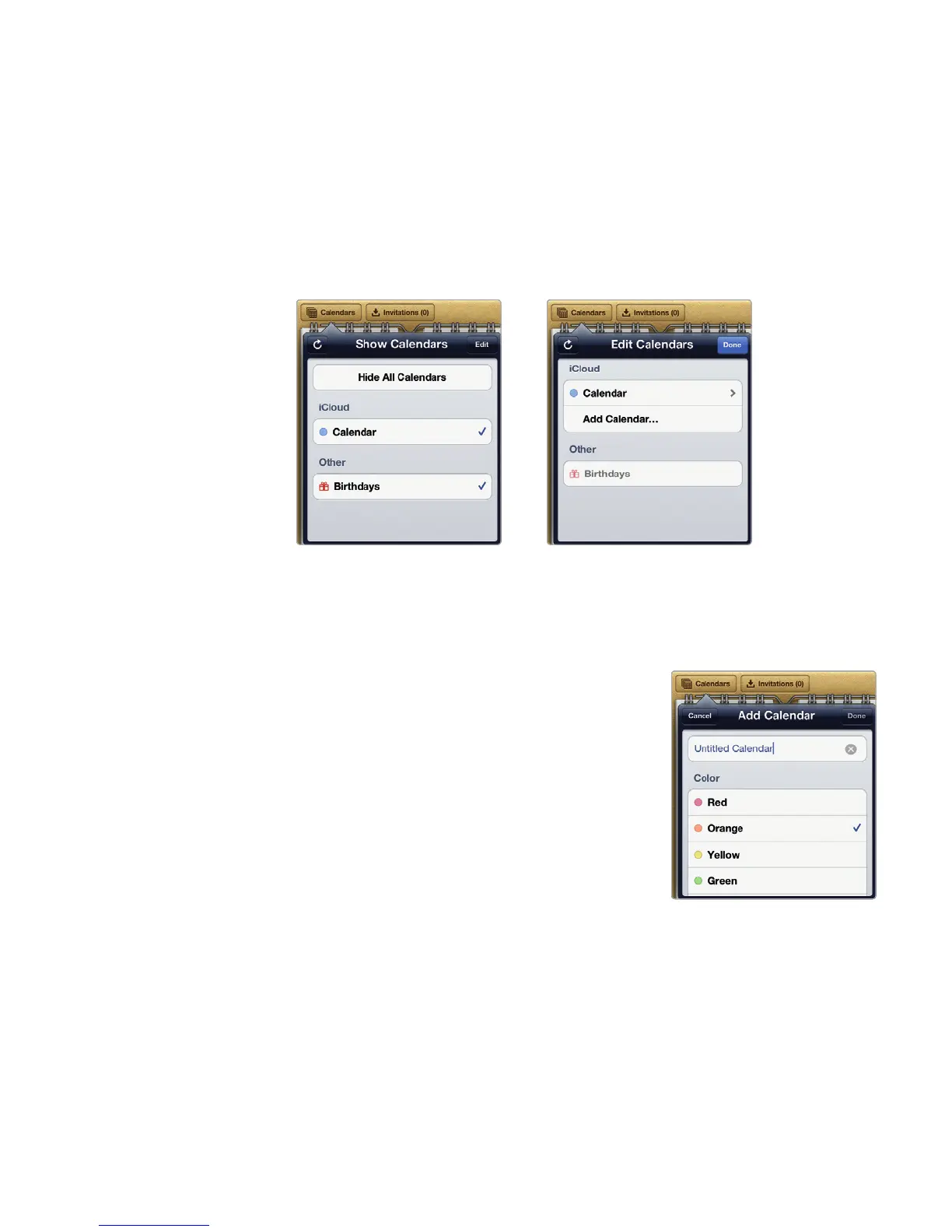
2. Tap Calendars in the upper-left corner of the screen. The Show Calendars
window appears, as shown in Figure 26-9.
3. Tap Edit. The Edit Calendars window appears, as shown in Figure 26-10.
4. Tap Add Calendar. An Add Calendar win-
dow appears, as shown in Figure26-11.
5. Type a name for your calendar.
6. (Optional) Tap a color to identify your cal-
endar, such as Red or Green.
7. Tap Done in the upper-right corner of the
Add Calendar window. The Edit Calendars
window appears again, listing your newly
created calendar.
8. Tap Done in the upper-right corner of the
Edit Calendars window. The Show Calen-
dars window appears, letting you select
which calendar you want to view. A check-
mark means the calendar’s appointments
are visible.
9. Tap anywhere on the screen away from
the Show Calendars window to make it
disappear.
FIGURE 26-9: Tap Calen-
dars to switch between
calendars.
FIGURE 26-10: Tap Edit
and then Add Calendar
to create a new calendar.
FIGURE 26-11: Give the
calendar a name and a
color.



 To Next Page