226
|
Chapter 26
Editing (or Deleting) an
Appointment
After you have defined an appointment, you can
always modify it by changing the start time or
date or turning an alarm off or on. You also have
the option of deleting the entire appointment.
To edit an appointment, follow these steps:
1. From the Home screen, tap Calendar. The
Calendar screen appears.
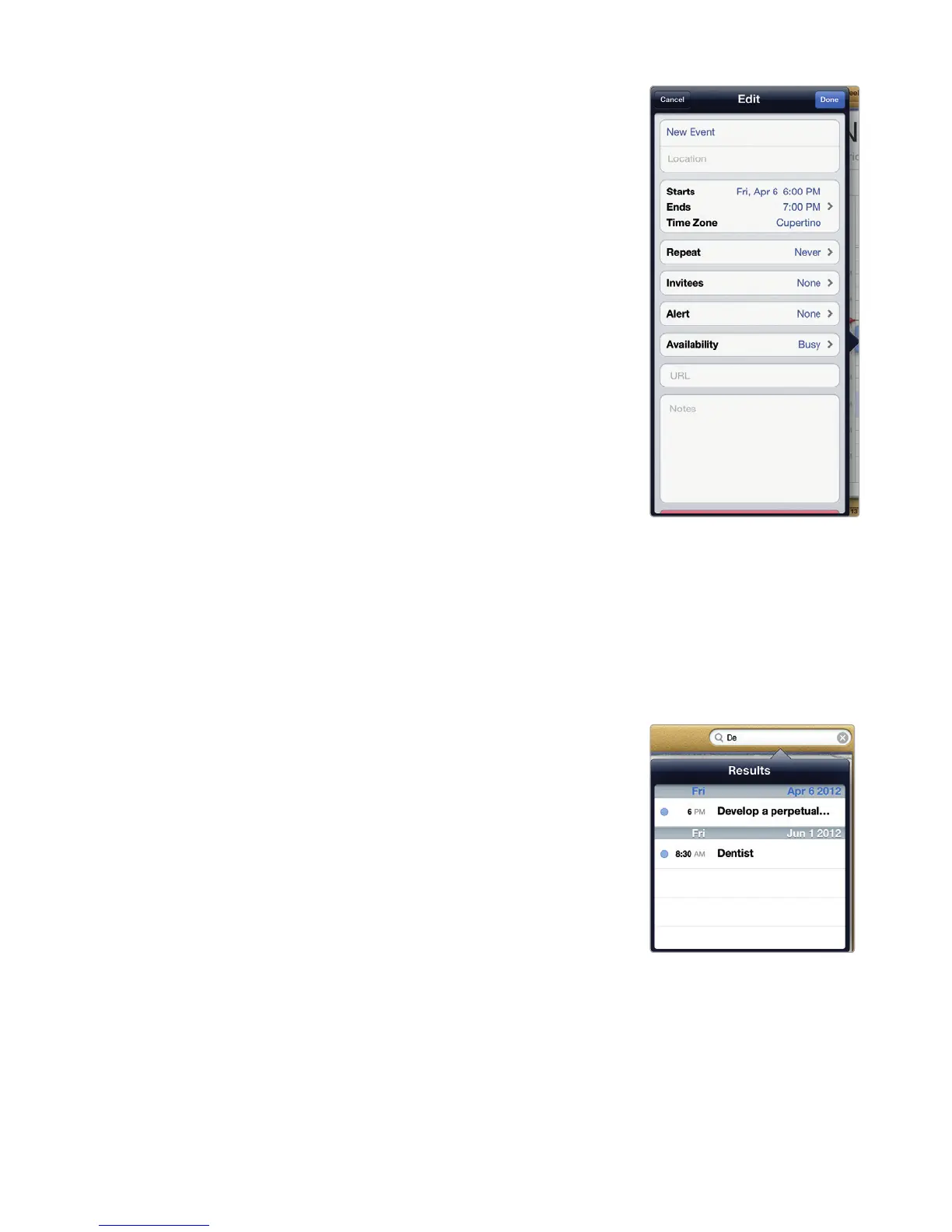
2. Tap the appointment you want to modify.
The Edit window appears, as shown in
Figure26-7. In the Week or Month calendar
view, you may need to tap Edit to see the
Edit window.
3. Make any changes to your appointment.
4. (Optional) Tap Delete Event at the bottom
of the Edit window if you want to delete
your entire appointment. A red Delete
Event button and a black Cancel button
appear at the bottom of the Edit window.
Tap Delete Event or Cancel.
5. Tap Done in the upper-right corner of the
Edit window to save your changes.
Searching for an Appointment
You can search for an appointment by typing a
word or phrase, such as the location or name of
the appointment. To search for an appointment,
follow these steps:
1. From the Home screen, tap Calendar. The
Calendar screen appears.
2. Tap the Search field that appears in the
upper-right corner of the screen. Avirtual
keyboard appears.
3. Type a word or phrase that appears in
the appointment that you want to find.
A Results window appears, listing all
appointments that currently match what
you typed (even if it’s just one letter), as
shown in Figure26-8.
4. Tap an appointment in the Results window
to view that appointment.
FIGURE 26-7: The Edit
window lets you modify
an existing appointment.
FIGURE 26-8: The Results
window shows you which
appointments match
what you’ve typed.



 To Next Page