Using the Calendar
|
225
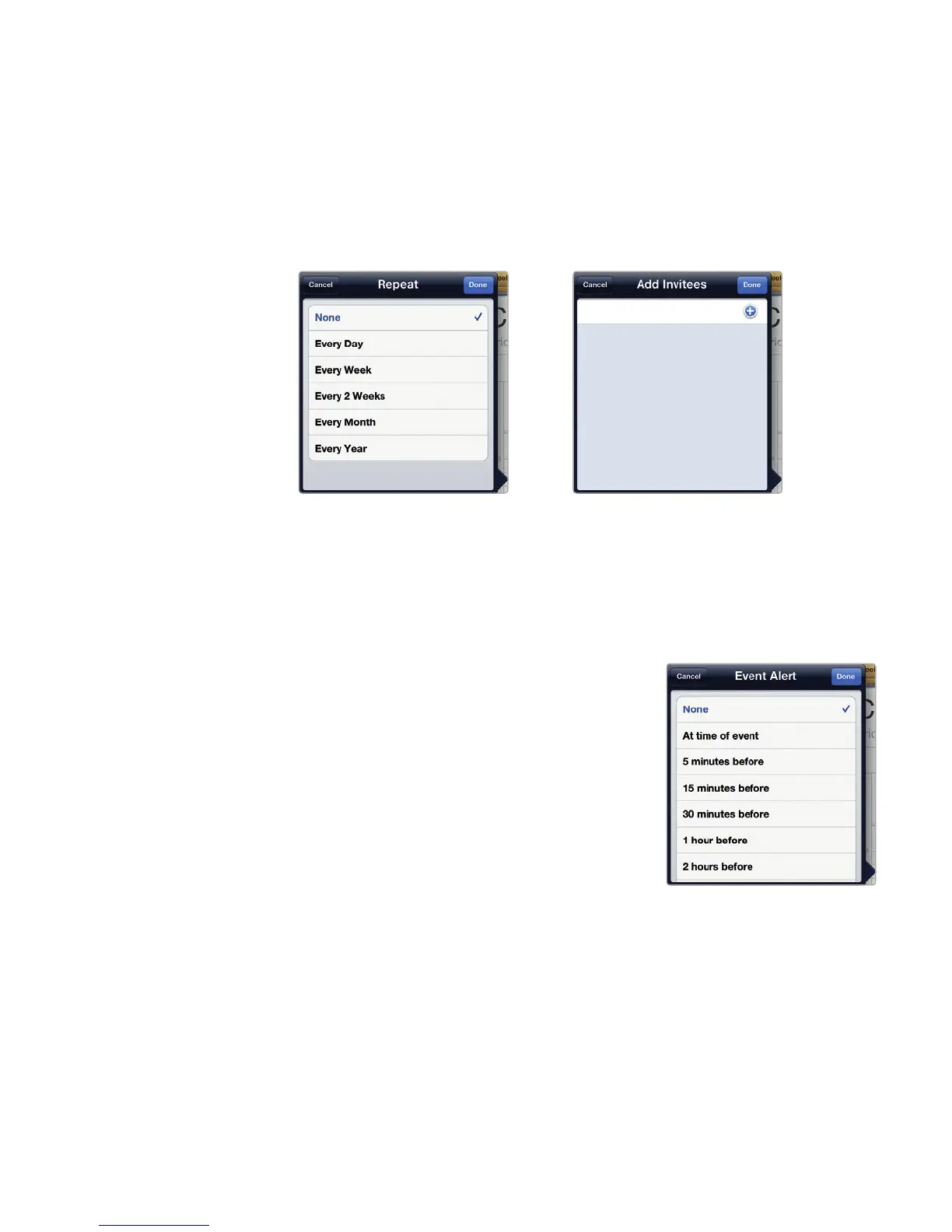
11. (Optional) Tap the Repeat field. A Repeat Event window appears, as shown
in Figure26-4. Tap a time period, such as Every Week or Every Month,
and then tap the Done button in the upper-right corner of the Repeat Event
window.
12. (Optional) Tap Invitees. The Add Invitees window appears, as shown in Fig-
ure 26-5. Tap the white plus sign in the blue circle to choose a name from
the Contacts app. You can now invite anyone who has an email address. Tap
Done in the upper-right corner of the Add Invitees window.
13. (Optional) Tap the Alert field. The Event
Alert window appears, as shown in Fig-
ure26-6. Tap a time period, such as 5
minutes before or 1 hour before, and
then tap Done in the upper-right corner of
the Event Alert window.
14. (Optional) Tap Availability. The Availability
window appears. Tap Busy or Free, and
then tap Done in the upper-right corner of
the Availability window.
15. (Optional) Tap the URL field, and type a
URL address such as www.nostarch.com.
16. (Optional) Tap the Notes text field, and
type any additional descriptions or notes
you want to remember about this appoint-
ment, such as Don’t forget to bring
birthday present or Remember, Mr.
Grutchins is allergic to peanuts.
17. Tap Done in the upper-right corner of the Add Event window when you’re
finished typing information about your appointment.
FIGURE 26-4: The Repeat
Event window lets you
define a repetitive event.
FIGURE 26-5: The Add
Invitees window lets you
access names stored
in the Contacts app to
invite them to an event.
FIGURE 26-6: The Event
Alert window lets you
define when an alert
should sound.



 To Next Page