Using Maps
|
233
Finding Your Current Location
Every map is useless if you can’t find where you are. That’s why shopping center
maps always have a big “You Are Here” arrow. To identify your current location,
your iPad needs an Internet connection.
To find your current location on a map, follow these steps:
1. From the Home screen, tap Maps. The Maps screen appears.
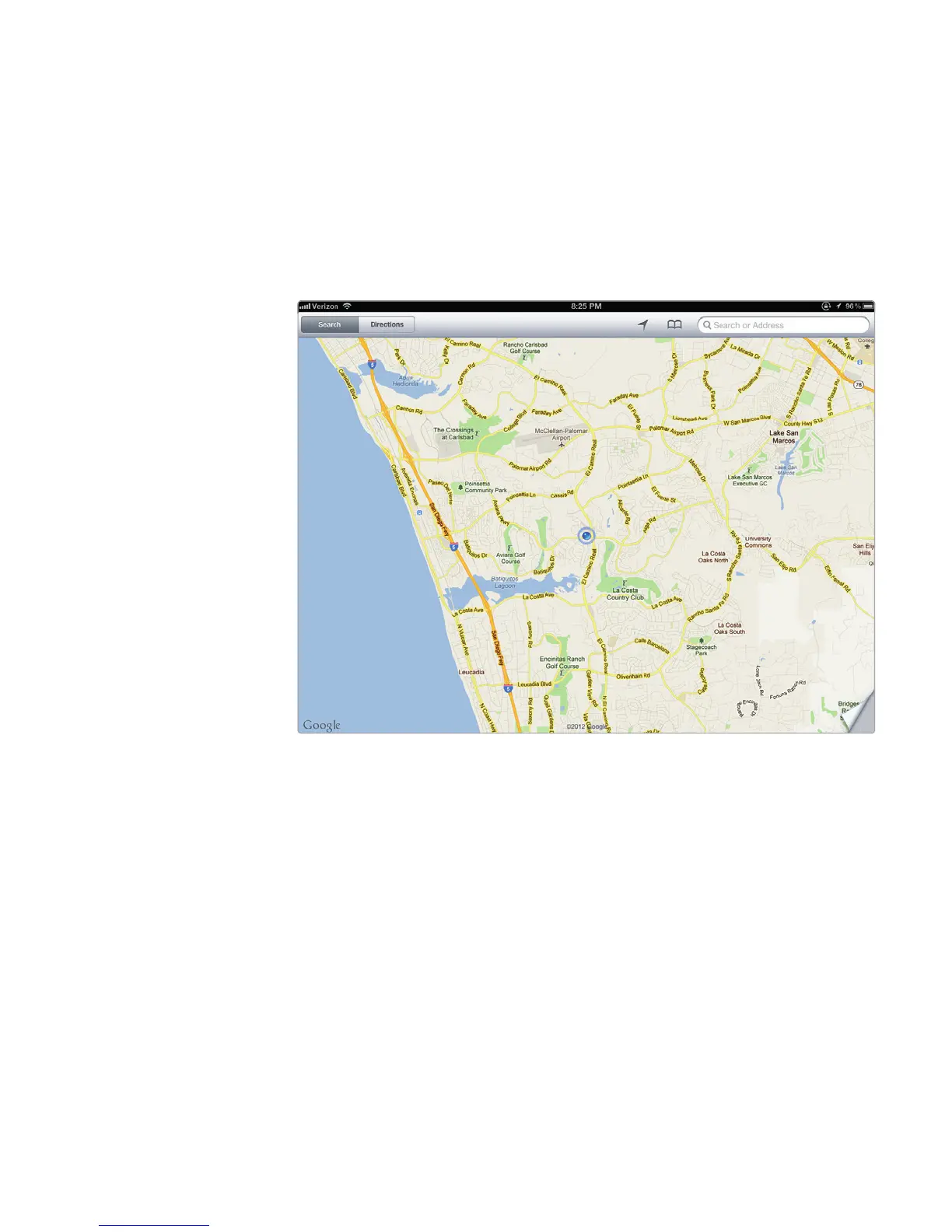
2. Tap the Current Location/Compass icon. Your current location appears as a
blue dot and a circle, as shown in Figure 27-4.
Using the Compass
A map can be handy to help you find your way around, but if you don’t know which
direction you’re facing, you may not know whether you’re heading the right way. To
help you find your direction, the Maps app offers a compass.
To use the compass, follow these steps:
1. From the Home screen, tap Maps. The Maps screen appears.
2. Tap the Current Location/Compass icon twice. A compass appears in the
upper-right corner, as shown in Figure 27-5. (Note how the Current Location
icon changes when you turn on the compass.)
FIGURE 27-4: A blue dot identifies your current location on the map.



 To Next Page