234
|
Chapter 27
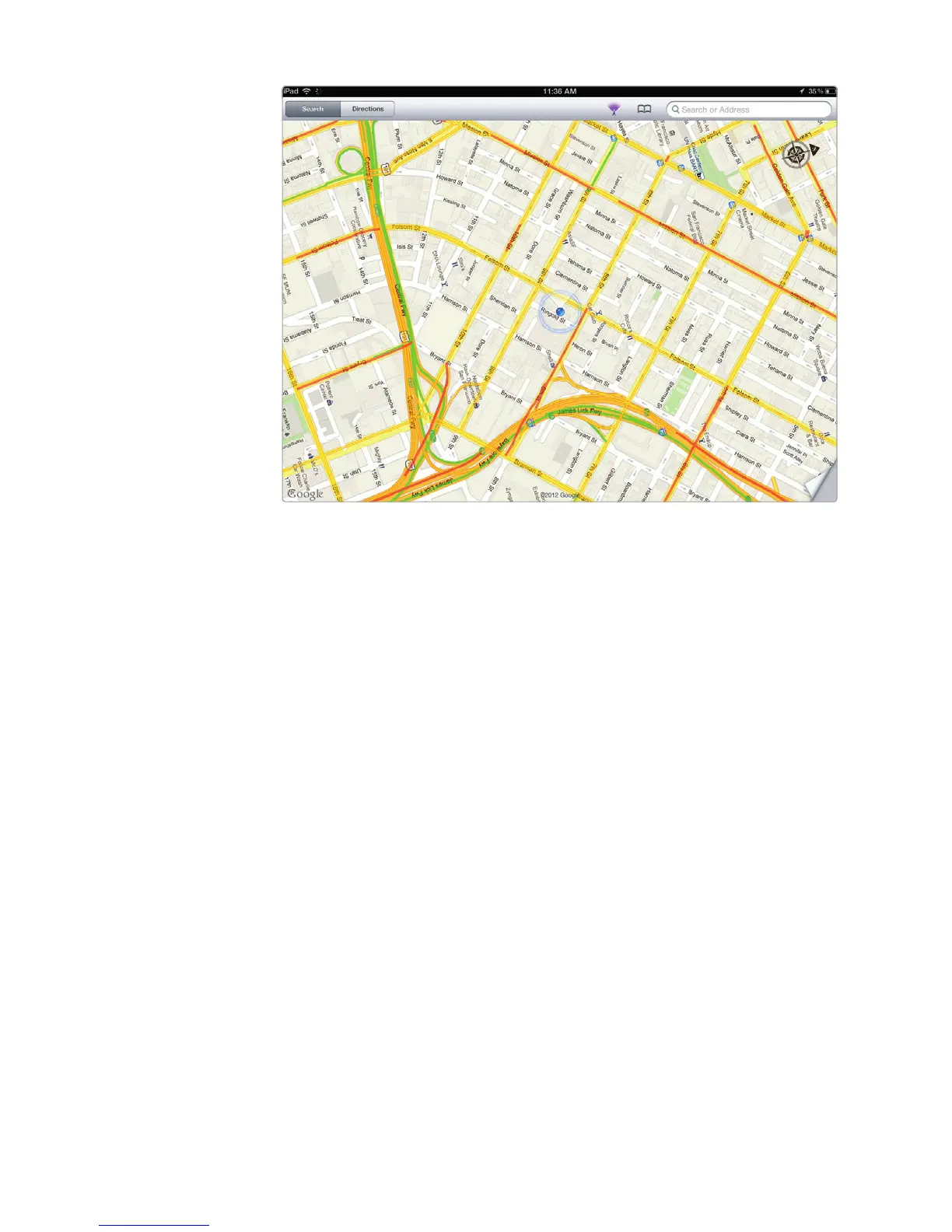
3. Rotate the iPad. The compass shows you the direction of north, while a trian-
gular area on the blue dot shows which direction you’re currently facing. Try
moving your iPad around—notice that as you change directions, the iPad’s
indicator moves with you.
4. Tap the Current Location/Compass icon once to make the compass disap-
pear. You can also just drag the map.
Finding Places on a Map
Sometimes you know exactly where you want to go. Other times you may be
searching for something you need, such as the nearest pizza restaurant, gas sta-
tion, supermarket, or coffeehouse. Whether you want to find a specific address or
need to find a certain kind of place, your iPad can show you the way.
Searching for an Address
If you know the exact address you want to find, you can locate it on your iPad by
following these steps:
1. From the Home screen, tap Maps. The Maps screen appears.
2. Tap the Search tab in the upper-left corner of the screen. (It may already be
selected.)
3. Tap the Search field in the upper-right corner of the screen. The virtual key-
board appears at the bottom of the screen.
4. Type an address and city. Then tap the Search key on the virtual keyboard.
The map displays a red pin to identify the address, as shown in Figure 27-6.
FIGURE 27-5: The compass lets you see where you’re going.



 To Next Page