Using Maps
|
237
Bookmarking Favorite Locations
When you find a location on a map, you can bookmark it. That way, if you find a
great restaurant, bookstore, or bar that you know you’ll want to return to, you can
save this location for future use or send an email message to a friend so they’ll be
able to find that place too.
Saving or Sharing a Location
To save a location or email it to a friend, follow these steps:
1. Search for a location using one of the instructions in “Finding Places on a
Map” on page 234. Your chosen location appears onthe map, marked by a
redpin.
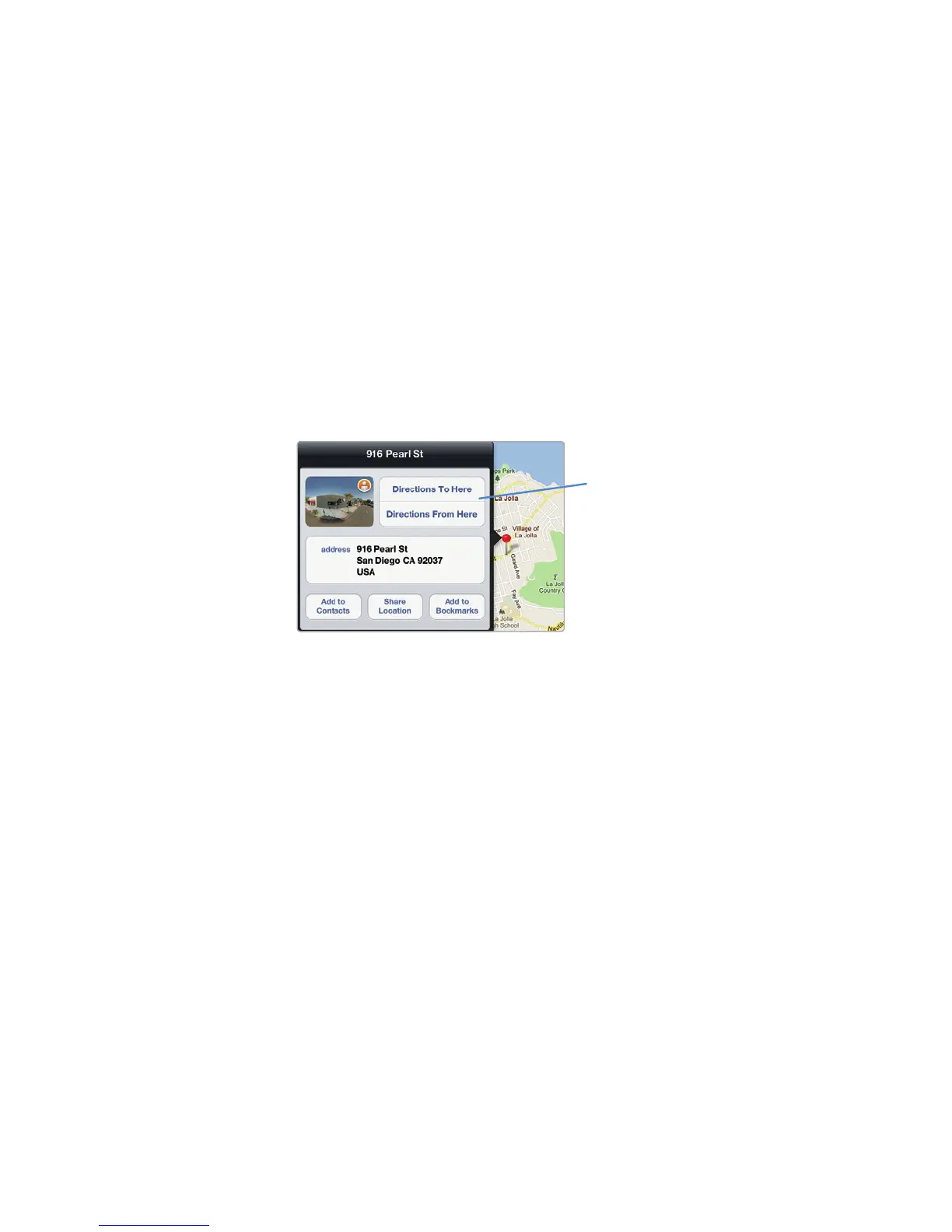
2. Tap the Information icon that appears (it looks like a white lowercase i in a
blue circle). A window pops up, listing information about that location, as
shown in Figure27-10.
3. (Optional) Tap Add to Bookmarks. The Add Bookmark window appears.
Type or edit a descriptive name, and tap Save.
4. (Optional) Tap Add to Contacts. The Create New Contact, Add to Existing
Contact, and Cancel buttons appear. Tap Create New Contact, Add to
Existing Contact, or Cancel. If you tap Create New Contact, you can edit
any information before tapping the Done button. If you tap Add to Existing
Contact, you’ll need to pick a name in your Contacts list to store the location
information.
5. (Optional) Tap Share Location. An Email, Message, Tweet, and Cancel but-
ton appears. Tap one of these buttons to send the contact information.
Placing Your Own Bookmark
Rather than looking for an address or place and then creating a bookmark, the
Maps app also gives you the option of placing a purple pin on a map to identify
any location you want. This can be handy for identifying a particular area without
caring what that street address might be.
FIGURE 27-10: A window listing information about the loca-
tion on themap. If you tap Share Location, you can email
the location to a friend.
You can get directions
right from the Information
window.



 To Next Page