236
|
Chapter 27
6. Tap the screen once, and tap the Done but-
ton that appears in the upper-right corner
of the screen. Or tap the viewing circle that
appears in the bottom-right corner of the
screen to return to the map.
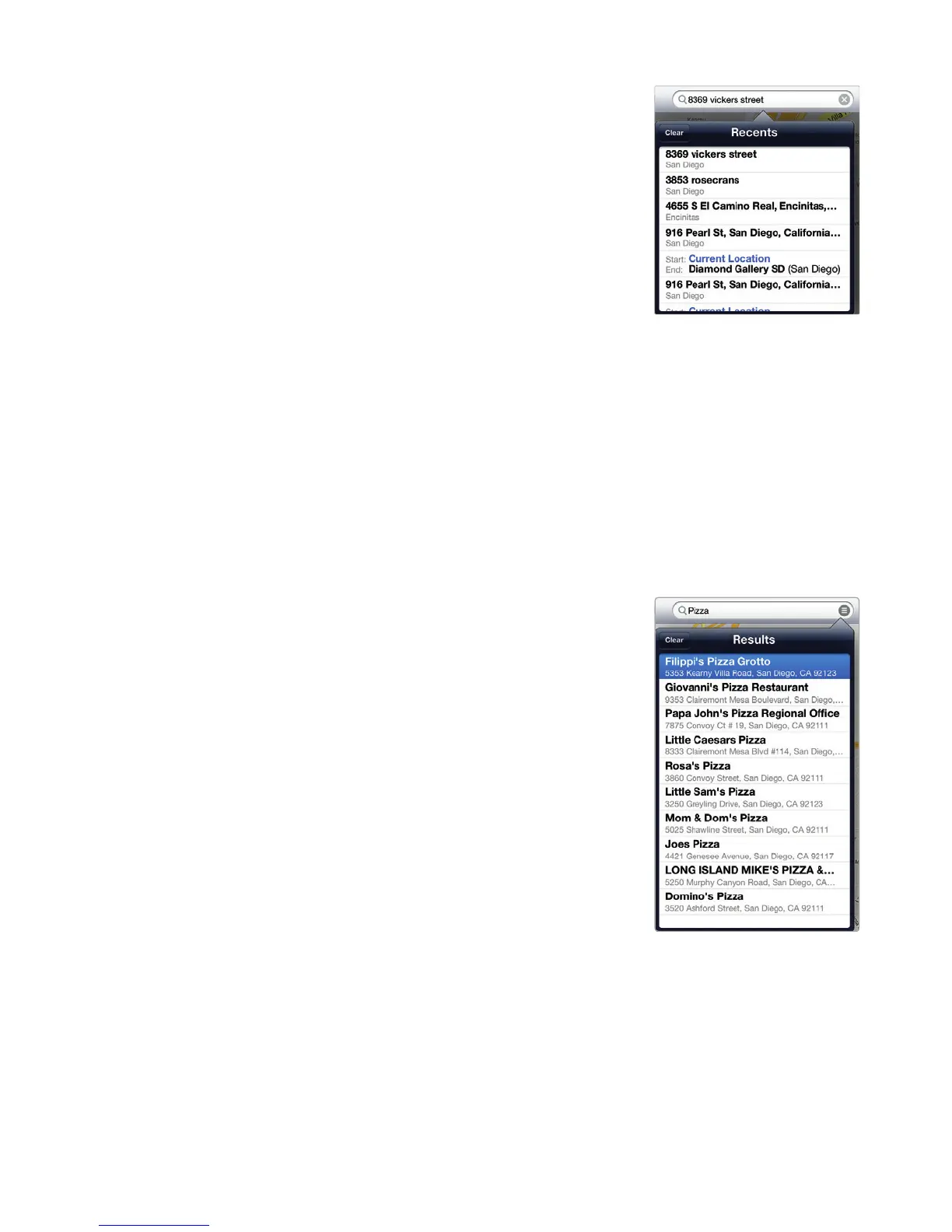
Q NOTE: After you have searched for
oneor more addresses, the Maps app
stores those addresses in a Recents list,
as shown in Figure27-8. The Recents win-
dow appears automatically when you tap
the Search field. You can clear this list by
tapping the Clear button in the upper-
left corner of the Recents window.
Searching for Types of Places
If you’re looking for pizza or a supermarket, the Maps app is smart enough to fig-
ure out what you want and display multiple pins identifying locations of businesses
that match your search. You can also use the Search feature to find particular cities,
towns, and even well-known landmarks like the Empire State Building or Golden
Gate Park.
To search for places, follow these steps:
1. From the Home screen, tap Maps. The
Maps screen appears.
2. Tap the Search tab in the upper-left corner
of the screen.
3. Tap the Location icon, or simply scroll the
map to an area that you want to investigate.
4. Tap the Search field in the upper-right
corner of the screen. The virtual keyboard
appears at the bottom of the screen.
5. Type a description of the place you want to
find, such as pizza or gas. Red pins appear
on the map to identify locations that match
your search criteria.
6. Tap the Results icon (it looks like three
white horizontal lines inside a gray circle)
at the far right of the Search field. A list of
names and addresses of places that match
your search criteria appears, as shown in
Figure 27-9.
7. Tap a name, and the map highlights the
location of that business on themap.
FIGURE 27-8: The Recents
window stores your last
searched locations.
FIGURE 27-9: The Results
window lists the names
and addresses of busi-
nesses that match your
search criteria.



 To Next Page