246
|
Chapter 28
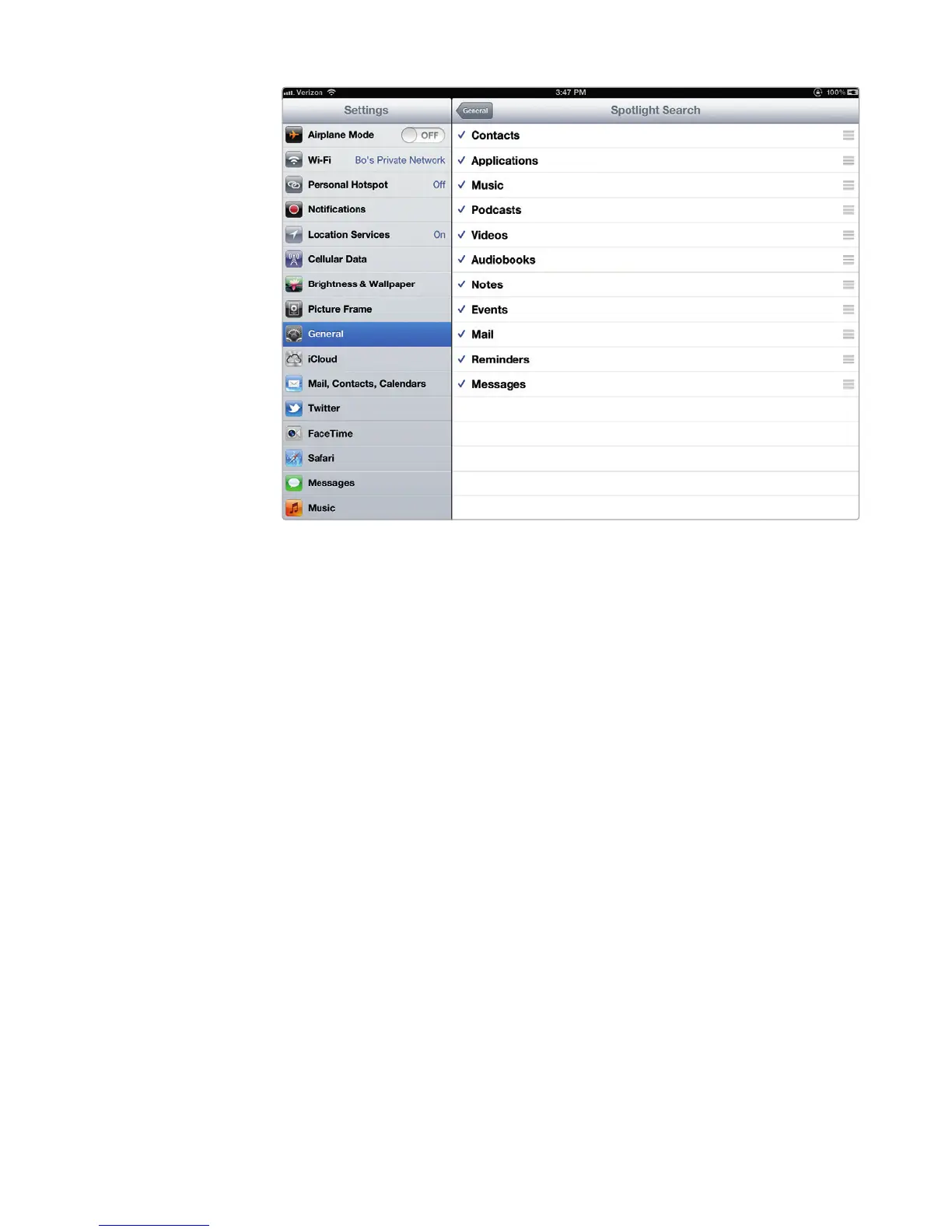
5. Place your fingertip over the three horizontal lines at the far right of an item,
and slide your finger up or down. This lets you rearrange the order that Spot-
light searches for items, starting from the top.
6. Press the Home button. The Home screen appears. Try your search again,
and see the results!
Additional Ideas for Searching with
Spotlight
If you collect dozens of apps, trying to find the one app you want can involve swip-
ing through multiple panes of the Home screen. For a faster method, just swipe to
reveal the Spotlight screen, and type the name of the app you want to run.
If you store notes in the Notes app, give each note a descriptive heading.
Not only will this help you organize your notes within the Notes app, but it will also
make it easier for Spotlight to find your note again if you can remember to search
for that heading (such as “To-Do” or “Daily Goals”).
With Spotlight on your iPad, you can quickly search for anything you’ve stored
so you don’t have to worry where you put it. As long as you know what you called it,
you’ll be able to find it again courtesy of Spotlight.
FIGURE 28-3: The Spotlight Search settings screen lists the order of
items to search.



 To Next Page