Searching Your iPad withSpotlight
|
245
2. Tap the Search iPad field, and type part of the word that represents what
you want to find. For example, if you want to find a name stored in your Con-
tacts app, type that name. If you want to find a note in the Notes app that
contains certain information, such as your grocery list, type a word that you
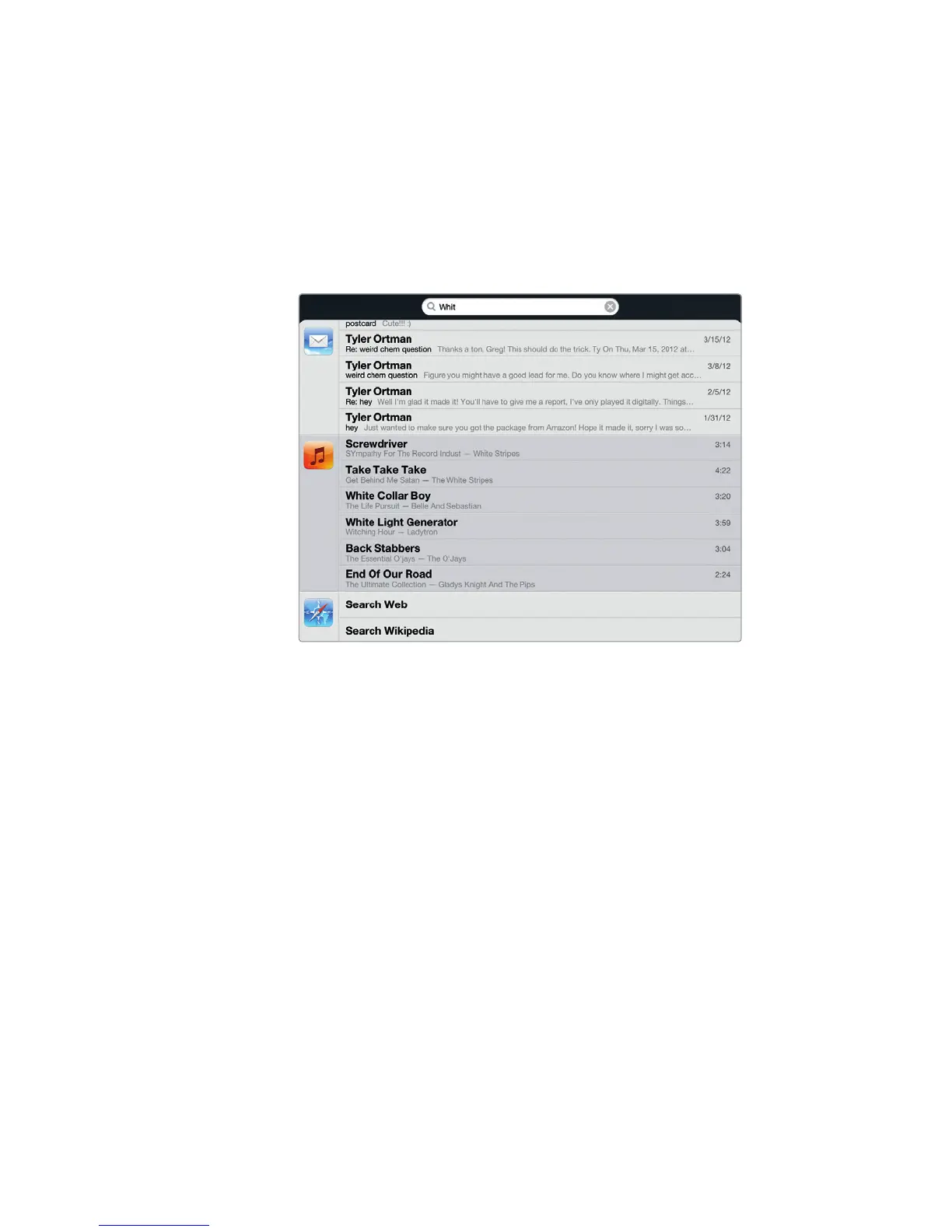
know appears on that note, such as milk or eggs. As you type each letter,
Spotlight displays the items that match your search criteria, as shown in
Figure 28-2.
3. Tap the item you want, such as a song, an app, or a note. Your iPad displays
or plays your chosen item.
Customizing Spotlight
You can also customize the order that Spotlight searches for things. If email mes-
sages are more important to you than audiobooks, tell Spotlight to search through
your email messages first and not bother searching for audiobooks until you’ve
searched for everything else.
To customize Spotlight, follow these steps:
1. From the Home screen, tap Settings. The Settings screen appears.
2. Tap General. The General settings screen appears.
3. Tap Spotlight Search. The Spotlight Search settings screen appears, as
shown in Figure 28-3.
4. Tap any item, such as Music, Podcasts, or Mail. Spotlight will search for
anyitem with a checkmark next to it and ignore any items that do not have
acheckmark next to them.
FIGURE 28-2: As you type, Spotlight displays items
that match your search criteria.



 To Next Page