252
|
Chapter 29
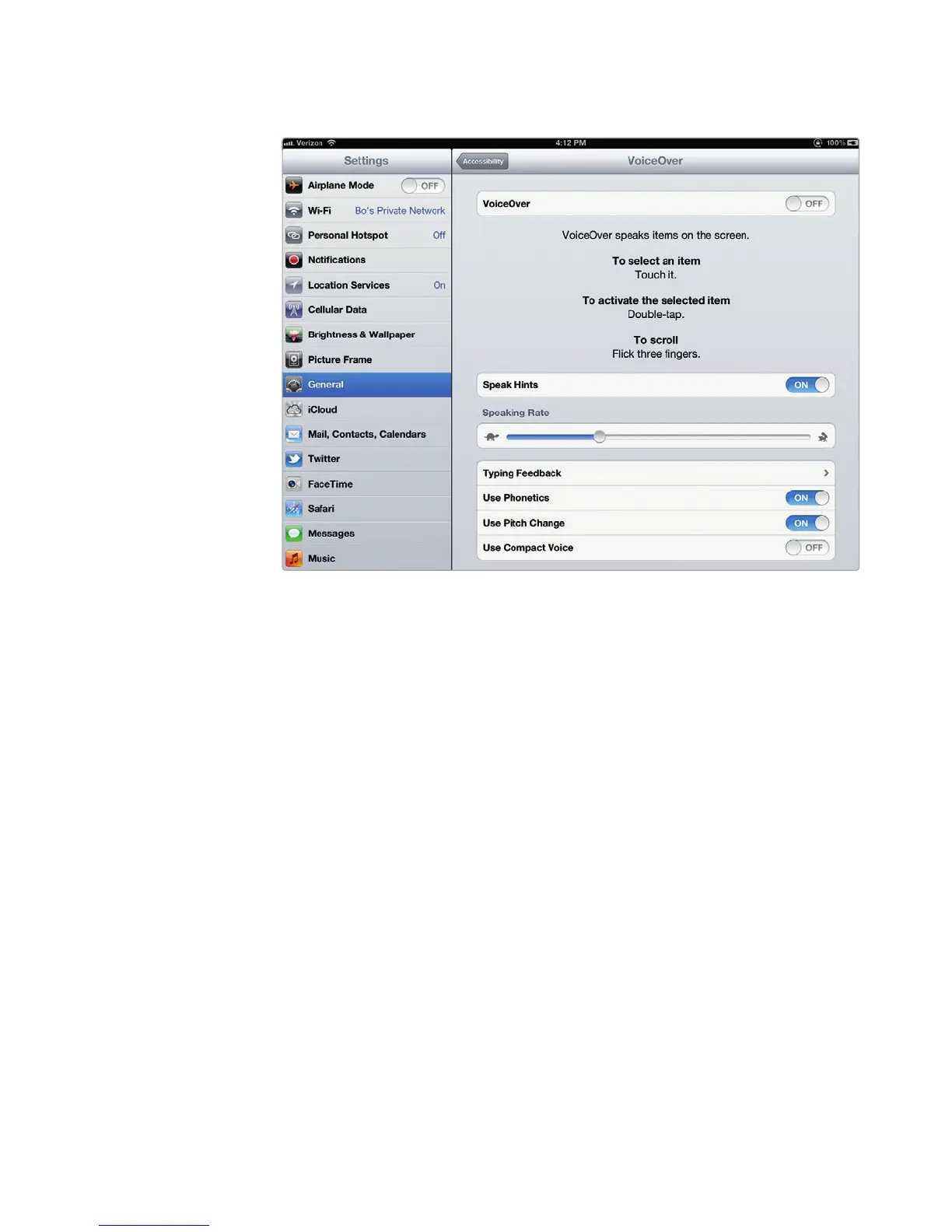
4. Tap VoiceOver. The VoiceOver settings screen appears, as shown in
Figure29-3.
5. Tap the VoiceOver on/off switch.
Q NOTE: Enabling this setting does more than just read the iPad’s screen aloud—
it actually changes iPad’s behavior. Instead of single-tapping to open apps,
press buttons, and toggle switches, you’ll need to double-tap. You’ll also
need to double-tap to type. Instead of scrolling with one finger, you’ll need
to scroll with three fingers. This is because the usual single tap will activate
VoiceOver rather than the screen element.
6. (Optional) Tap the Speak Hints on/off switch. Speak Hints provides a bit of
context with each selection—for example, when you single-tap an app on
the Home screen, your iPad will read its name aloud and say, “Double-tap
toopen.”
7. (Optional) Slide the Speaking Rate slider to make the iPad’s synthesized
voice speak faster or slower.
8. (Optional) Tap Typing Feedback to display the Typing Feedback settings
screen, which lets you define whether the iPad should give you audio feed-
back after each character, entire words, or both. Tap an option, and then tap
the VoiceOver back button to view the VoiceOver screen again.
FIGURE 29-3: The VoiceOver settings screen lets you define how your
iPad can read its controls to you.



 To Next Page