Using Foreign Languages
|
259
To use a foreign-language keyboard, follow these steps:
1. Run an app that displays the virtual keyboard, such as the Notes app.
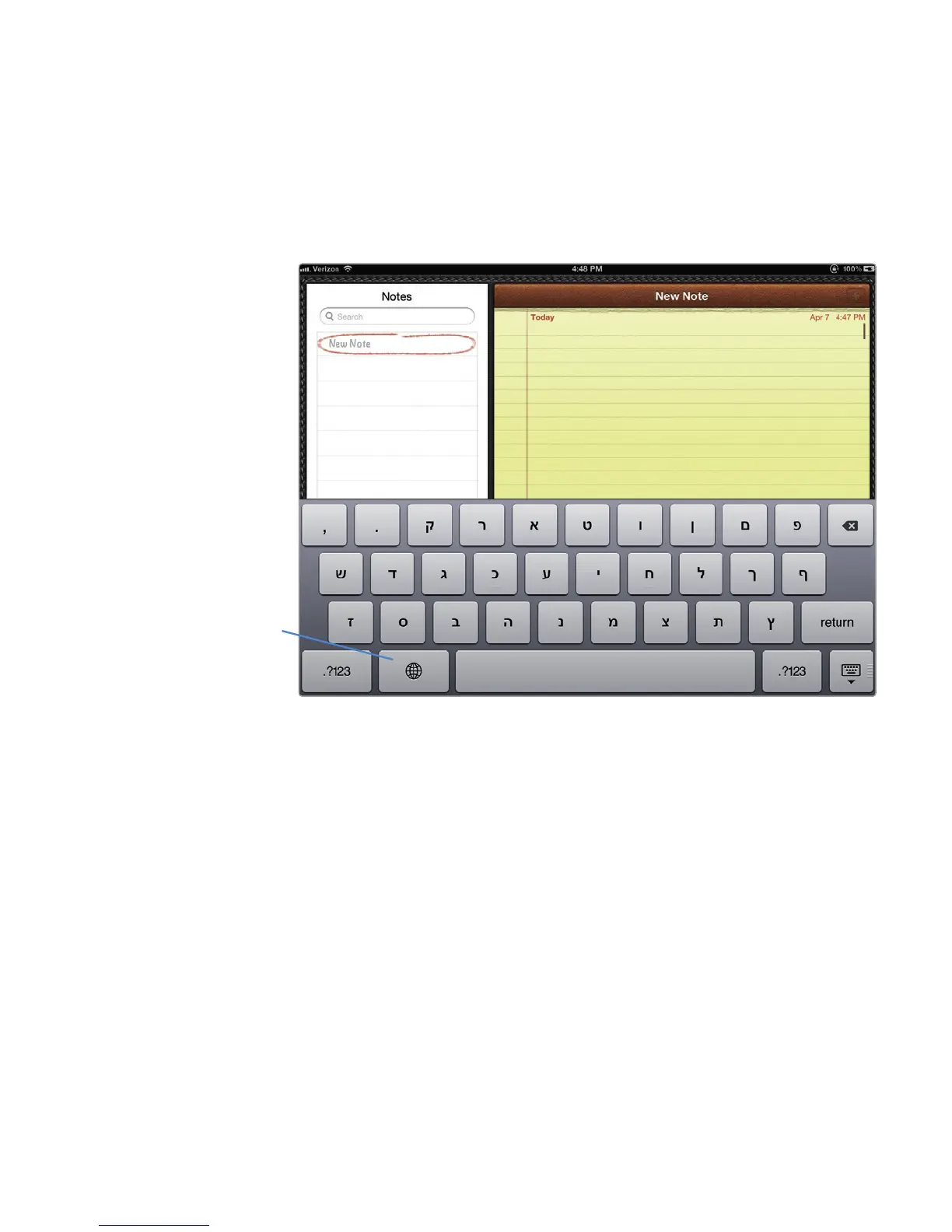
2. Tap the International key (it looks like a globe) that appears next to the space-
bar. One of your foreign-language virtual keyboards appears, as shown in
Figure 30-5.
3. Type something, and when you’re ready to switch to another language, tap
the International key again until the keyboard you want appears.
Additional Ideas for Using Foreign
Languages on Your iPad
Anyone learning a foreign language can switch to their foreign-language keyboard
and start typing in that particular language.
If you have children, teach them the basics of typing in a foreign language.
Typing foreign words is often more fun than writing them by hand, so this gives you
a chance to turn your iPad into a simple foreign-language tutor for yourself or for
others.
If you regularly travel to different parts of the world, or just live in a neighbor-
hood where people often speak multiple languages, experiment with different
foreign-language options so you can use your iPad no matter where you might be.
FIGURE 30-5: Tapping the International key switches through the differ-
ent language keyboards you have defined.
International
key



 To Next Page