18
|
Chapter 3
What You’ll Be Using
To learn how to control your iPad via its physical buttons, you need to use the
following:
> The Home button > The Volume Up/Down buttons
> The Silent/Screen Rotation
Lockswitch
Viewing the Home Screen
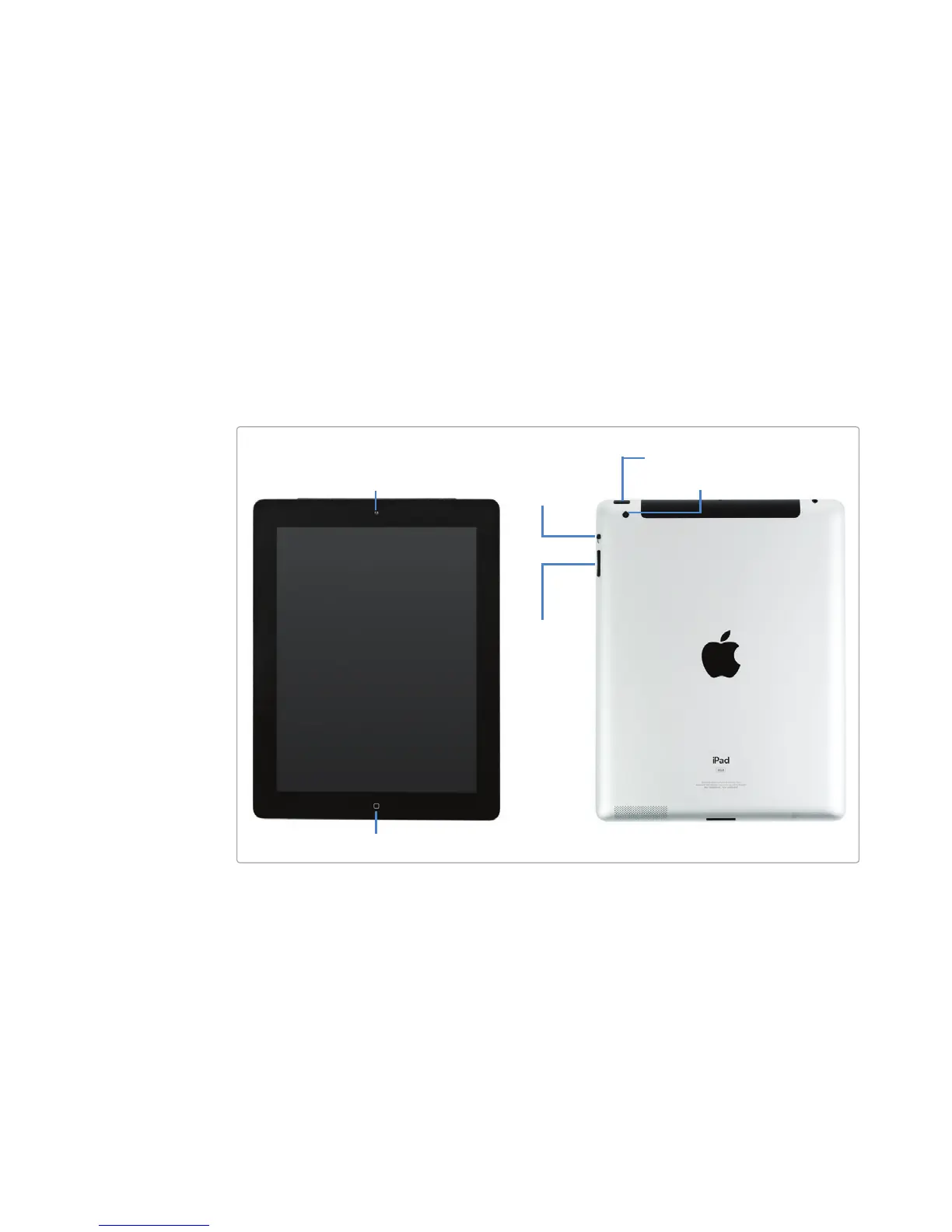
The Home button appears at the bottom of the iPad on the front, as shown in
Figure 3-1. No matter what app you may be using at the time, pressing the Home
button immediately displays the Home screen, which displays icons that represent
all the apps you can run on your iPad. (Try it now!)
Adjusting the Volume
To make it easy for you to increase or decrease the volume, the iPad includes Volume
Up and Volume Down buttons on its right side (shown earlier in Figure 3-1).
You can adjust the volume by pressing one of the volume buttons or by hold-
ing it down. When you adjust the volume, the iPad displays a ringer icon with a
horizontal bar underneath that visually displays the current volume level, as shown
in Figure 3-2.
FIGURE 3-1: The physical controls on the iPad
Sleep/Wake button
Back camera
Home
Front camera
Silent/Screen
Rotation Lock
switch
Volume
Up/Down
buttons



 To Next Page