Using Your iPad’s Physical and Virtual Controls
|
19
Q NOTE: Many apps, such as the Music or YouTube app, also let you adjust the
volume with a volume slider that appears on the screen. By moving this vol-
ume slider left or right, you can lower or raise the volume without touching
the physical Volume Up/Down buttons on the side of the iPad.
Another way to adjust the volume is through the volume slider on the screen,
which you can display and adjust by following these steps:
1. Press the Home button twice. A list of icons, representing different apps,
appears, as shown in Figure 3-3.
2. Swipe this list of icons to the right. You’ll see the Volume Control slider, as
shown in Figure 3-4.
3. Slide the Volume Control slider left or right.
4. Press the Home button when you’re done.
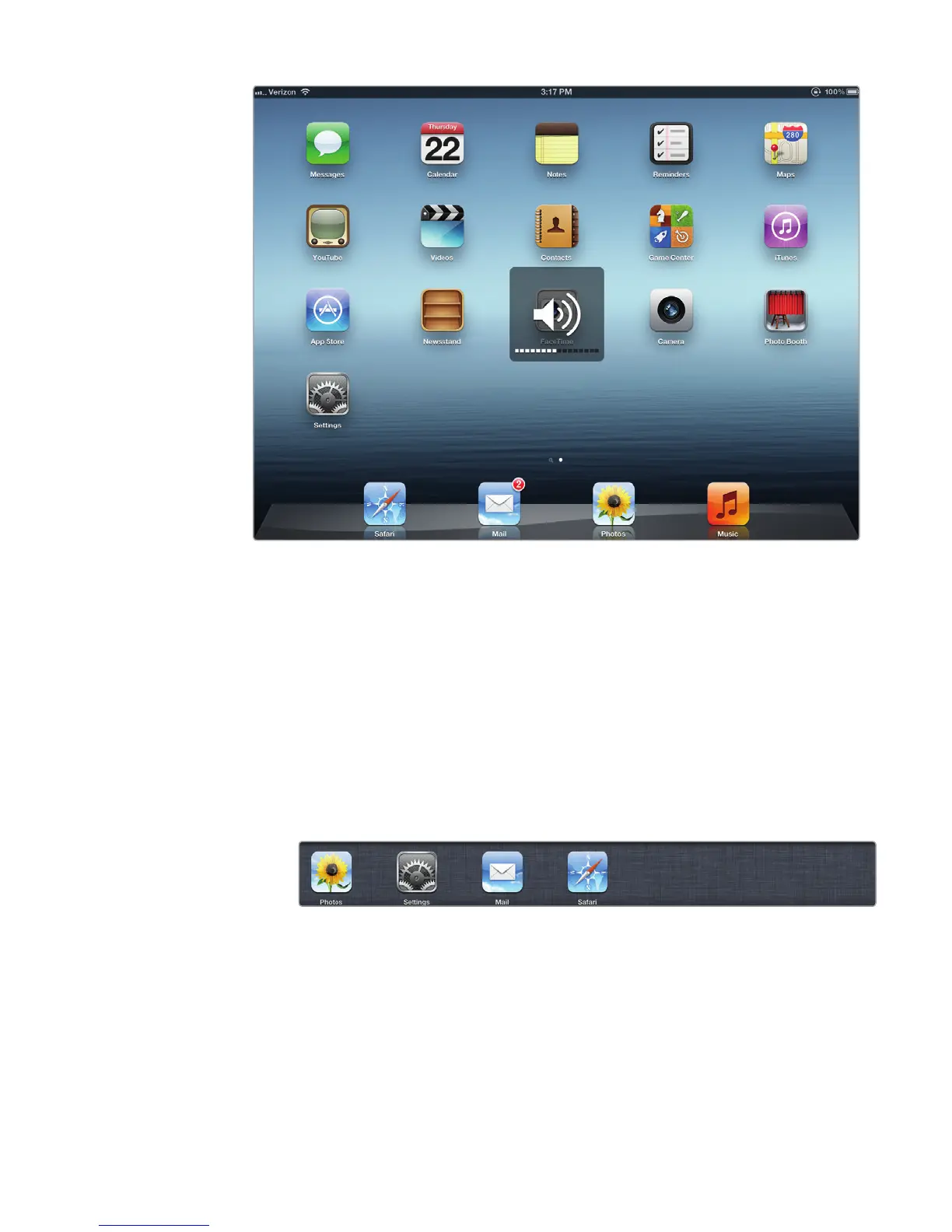
FIGURE 3-2: A volume icon shows how loud (or soft) your volume is.
FIGURE 3-3: The bottom of the screen lists all apps you can switch to.



 To Next Page