Controlling the iPad User Interface
|
27
Q NOTE: When you start downloading apps, they’ll appear on additional Home
screen panes, which you can access by pressing the Home button and then
sliding your finger to the left to view each additional pane.
Using the Zoom Command
The iPad’s screen can display entire web pages. Of course, the images and text
may appear too small to read comfortably, so the iPad gives you the option to
zoom in and zoom out. To enlarge or shrink an image, you can use two fingers in
a pinching motion. Touch the screen with your fingers spread out and bring them
closer together to cause the iPad image to shrink. If you start with your fingers
together and slide them apart, the iPad image enlarges. This gesture resembles
apinching motion with two fingers.
To practice zooming in and out, try the following steps to get acquainted
with the Maps app:
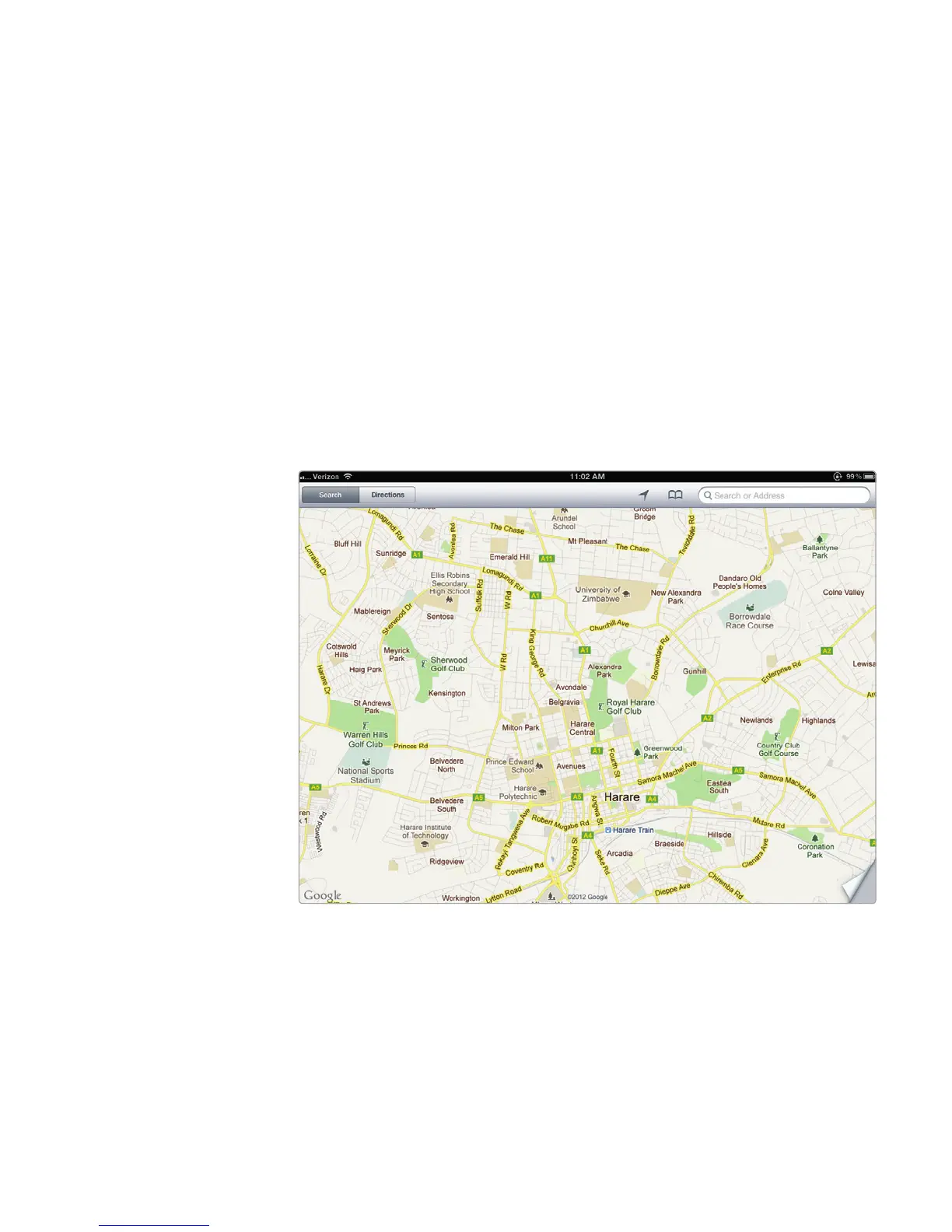
1. From the Home screen, tap Maps. The Maps app appears, as shown in
Figure 4-4.
2. Zoom in using the pinching gesture: Place two fingers close together and
slide them apart while maintaining contact with the iPad screen. Notice that
the map zooms in.
3. Zoom out using the pinching gesture: Place two fingers apart and slide them
together while maintaining contact with the iPad screen. Notice that the map
zooms out.
FIGURE 4-4: The Maps app



 To Next Page