32
|
Chapter 5
What You’ll Be Using
To customize the virtual keyboard, you need to use the following:
The Notes app The Settings app
Displaying Different Virtual Keyboards
Because of the limited screen size available on the iPad, the virtual keyboard
behaves differently than a physical keyboard. A physical keyboard displays every
key, including letter and number keys in addition to cursor movement keys and
function keys. Although this makes all the keys available, it also tends to clutter the
keyboard with groups of keys you might rarely use, such as the function keys or the
numeric keys.
The iPad’s virtual keyboard works differently by displaying only the groups
of keys you’re most likely to use. The three main types of virtual keyboards display
letters, numbers, and symbols.
For additional comfort, you can Split the keyboard in half so you can type
with your thumbs while holding the iPad. You can also Undock the keyboard from
the bottom so it floats near the middle of the screen.
To see what these virtual keyboards look like, follow these steps:
1. From the Home screen, tap Notes. The Notes screen appears.
2. Tap anywhere on the right side of the screen that looks like a yellow notepad.
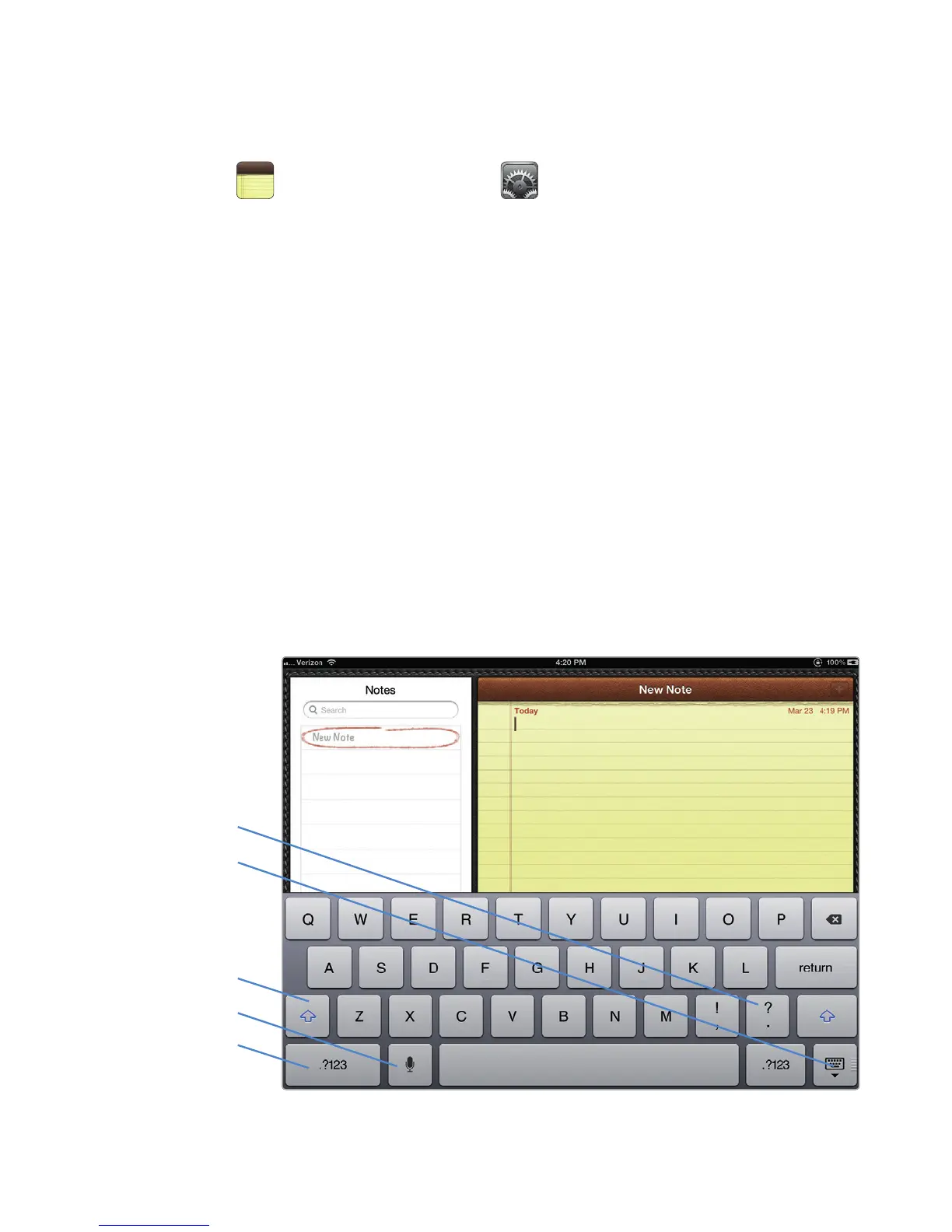
The virtual keyboard displaying letters appears, as shown in Figure 5-1.
FIGURE 5-1: The main virtual keyboard displays letters.
Press the Shift
key and then tap
here to type ?
Hide Keyboard
(tapand hold to
Splitor Undock)
Shift
Numeric Keyboard
Voice Dictation



 To Next Page