Using and Customizing the Virtual Keyboard
|
33
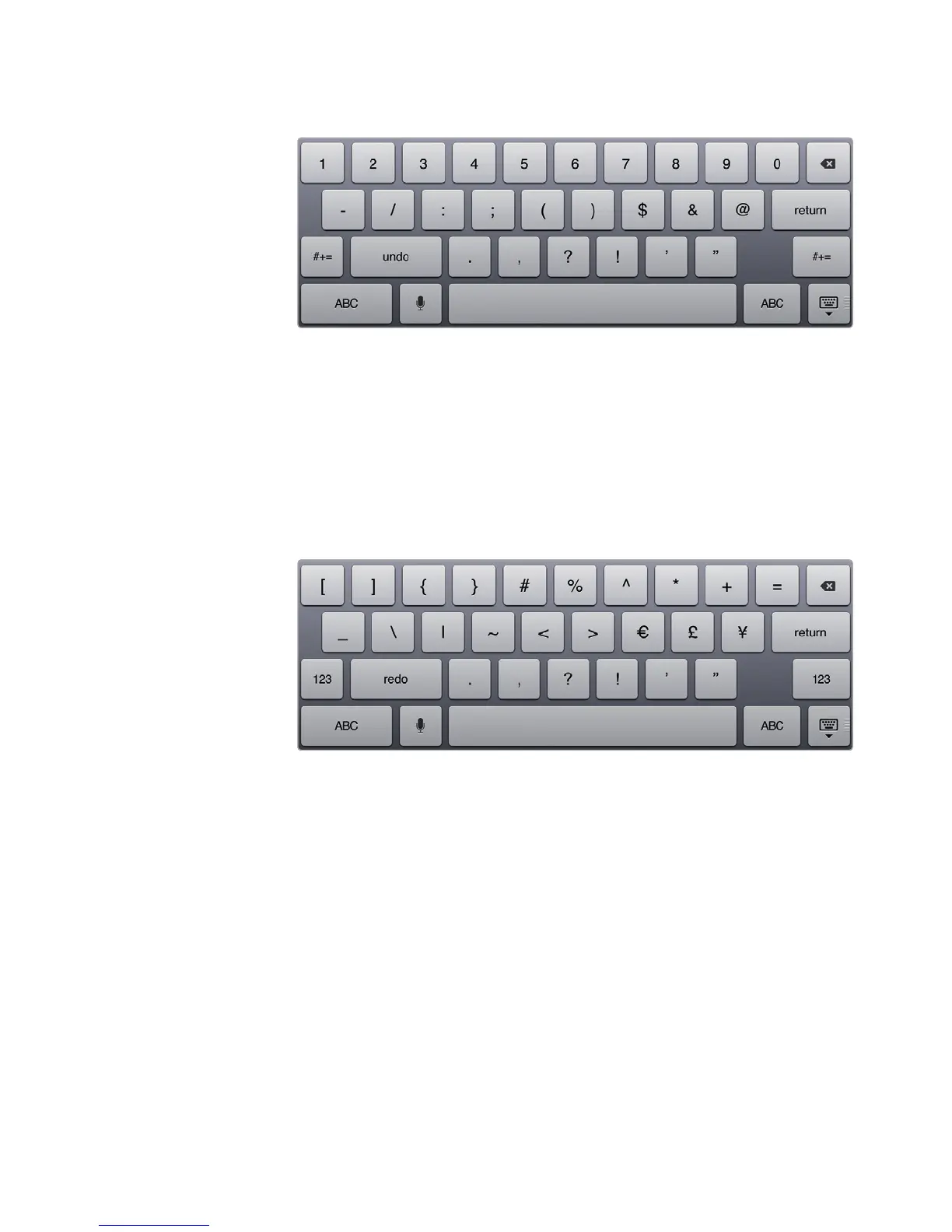
3. Tap either of the .?123 keys. The virtual keyboard changes to display numbers
and additional symbols, as shown in Figure 5-2.
Q NOTE: To save yourself a few extra taps when typing a single piece of punctu-
ation, you can just tap and hold the .?123 key and then release it once you’ve
found the right character. Your keyboard will automatically swap back to the
ABC keyboard.
4. Tap either of the #+= keys. The virtual keyboard changes to display symbols,
as shown in Figure 5-3.
5. Tap either of the 123 keys. The numeric virtual keyboard reappears (shown
earlier in Figure 5-2).
6. Tap either of the ABC keys. The main virtual keyboard with letters reappears
(shown earlier in Figure 5-1).
Typing on a Virtual Keyboard
Typing on the virtual keyboard is nearly identical to typing on a physical keyboard.
The main difference is that the virtual keyboard does not offer any arrow keys.
(You have to touch the screen to move the cursor.) In addition, if you type part of
a word, the virtual keyboard may display the correct and complete spelling of that
word, which you can choose by pressing the spacebar.
FIGURE 5-2: The virtual keyboard can display numbers.
FIGURE 5-3: The virtual keyboard can display symbols not found on
the letter or number virtual keyboards.



 To Next Page