34
|
Chapter 5
Typing Text
To create text, you can type it yourself or let the virtual keyboard suggest and
automatically type any words that you’ve partially typed. To see how typing on the
virtual keyboard works, follow these steps:
1. From the Home screen, tap Notes. The Notes screen appears.
2. Tap anywhere on the right side of the screen that looks like a yellow notepad.
The virtual keyboard displaying letters appears (shown earlier in Figure 5-1).
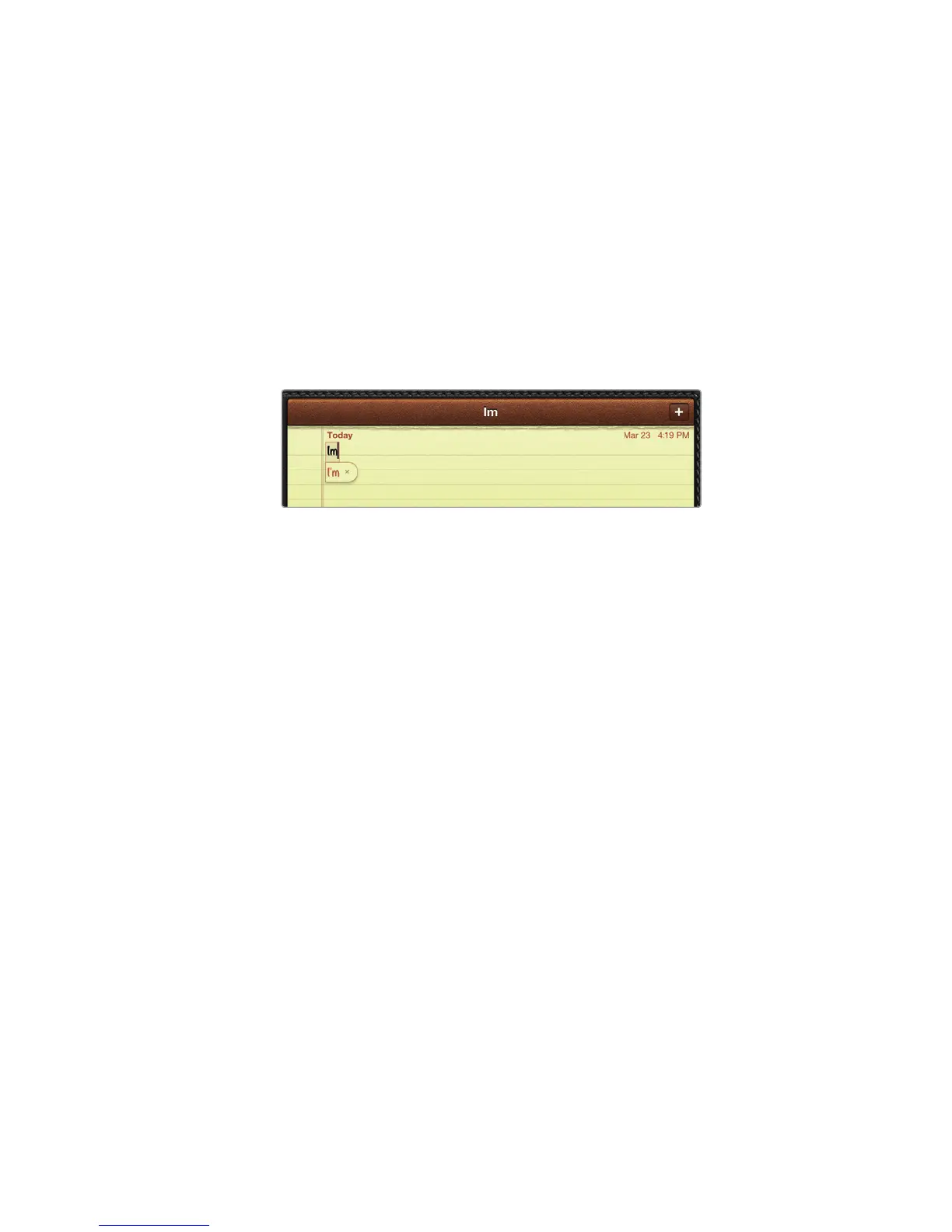
3. Start typing Im. Notice that when the virtual keyboard thinks it recognizes
what you’re typing, it displays I'm as a suggested word, as shown in Figure5-4.
4. Tap the spacebar to let the virtual keyboard finish typing the suggested word
automatically. (If you don’t want to choose the suggested word, keep typing
or tap the X in a circle that appears to the right of the suggested word.)
5. Type more text. Try misspelling a word by typing Testung —the iPad will
automatically correct your spelling to Testing. To make your new text appear
on another line, tap the Return key.
6. Tap the Shift key, then try pressing a letter. Notice it’s now uppercase. Tap
the Shift key again, and press the button labeled !,—you have inserted the !
character.
Moving the Cursor
With a physical keyboard, you can move the cursor by pressing the arrow keys or
by pressing any of the other cursor movement keys such as Home or End. With the
virtual keyboard, there are no cursor movement keys since you must directly place
and move the cursor by touching the iPad’s screen.
You can move the cursor in two ways: tapping your fingertip to move the cur-
sor before or after a word or touching and sliding your fingertip to move the cursor
within text. Holding your finger on the screen displays a magnifying glass that lets
you see the exact position of the cursor so you can slide your finger to move the
cursor where you want it to appear.
To see how to move the cursor, follow these steps:
1. From the Home screen, tap Notes. The Notes screen appears.
2. Type a few sentences of text.
3. Tap anywhere in your text. Notice that the cursor appears wherever you tap.
(However, the cursor will not appear in blank areas where there is no text.)
FIGURE 5-4: The virtual keyboard tries to guess the
word you want before you finish typing.


 To Next Page
 Loading...