Using and Customizing the Virtual Keyboard
|
35
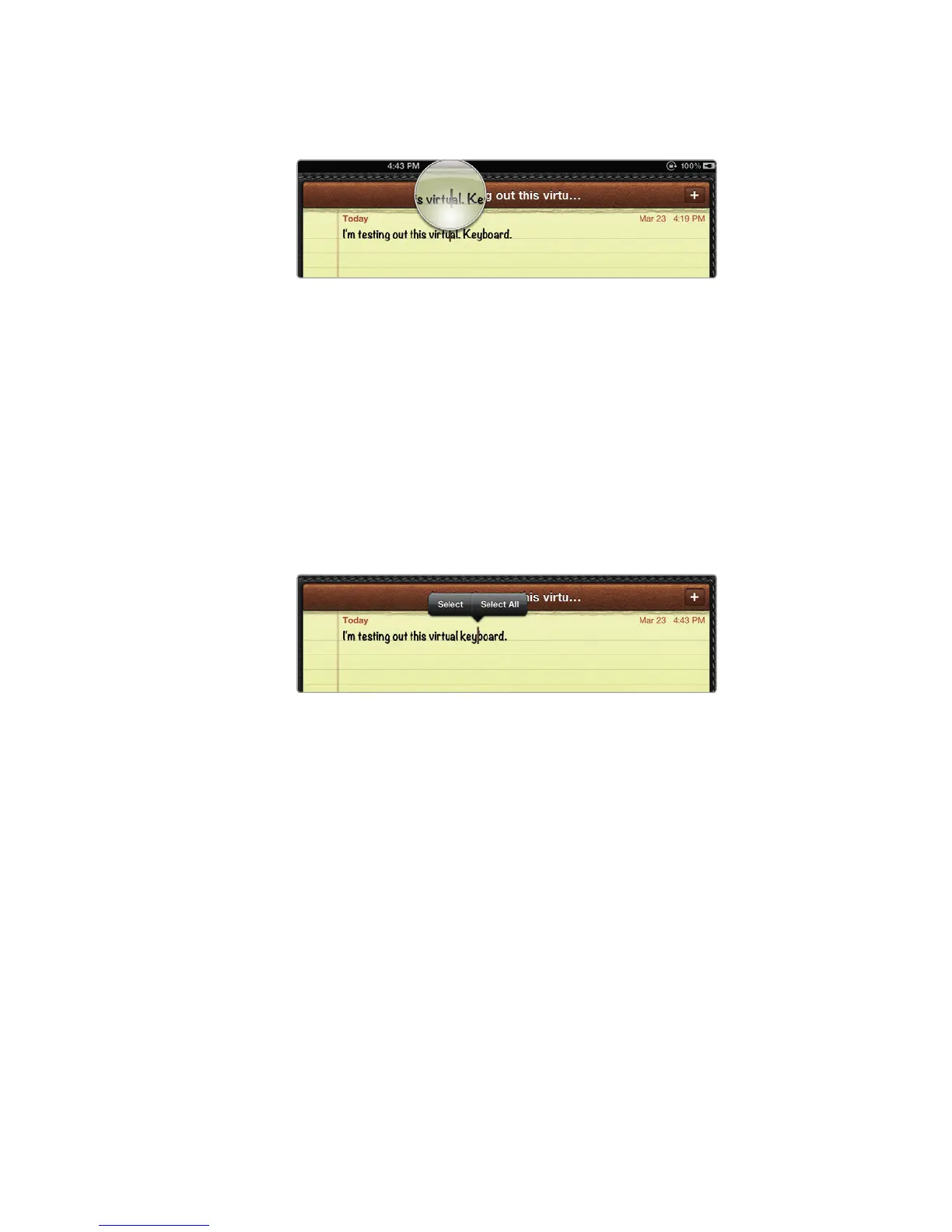
4. Hold your finger on any part of the text that you’ve typed. A magnifying
glass appears, letting you see the current position of the cursor, as shown in
Figure 5-5.
Q NOTE: If you’re having trouble getting the magnifying glass to appear, make
sure you do not slide your finger up or down.
5. Slide your finger to move the cursor. Notice how this method lets you move
the cursor accurately.
6. Lift your finger when you’re happy with the current location of the cursor. A
Select, Select All menu appears, as shown in Figure 5-6.
7. Press the Home button.
Selecting, Copying, and Cutting Text
Just like with a regular computer, you can select text to copy, cut, and paste
in another location. When selecting text, you have three choices: select a single
word, select all of your text, or select just part of your text.
After you select text, you can delete it by tapping the Backspace key, or you
can cut or copy the selected text to paste it somewhere else.
Selecting a Single Word
You can select a single word in two ways. First, you can tap a word twice to select
it. Second, you can hold your finger on a word for a moment and then release.
When a menu appears, tap Select. To try selecting a single word, follow these steps:
1. From the Home screen, tap Notes. The Notes screen appears.
2. Type a sentence of text.
FIGURE 5-5: A magnifying glass lets you precisely
place the cursor within text.
FIGURE 5-6: After you move the cursor, a Select,
Select All menu appears.



 To Next Page