36
|
Chapter 5
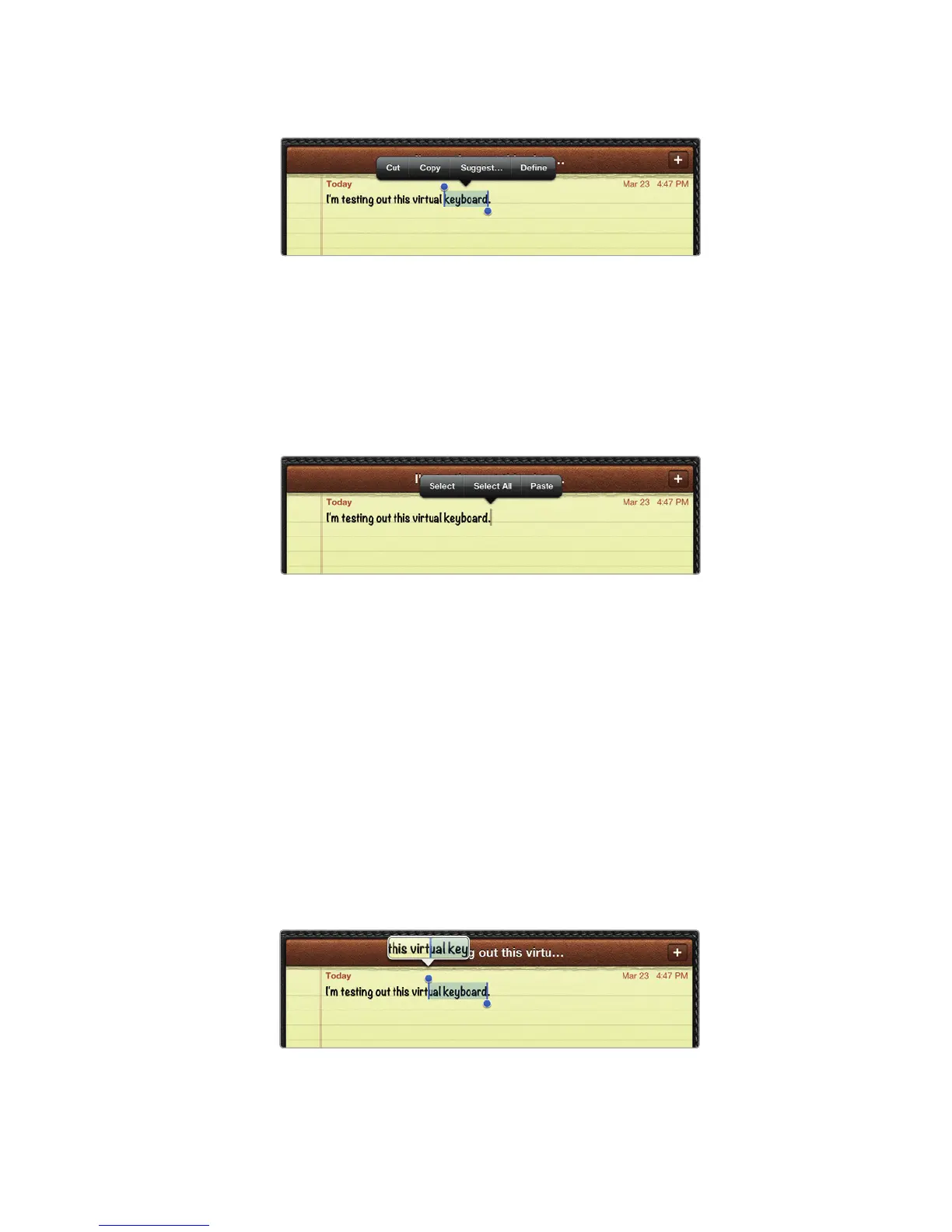
3. Tap a word twice. Your chosen word appears highlighted, as shown in Figure 5-7,
along with a Cut, Copy, Suggest, and Define menu.
4. Tap Cut or Copy to cut or copy your selected text.
5. Press your fingertip over another word, and lift your finger off the screen.
Notice that a Select, Select All, and Paste menu now appears, as shown in
Figure 5-8.
6. Tap Paste to insert your cut or copied text.
Selecting Part of Your Text
Normally the virtual keyboard selects only entire words. However, you may want to
select just part of a word, which you can do by following these steps:
1. From the Home screen, tap Notes. The Notes screen appears.
2. Type a sentence of text.
3. Tap any word twice. Your chosen word appears highlighted along with begin-
ning and ending markers; each marker appears as a vertical line with a circle
on the top or bottom of the line.
4. Hold your finger on one of the vertical lines, and slide your finger to select
more or less text, as shown in Figure 5-9.
FIGURE 5-7: Tap a word twice to select it.
FIGURE 5-8: Tap again after Cutting or Copying to
Paste.
FIGURE 5-9: Dragging the beginning or ending
marker lets you select parts of a text.



 To Next Page