Using and Customizing the Virtual Keyboard
|
37
5. Lift your finger when you’ve selected all the text you want. At this point you
can tap Cut or Copy to cut or copy your selected text.
Q NOTE: You can shake your iPad to Undo a Cut, Paste, or even a bit of typing—
just be careful not to drop it!
Spellchecking
The iPad’s virtual keyboard offers a limited form of spellchecking that flags possibly
misspelled words with a red underline. You must first tap a possibly misspelled
word, and then the virtual keyboard displays a list of possible correct spellings.
To see how to spellcheck text, follow these steps:
1. From the Home screen, tap Notes. The Notes screen appears.
2. Type Greeetings. (Make sure you deliberately misspell the word by typing
three es.)
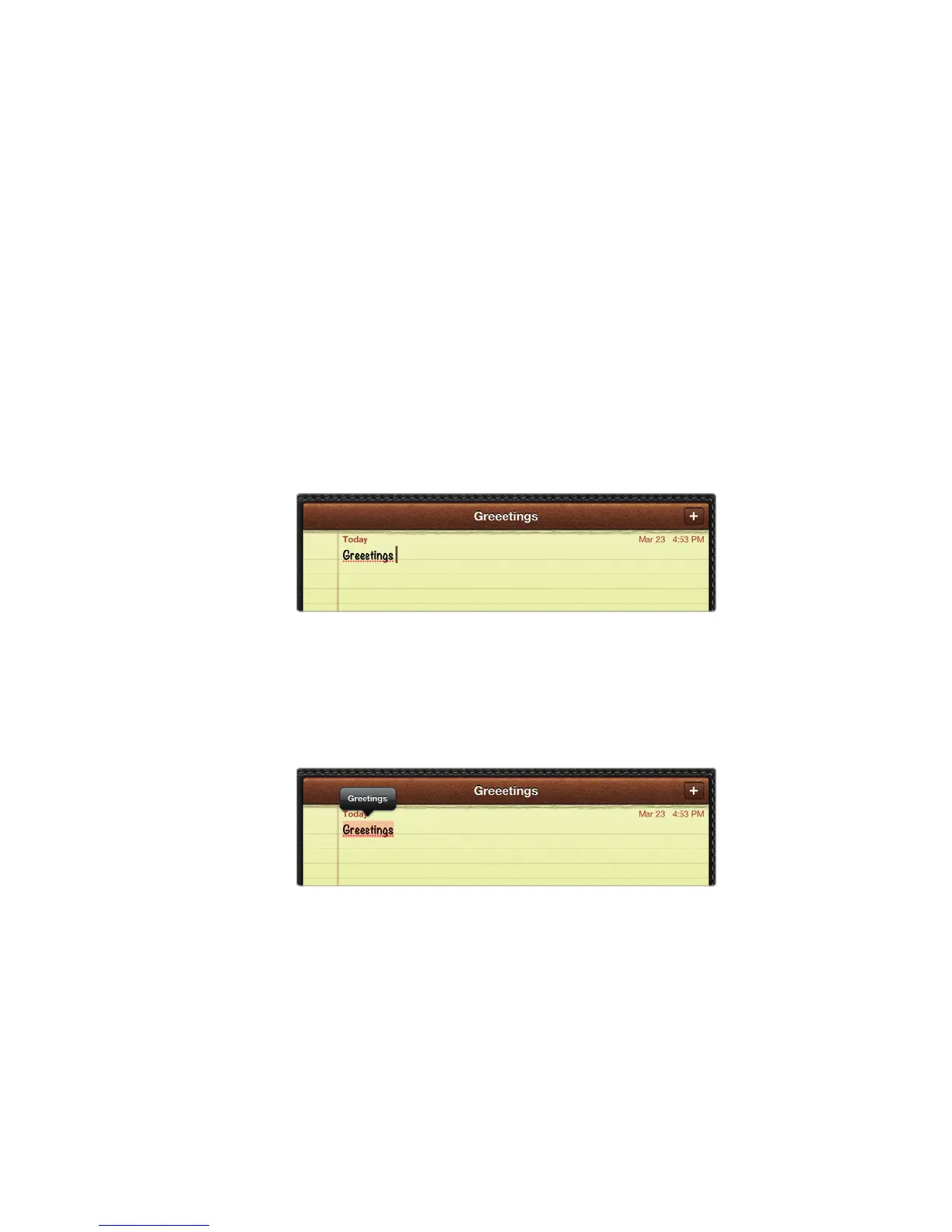
3. Press the spacebar. Notice that the misspelled word appears with a dotted
line underneath to identify it as a possible misspelling, as shown in Figure 5-10.
4. Tap the word. A menu appears, listing possible correct spellings, as shown in
Figure 5-11.
5. Tap the correct spelling, and your iPad replaces your word.
Q NOTE: If you tap a word twice to select it, a Cut, Copy, Paste, and Suggest
menu appears. If you tap Suggest, you can select from a list of alternative
words to replace your currently selected word.
FIGURE 5-10: Possibly misspelled words appear with
a dotted underline.
FIGURE 5-11: Tap once to display suggestions for
your misspelled word.



 To Next Page