38
|
Chapter 5
Customizing the Virtual Keyboard
To make the virtual keyboard easier to use, you may want to customize its behavior.
Five features you can customize include auto-correction, auto-capitalization, spell-
checking, caps lock, and a neat shortcut to insert periods (“.”) automatically.
Auto-correction means the virtual keyboard tries to guess which word you
want to type after you’ve typed only part of that word—the iPad will also attempt
to autocorrect misspellings as you type. Auto-capitalization means that the first
letter of every sentence automatically gets capitalized. Spellchecking automati-
cally highlights potentially misspelled words. Caps lock lets you tap the Shift key
twice to turn on caps lock so you can type capital letters without tapping the Shift
key each time. The shortcut for inserting a period automatically is to simply press the
spacebar twice. All of these features are on by default—if you find them annoying,
just turn them off.
To customize the virtual keyboard, follow these steps:
1. From the Home screen, tap Settings. The Settings screen appears.
2. Tap General. The General settings screen appears.
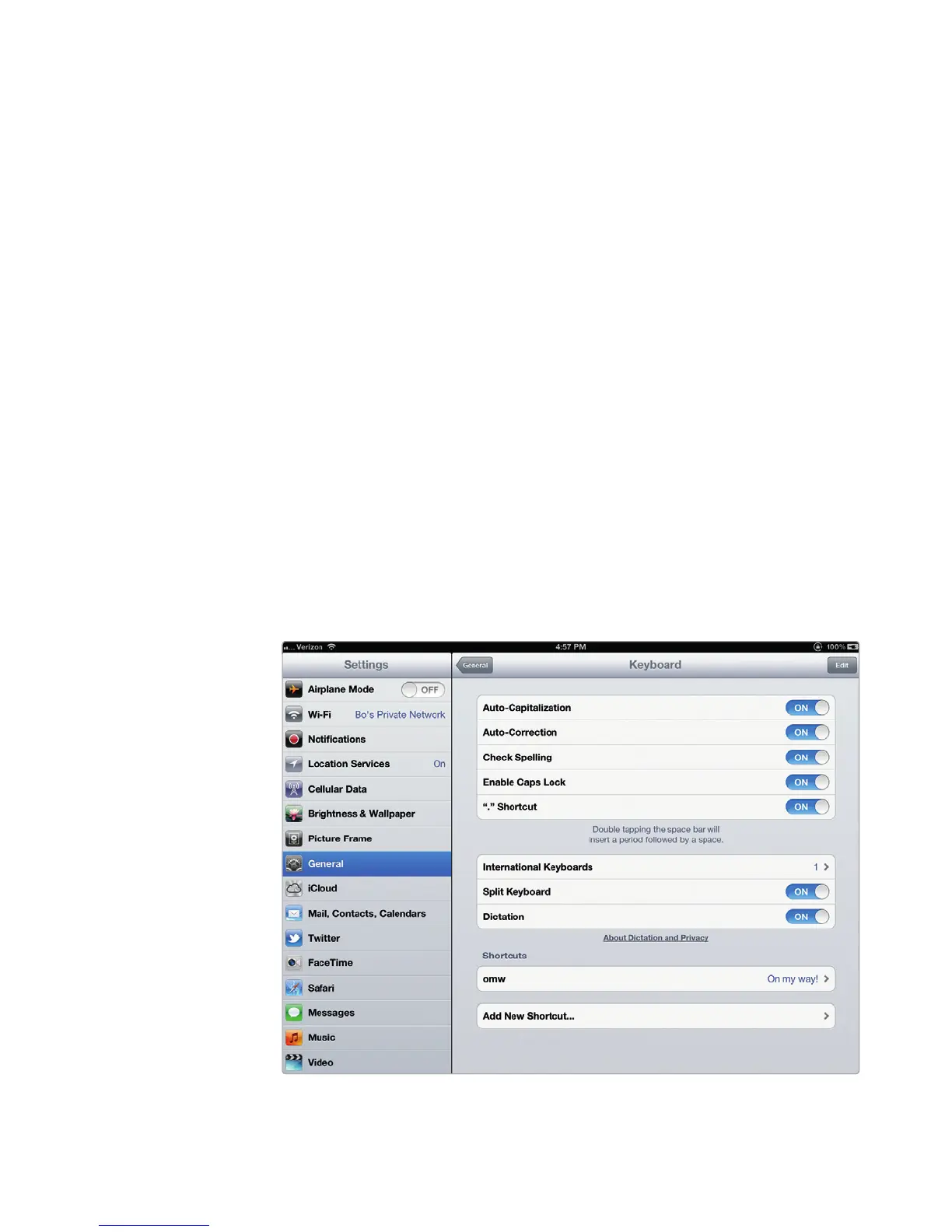
3. Tap Keyboard. The Keyboard settings screen appears, as shown in Figure 5-12.
4. (Optional) Tap the Auto-Capitalization on/off switch.
5. (Optional) Tap the Auto-Correction on/off switch.
6. (Optional) Tap the Check Spelling on/off switch.
7. (Optional) Tap the Enable Caps Lock on/off switch.
8. (Optional) Tap the “.” Shortcut on/off switch.
9. Press the Home button.
FIGURE 5-12: The Keyboard settings screen



 To Next Page