Using and Customizing the Virtual Keyboard
|
39
Q NOTE: Additionally, your iPad can speak any corrections it makes to your
typing aloud. You can enable this feature by tapping Settings, General,
Accessibility and then tapping the Speak Auto-text on/off switch.
Typing Foreign Characters
If you regularly need to type characters in foreign languages that display accent
characters above or below the letter, or type the symbol for euro (€) or yen (¥)
instead of American dollars, the virtual keyboard offers a unique tap-and-hold
feature. Just tap your finger on a key and hold it there. After a few seconds, a menu
of different characters appears, allowing you to slide your finger over the character
you want to type.
To see how to type foreign characters, follow these steps:
1. From the Home screen, tap Notes. The Notes screen appears.
2. Tap the Notes screen to make the virtual keyboard appear.
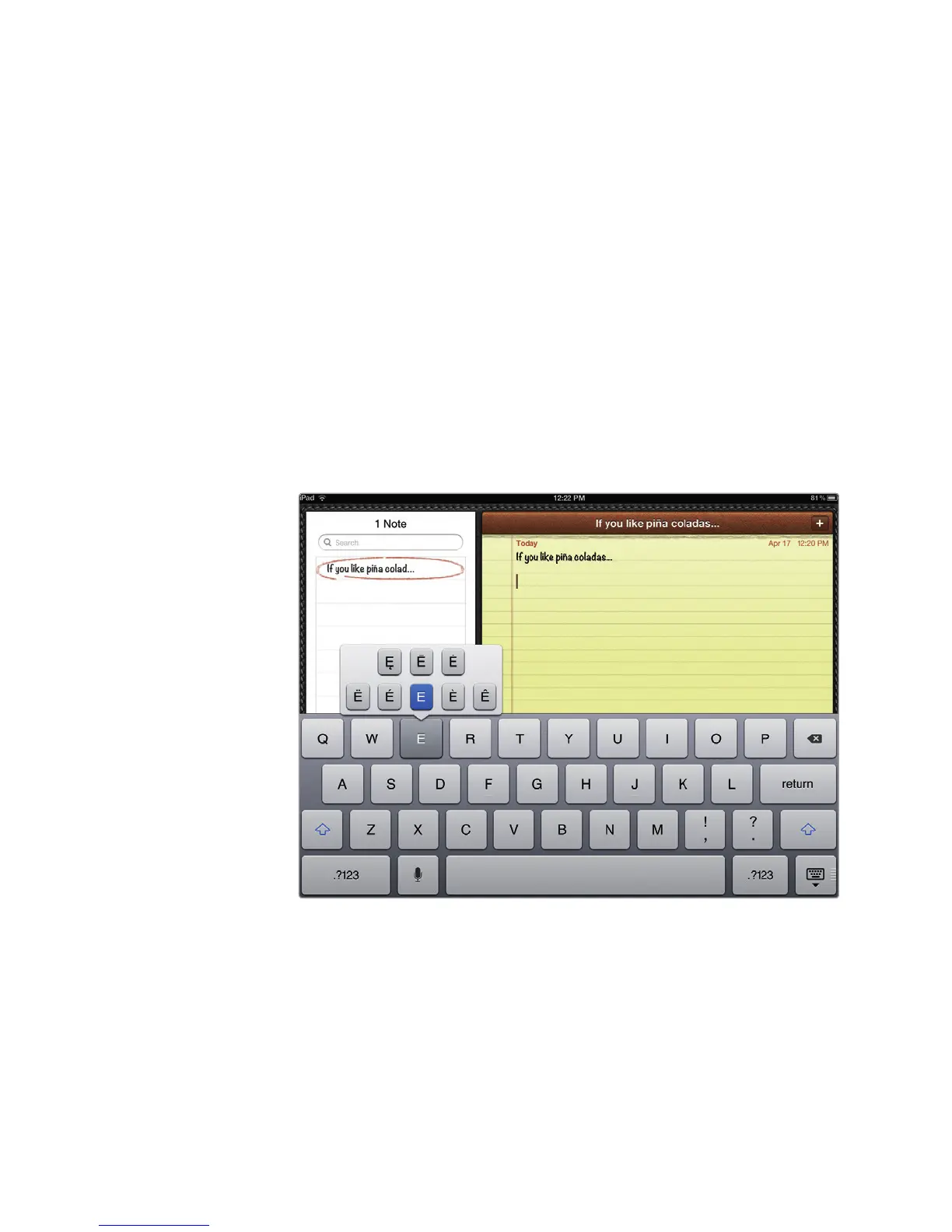
3. Tap and hold the E key until a menu of different characters appears, as shown
in Figure 5-13.
4. Tap and hold other keys to see the character choices for those letters.
5. Tap the .?123 key to switch to the numeric keyboard.
6. Tap and hold the $, -, and ? keys to see the choices for those characters.
To learn more about customizing the iPad for foreign languages, read
Chapter 30.
FIGURE 5-13: Tap and hold a letter (like E, O, C, U, or A) to see spe-
cial characters. Then slide your finger to the character you want.



 To Next Page