40
|
Chapter 5
Turning Off Audible Keyboard Clicks
Typing with the virtual keyboard doesn’t give you any physical feedback when
you’ve pressed a key. To overcome this problem, auditory feedback causes your
iPad to make a slight clicking sound when you’ve pressed a key. By default, this
auditory clicking is turned on, but if it annoys you, you can turn it off.
To turn on (or turn off) these auditory keyboard clicks, follow these steps:
1. From the Home screen, tap Settings. The Settings screen appears.
2. Tap General. The General settings screen appears.
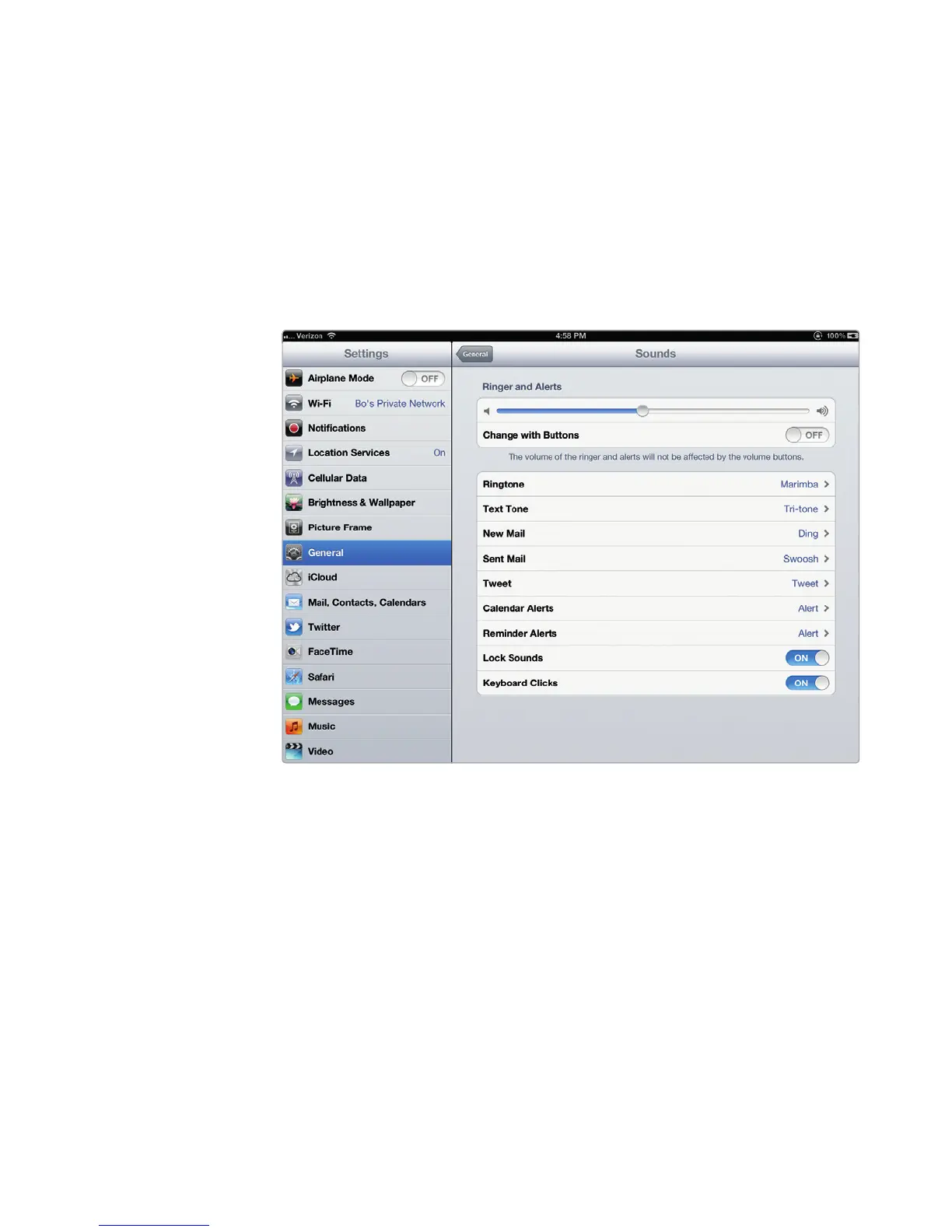
3. Tap Sounds. The Sounds settings screen appears, as shown in Figure 5-14.
4. Tap the Keyboard Clicks on/off switch.
5. Press the Home button.
Docking and Splitting the Keyboard
Normally the virtual keyboard appears at the bottom of the screen. However, if
you’re holding the iPad with both hands, you might find it more convenient to
move the keyboard up toward the middle of the screen. For additional comfort,
you can also split the keyboard so you can type by using just your thumbs.
FIGURE 5-14: The Sounds settings screen lets you turn auditory key-
board clicks on or off.



 To Next Page