Using and Customizing the Virtual Keyboard
|
41
To see how to dock and split the virtual keyboard,
follow these steps:
1. From the Home screen, tap Notes. The Notes
screen appears.
2. Tap anywhere on the right side of the screen that
looks like a yellow notepad. The virtual keyboard
appears.
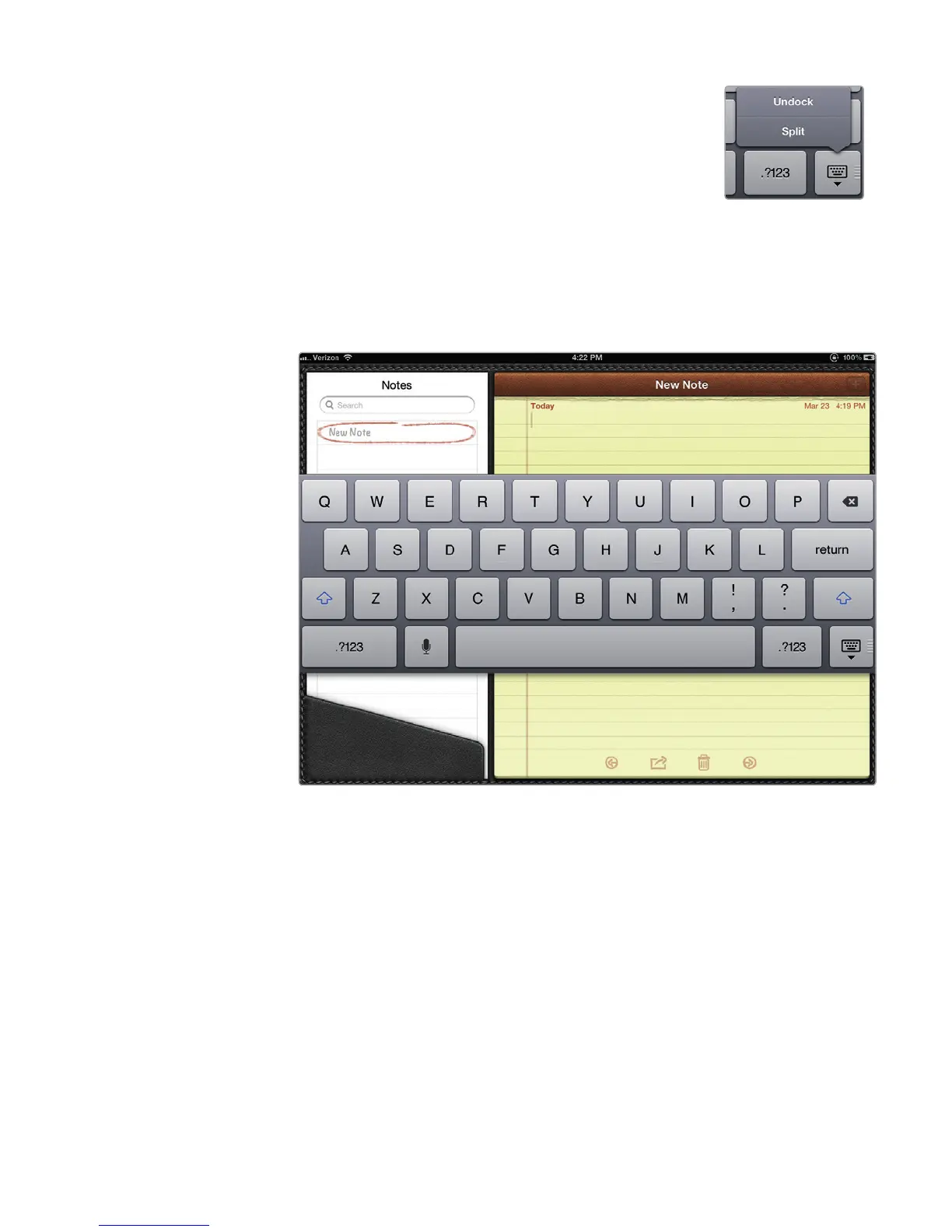
3. Tap and hold the Hide Keyboard key until a menu
appears, as shown in Figure 5-15.
4. Tap Undock. The virtual keyboard now appears in
the middle of the screen, as shown in Figure 5-16.
5. Tap and hold the Hide Keyboard key until a menu appears.
6. Tap Split. The virtual keyboard splits in half, as shown in Figure 5-17.
7. Tap and hold the Hide Keyboard key until a menu appears.
8. Tap Dock and Merge. The keyboard appears back at the bottom of the
screen.
9. Press the Home button.
Q NOTE: Like switching between the two keyboard modes? You can split the
keyboard quickly by literally pulling it apart with a two-thumb drag. When
you want it to merge, just push the keyboard back together with both
thumbs.
FIGURE 5-15: Tap
and hold the Hide
Keyboard key.
FIGURE 5-16: An Undocked keyboard



 To Next Page