Using Dictation and Keyboard Shorcuts
|
45
9. Tap the Voice Dictation key. The voice dictation key pops up to let you know
it’s listening.
10. Say “CNN” into your iPad.
11. Tap the Voice Dictation key again. After a few moments, your iPad displays
the text it thinks you said in the Search field.
Using Shortcuts
The main idea behind shortcuts is to let you type a short acronym and have the
iPad expand it into a complete phrase automatically. To see how to use a short-
cut that’s already available on the iPad for you, follow these steps:
1. From the Home screen, tap Notes. The Notes screen appears.
2. Tap the Notes screen to make the virtual keyboard appear.
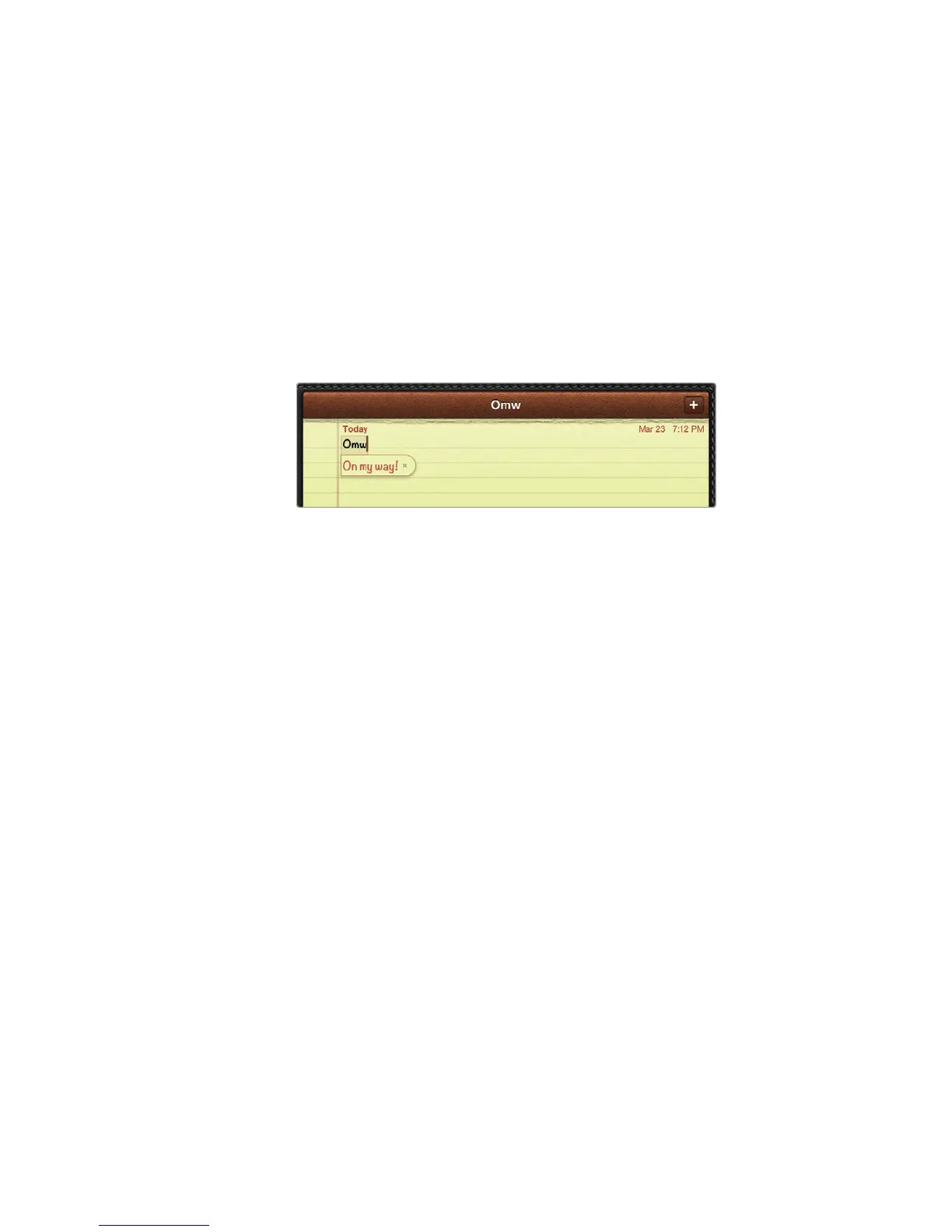
3. Type omw. The complete phrase On my way! appears, as shown in Figure 6-2.
4. Press the spacebar. The iPad types the phrase On my way!.
5. Press the Home button.
Creating Your Own Shortcuts
The iPad includes the omw shortcut, but chances are good that you’d rather create
your own keystroke shortcuts.
Defining a Shortcut
To create your own shortcut, you need to decide on an acronym and the phrase
that you want to associate with the acronym. When you’re ready to create a short-
cut, follow these steps:
1. From the Home screen, tap Settings. The Settings screen appears.
2. Tap General. The General settings screen appears.
3. Tap Keyboard. The Keyboard settings screen appears.
4. Tap Add New Shortcut. The Shortcut screen appears, as shown in Figure6-3.
5. Tap the Phrase text field, and type the entire word or phrase you want the
iPad to type for you, such as Thank you very much!.
6. Tap the Shortcut text field, and type an acronym such as ty.
FIGURE 6-2: The iPad starts with only one built-in
shortcut, omw.



 To Next Page